

Contents
hide


What’s new in Husham Play 1.5
- My proper logo. The husham.com logo is now on the app icon, the splash screen and the TV home-screen banner.
- “Husham Play” everywhere. The name now appears throughout the app, settings, installer and Windows itself. The open-source project underneath only gets credit where its licence says it should.
- A one-click Windows installer. Next, Next, Install, Finish. You get Start menu and desktop shortcuts and a proper uninstaller. Unzipping folders is now optional, like reading terms and conditions.
- Live TV setup fixed. Your Xtream Codes or M3U details now load properly instead of spinning at 0% until the heat death of the universe.
- No more YouTube error at start-up. The YouTube tile now opens my channel in your browser.
- TV-ready Android app. It shows up as Husham Play on Android TV, Google TV, Fire TV and NVIDIA Shield home screens.
- Linux install script. One command and it’s in your applications menu.
Download Husham Play 1.5
Every download is on GitHub (main) and MediaFire (backup). If one is slow, try the other.- Android phones, Android TV, Fire TV 4K & Max, NVIDIA Shield (64-bit APK, about 96 MB). The right one for almost everyone Download from GitHub | Download from MediaFire
- Older Fire Sticks and 32-bit Android (APK, about 94 MB). Use this if the 64-bit one says “App not installed” Download from GitHub | Download from MediaFire
- Windows 10/11 installer (64-bit, about 65 MB). Recommended for Windows Download from GitHub | Download from MediaFire
- Windows 10/11 portable zip (about 93 MB). No install needed, handy for USB sticks Download from GitHub | Download from MediaFire
- Linux x86_64, Ubuntu 22.04 / Debian 12 or newer (about 49 MB). Includes an install script Download from GitHub | Download from MediaFire
- Mac (Apple Silicon M1 or newer): still version 1.0 for now, from the Husham Play page. The 1.5 Mac version is coming as soon as GitHub lends me a Mac again.
How to update from an older version
Already using Husham Play 1.0, 1.1 or 1.4 (or Husham Media)? Here’s the painless route.- Android and Fire TV: just install the new APK over the top. Your settings and add-ons stay put. If it says “App not installed”, you probably picked the wrong one, so try the 32-bit version instead.
- Windows: uninstall the old version first from Settings, Apps, then run the new installer. This also clears out the old name Windows Firewall remembered. If you used the portable zip before, just delete the old folder.
- Linux: extract the new version and run the install script again. It replaces the old one.
- Live TV users, important: after updating, open the setup tile on the home screen and enter your Xtream Codes or M3U details once more. 1.5 saves them in the new, working way.
How to install on Android phones and Android TV
- Open the 64-bit download link above on your device.
- When Android warns you about “unknown apps”, allow your browser or file manager to install apps. It’s in Settings, Apps, Special app access, Install unknown apps.
- Open the downloaded APK and tap Install.
- Open Husham Play. On a TV you’ll find it in your apps list, and you can move it to your favourites row.
How to install on Fire TV and Fire Stick
- From the Home screen, search for and install the free Downloader app.
- Go to Settings, My Fire TV, Developer Options, Install unknown apps, and turn Downloader on. No Developer Options? Go to My Fire TV, About, and click your device name 7 times. Yes, really. Amazon thinks this is fun.
- Open Downloader, type
https://github.com/hmemar/kodi-builder/releases/download/v1.5-android-arm64-v8a-31/Husham-Play-1.5-android-arm64-v8a.apkand press Go. Older Fire Stick? Use the 32-bit link instead. - Click Install, then Open. Done.
How to install on Windows
- Download the Windows installer and double-click
Husham-Play-1.5-windows-x64-setup.exe. - Windows SmartScreen will gasp, because the app isn’t signed by a company with a big legal department. Click More info, then Run anyway.
- Click Next, accept the licence, click Install, then Finish.
- Open Husham Play from the desktop or Start menu. If Windows Firewall asks, tick Private networks and click Allow, so Live TV and your home network videos work.
How to install on Linux
- Extract it:
tar -xJf Husham-Play-1.5-linux-x86_64.tar.xz - Install it:
sudo ./husham-play/install.sh - Open Husham Play from your applications menu. Want Live TV? Install PVR IPTV Simple Client from the official add-on list.
First-time setup in 60 seconds

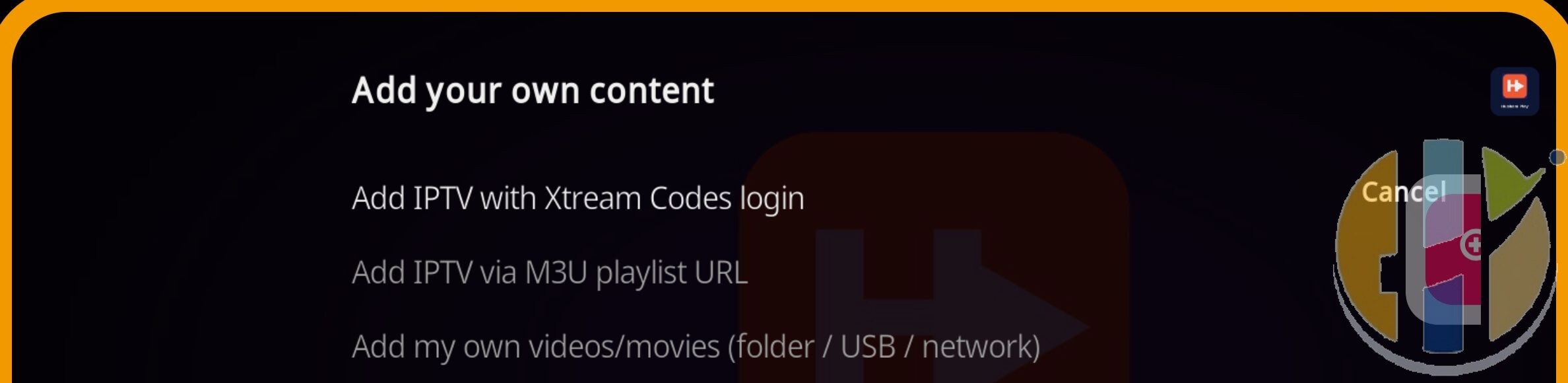
- Xtream Codes login: type the server address (including
http://and the port), your username and your password exactly as your provider sent them. Capital letters matter. - M3U playlist: paste the full playlist link, plus a TV guide (EPG) link if you have one.
- Your own videos: pick a folder, a USB stick or a shared folder on your home network.