Good evening, ladies and gentlemen, and welcome aboard flight KD22, with service from Kodi 21 Omega to Kodi 22 Piers. Every upgrade season the same thing happens: someone clicks update, the library vanishes, the add-ons stop working, and the weekend is spent crying into the remote. Not us. We do it like pilots, with a proper pre-flight checklist and official Kodi only.
I already published a deeper Kodi 22 backup, add-on and rollback checklist. This one is the short, practical walkthrough that matches the video, from checking your version to the walk-around after landing.
Weather report: where is Kodi 22?
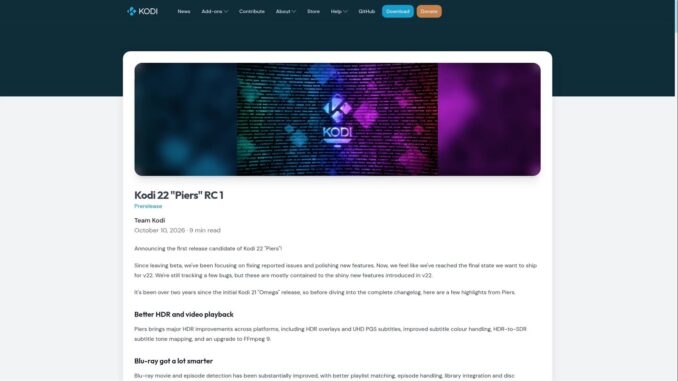
Team Kodi released Kodi 22 “Piers” RC 1 on 10 October 2026. A release candidate means nearly finished but still in testing; the team says it is the state they want to ship, with a few bugs still being tracked. Highlights include big HDR improvements (including HDR overlays and UHD PGS subtitles), FFmpeg 9, much smarter Blu-ray detection, RetroPlayer shaders, RetroAchievements and a new cheat engine, plus Android deep links.
The kodi.tv download page still says that for normal users they recommend the stable releases. So unless you enjoy testing, the safe plan is to wait for the final release and use this checklist then.
Checklist item 1: confirm your current position
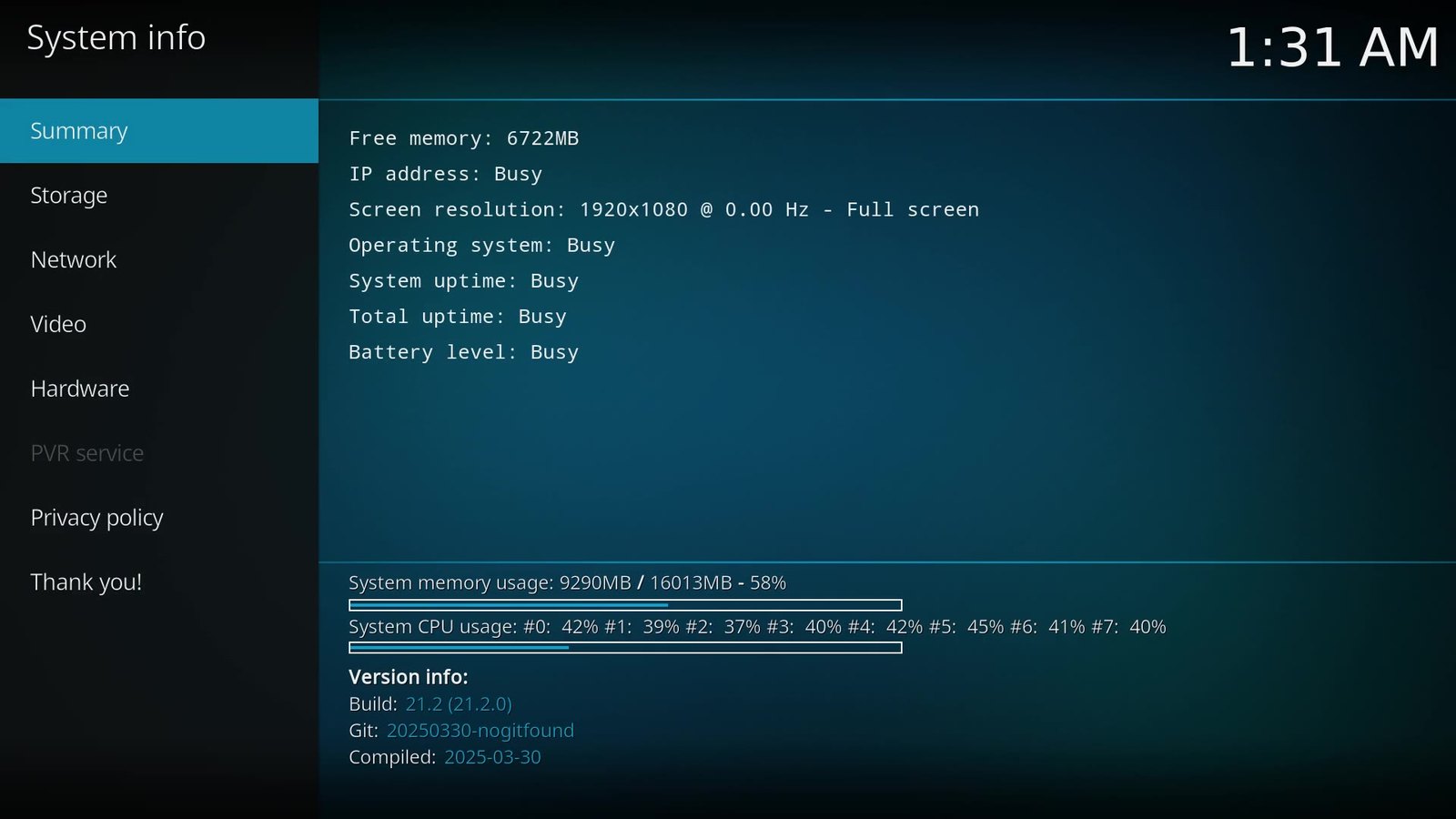
Go to Settings > System information and look at the version number under Version info on the Summary page. Write it down or photograph the screen. If something goes wrong, the first question anyone helping you asks is which version you were on, and “the purple one” is not a version number.
Checklist item 2: pack the parachute
Take a full backup with the official Backup add-on and save it off the box, then export your library with separate files for video. Remember the rule from the Kodi wiki: a full backup is for restoring the same major version. So this backup is your way back to Kodi 21 if 22 does not suit you. It is a parachute, not a teleporter. I cover the whole routine in how to back up Kodi properly.
Checklist item 3: check the cargo
List the add-ons you actually use. Major Kodi versions can change things underneath, and some add-ons need new versions to work. Add-ons in the official Kodi repository are updated through the proper channel for the new version, so if one is not ready on day one, give it time. This is also the moment to say goodbye to that add-on you have not opened since 2022.
Checklist item 4: secure the cabin
Go to Settings > System > Add-ons. Check Updates is set to install updates automatically or at least notify you, so your official add-ons can catch up after the upgrade, and that the update source is official repositories only, which is the default. Keep Unknown sources switched off. Please ensure your tray tables are upright and your unknown sources are off.
Checklist item 5: file the flight plan
Get Kodi 22 only from official places: the kodi.tv download page for your platform, or your device’s official app store, where Kodi is published by the XBMC Foundation. Stable releases sit at the top of the download page and test versions live in a separate Prerelease section. Check requirements first: Team Kodi raised the minimum Android version to 7.0 for Kodi 22, so older boxes on Android 5 or 6 stay on 21.3. Check yours under your device’s Settings > About.
Take-off and landing
For most people, upgrading means installing the new version over the top, or letting the app store update it. Kodi upgrades its data on first start, so the first launch can take longer than usual. Do not pull the plug; let it finish.
Then do the walk-around:
- Is the library there and are your settings right?
- Check add-ons for updates and look for anything disabled.
- Play a film and check picture and sound.
- If you use a skin other than Estuary and menus look odd, switch to Estuary while the skin catches up.
Bumpy landing? Reinstall Kodi 21.3 from kodi.tv or your app store and restore your backup. Pilots call that a go-around. Totally normal.
| # | Check | Done when |
|---|---|---|
| 1 | Current version noted | Photo of System information |
| 2 | Full backup plus library export, off the box | Files visible on USB or network share |
| 3 | Add-on list made | Unused add-ons removed |
| 4 | Add-on updates on, unknown sources off | Settings > System > Add-ons checked |
| 5 | Official download, requirements met | Android 7.0 or newer for Kodi 22 |
Sources: kodi.tv: Kodi 22 Piers RC 1, kodi.tv: Kodi 22 Piers Alpha 1 (Android 7.0 minimum), kodi.tv/download, Kodi wiki: Backup, checked on official Kodi 21.2 on my test machine.
Best IPTV boxes to buy
These are media boxes and sticks that can run players and licensed apps. The first six are Google certified Android TV or Google TV devices with Google Play. The three Fire TV Sticks run Amazon’s own systems with the Appstore instead of Google Play: the 4K Max and 4K Plus run Fire OS, which is Android based, while the new Fire TV Stick 4K (2026) runs Vega OS, which does not allow sideloading Android apps, only Appstore apps. The last one, the Formuler, runs its own Android and is not certified. They are not pirate hardware. They do not come with channels or playlists. I am not claiming I personally lab-tested every SKU this month.
Pick a Google TV box when you want Play Store apps on a proper TV OS or a dedicated player behind the sofa. Pick a Fire TV Stick when Prime Video and the Appstore already cover what you watch. If you need an Android player from outside the Appstore, skip the Vega OS stick.
- NVIDIA SHIELD TV Pro: the premium pick, a certified Android TV player with AI upscaling, Dolby Vision/Atmos and Gigabit Ethernet for the main living-room telly. Amazon UK | Amazon US | Amazon DE | Amazon FR | Amazon IT
- Google TV Streamer 4K: solid Google TV living-room default with Ethernet, 32GB storage and Dolby Vision/Atmos. Amazon UK | Amazon US | Amazon DE | Amazon FR | Amazon IT
- Xiaomi TV Box S (3rd Gen): Google TV box with 32GB storage, Wi-Fi 6 and Dolby Vision/Atmos, the cheaper box route than the Streamer. Amazon UK | Amazon US | Amazon DE | Amazon FR | Amazon IT
- Xiaomi TV Stick 4K (2nd Gen): budget Google TV stick with Wi-Fi 6 and Dolby Vision/Atmos when you want HDMI-simple, not a full box. Amazon UK | Amazon US | Amazon DE | Amazon FR | Amazon IT
- Budget Google TV 4K player: a cheaper certified Google TV player for a second telly. The model differs by store, so each link names the one you get there. MECOOL KD3 (Amazon UK) | onn. Google TV 4K Streaming Box (Amazon US) | Strong LEAP-NOVA-X (Amazon DE) | Strong LEAP-NOVA-X (Amazon FR) | Strong LEAP-NOVA-X (Amazon IT)
- MECOOL MEon1: Google TV certified 4K box with AI upscaling and 32GB storage for a dedicated player behind the sofa. Amazon UK
- Fire TV Stick 4K Max: the most powerful Fire TV Stick, with Wi-Fi 6E, Dolby Vision/Atmos and 16GB storage. It runs Fire OS, which is Android based, so you get Appstore apps and can still sideload an Android player. Amazon UK | Amazon US | Amazon DE
- Fire TV Stick 4K Plus: the older Fire OS stick with Wi-Fi 6 and Dolby Vision/Atmos. It is being phased out, so buy it only while stock lasts. Like the Max, it can still sideload Android apps. Amazon UK | Amazon US | Amazon DE | Amazon FR | Amazon IT
- Fire TV Stick 4K (2026): the newest and slimmest 4K stick, with a new remote. It runs Vega OS, which does not allow sideloading Android apps, only Appstore apps, so check your player is in the Appstore before you buy. Amazon UK | Amazon US | Amazon DE | Amazon FR | Amazon IT
- Formuler Z12 Ultra SE: the newest Formuler box, built around MYTVOnline 4 for IPTV playlists. It runs Formuler’s own Android rather than certified Google TV, so there is no Netflix in HD and no Google certification. Formuler Z12 Ultra SE (Amazon UK) | Formuler Z12 Ultra SE (Amazon US) | Formuler Z12 Ultra SE (Amazon DE) | Formuler Z12 Ultra SE (Amazon FR) | Formuler Z12 Ultra SE (Amazon IT)
Whichever you pick, check that the app you need is in its store before you pay. And none of these boxes or sticks magically make unlicensed streams legal.
Written by Dr Husham Memar