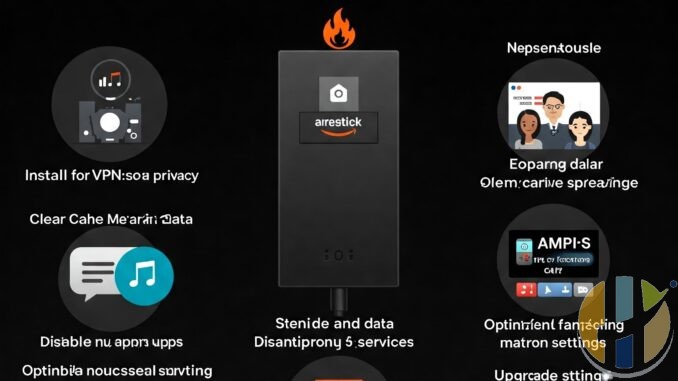
Enhancing FireStick Performance for IPTV Streaming
The Amazon FireStick has become a popular device for streaming IPTV content. However, users often encounter performance issues like buffering, lagging, and freezing. This article guides you through various methods to optimize your FireStick for a smoother IPTV streaming experience.
1. Check Your Internet Connection

A stable and fast internet connection is crucial for seamless IPTV streaming. Start by testing your internet speed using a reliable online speed test tool. Aim for at least 10 Mbps for standard definition and 25 Mbps or more for high-definition streaming. If your speed is consistently low, consider the following:
- Restart your router and modem: This simple step often resolves temporary connectivity issues.
- Move closer to your router: If using Wi-Fi, reduce the distance between your FireStick and router to minimize signal interference.
- Switch to a wired connection: If possible, use an Ethernet adapter for your FireStick for a more stable connection.
- Contact your ISP: If you consistently experience low speeds, contact your internet service provider to troubleshoot potential issues.
2. Optimize FireStick Settings
Several settings on your FireStick can be adjusted to improve performance:

2.1. Reduce Background Processes
Background processes can consume system resources and slow down your FireStick. To close unnecessary apps:
- Press the Home button on your FireStick remote.
- Navigate to Settings > Applications > Manage Installed Applications.
- Select an app you are not using and choose “Force stop.”
2.2. Clear App Cache and Data
Over time, app cache and data can accumulate and impact performance. Regularly clearing them can free up storage and improve speed:
- Go to Settings > Applications > Manage Installed Applications.
- Select the IPTV app or any other app you want to optimize.
- Choose “Clear cache” and then “Clear data.”
2.3. Disable Data Monitoring
Data monitoring features can consume processing power. Disabling them can improve performance:
- Go to Settings > Preferences > Data Monitoring.
- Turn off “Data Monitoring.”
- 3. Software Updates and Management

3.1. Keep Your FireStick Updated
Amazon regularly releases software updates that include performance improvements and bug fixes. Ensure your FireStick is running the latest software:
- Go to Settings > My Fire TV > About.
- Select “Check for System Update.”
- If an update is available, follow the on-screen instructions.
3.2. Uninstall Unnecessary Apps
Having too many apps installed can consume storage and processing power. Uninstall apps you rarely use:
- Go to Settings > Applications > Manage Installed Applications.
- Select the app you want to uninstall and choose “Uninstall.”
3.3. Consider a Lightweight Launcher
The default FireStick launcher can be resource-intensive. Consider using a lightweight third-party launcher for a smoother experience. (Note: Installing third party launchers could void your warranty, and may have security risks. Research thoroughly before doing so.)
4. Hardware Enhancements
4.1. Use an Ethernet Adapter
As mentioned earlier, a wired Ethernet connection is more stable than Wi-Fi. Use an Ethernet adapter specifically designed for FireStick to connect your device directly to your router.
4.2. External Storage
If you frequently download content or use storage-intensive apps, consider using an external USB drive for additional storage. Ensure the USB drive is compatible with your FireStick and formatted correctly.
4.3. Cooling Solutions
Overheating can lead to performance issues. If your FireStick frequently gets hot, consider using a USB-powered cooling fan or a heat sink to improve airflow.
5. IPTV App Optimization
Your IPTV app itself can also be optimized for better performance. Look for settings within the app that allow you to adjust:
- Buffer size: Increasing the buffer size can help reduce buffering issues.
- Video quality: Lowering the video quality can reduce bandwidth usage and improve performance.
- Hardware acceleration: Enabling hardware acceleration can offload processing to the FireStick's GPU.
6. Advanced Troubleshooting and Tips
- Factory Reset: If all else fails, a factory reset can resolve persistent performance issues. Remember to back up important data before performing a reset.
- VPN Usage: While VPNs can enhance privacy, they can also impact streaming performance. Choose a reliable VPN with fast servers.
- IPTV Provider Quality: The quality of your IPTV service also plays a crucial role. Ensure you are using a reputable provider with stable servers.
- DNS Settings: Changing your DNS settings to a faster public DNS server like Google DNS (8.8.8.8 and 8.8.4.4) can sometimes improve connection speeds.
By implementing these optimizations, you can significantly enhance your FireStick's performance for a smoother and more enjoyable IPTV streaming experience.