Your Google TV stick starts hitching mid-episode and the first instinct is to blame Netflix, ITVX or whatever app is on screen. Fair. Apps get updates that wobble. Before you wipe data or hunt secret codes, check the Wi-Fi path into the stick. Most living-room buffering I see is radio and power, not a cursed streamer icon.
\n
This is a practical UK setup guide for Chromecast with Google TV sticks and similar Google TV dongles. The newer Google TV Streamer 4K is a box with Ethernet built in, so some of the Wi-Fi pain below simply does not apply once you plug a cable. Sticks live on Wi-Fi and a thin HDMI socket, which is where the drama starts.
Stop diagnosing the app first
Buffering that repeats every few minutes, audio that drifts ahead of picture, or a spinner that only appears when the house is busy usually points at shared airtime. If the same title plays fine on a phone next to the router but stalls on the stick behind the TV, you already have your answer. The app is the messenger. The network is the problem.
Quick sanity checks before you touch settings:
- Confirm the stick shows a solid connection under Settings → Network & Internet, not Limited or bouncing between SSIDs.
- Note whether you are on the 5 GHz or 2.4 GHz band. Google’s own Chromecast / Google TV Streamer help page tells you to prefer 5 GHz when the router offers both.
- Try one other licensed app. If YouTube and a catch-up service (and Freely where Freely/catch-up is offered on your device) all stutter, it is not Netflix being Netflix.
- Walk a phone to the TV cabinet and run a simple speed test on the same SSID. If the phone also struggles there, the stick never stood a chance.
Get on 5 GHz and keep the stick off the noisy band
UK flats and terraced houses are loud on 2.4 GHz. Microwaves, cheap baby monitors, neighbouring Wi-Fi, the lot. 5 GHz carries less range but far less of that clutter, which is why a stick three metres from a mesh node on 5 GHz often beats a stick clinging to a distant 2.4 GHz SSID with a full signal bar that lies.
Practical moves:
- If your router broadcasts one combined SSID, force the stick onto 5 GHz by temporarily disabling 2.4 GHz on the router, joining the stick, then turning 2.4 GHz back on for older gadgets. Some routers let you split Home-2G and Home-5G names; that is cleaner if you can live with it.
- Ignore smart Wi-Fi band steering if the stick keeps landing on 2.4 GHz. Steering optimises for phones that roam. A glued-to-the-TV stick wants a fixed, clean 5 GHz path.
- Channel width matters less than distance and clear air. Do not chase 160 MHz party tricks on a crowded estate. Stable 80 MHz on a quiet channel beats a flashy setting that drops under load.
Mesh node placement beats buying another stick
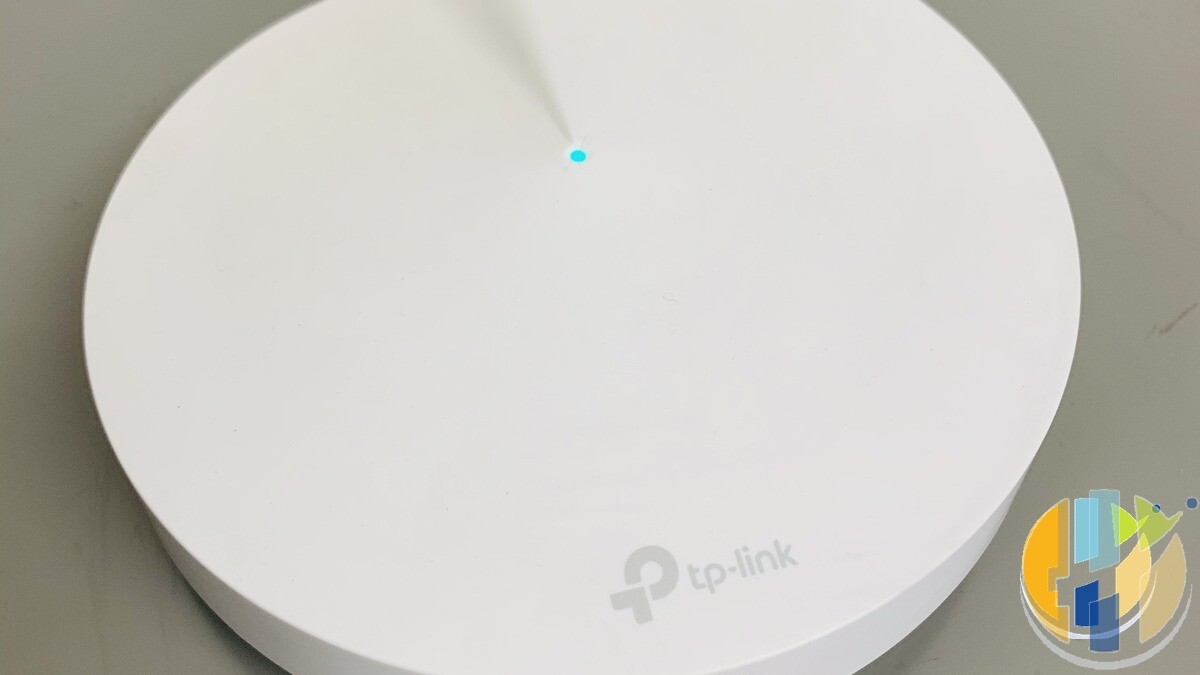
Mesh systems (Google Nest Wifi, EE Smart WiFi, Virgin Hub mesh pods, TP-Link Deco, the usual UK suspects) fix more buffering than any app cache clear. Put a node in line of sight of the TV wall if you can. Cupboards full of routers behind thick brick and a stick jammed behind a metal TV stand is the classic UK fail.
Rules of thumb I actually use:
- Node within a room or two of the TV, not only in the hallway for coverage maths.
- Keep the stick’s Wi-Fi antennas clear of HDMI bricks, soundbar power supplies and the TV’s own wireless board. Google’s troubleshooting notes even say to move the streaming device further from the TV and other cables when interference shows up.
- If the mesh backhaul is wireless, avoid parking the node and the stick on opposite sides of a thick chimney breast. The node may look green in the app while the stick is starved.
You do not need enterprise gear. You need the radio closer to the sofa wall.
HDMI port power quirks (yes, really)
Sticks draw power from their USB-C or micro-USB supply, but the HDMI socket still matters. Some TVs cut or throttle accessory behaviour when the set sleeps, switches input, or runs eco HDMI. Symptoms look like network faults: freeze, reboot loop, or a stick that only behaves after you yank HDMI and reseat it.
- Use the power adapter that came with the stick, plugged into a wall socket, not a random USB port on the TV that shares power with a soundbar hub.
- Try a different HDMI input on the TV. ARC/eARC ports sometimes behave oddly with always-on dongles.
- Disable aggressive HDMI-CEC power saving on the TV if the stick drops offline every time you switch to Freeview Play or the built-in apps.
- Cheap ultra-thin HDMI extenders and right-angle adapters add failure points. If you need distance, a short quality cable beats three adapters stacked behind the panel.
If the stick runs hot in a sealed cabinet, give it air. Thermal throttling looks a lot like buffering when decode and Wi-Fi share the same small board.
Ethernet when the stick (or box) supports it
Hard wire removes the guessing. Product reality check – check Amazon today for the Streamer or an official/supported Ethernet kit for your exact model; I am not inventing adapter ASINs:
- Google TV Streamer 4K includes a built-in Gigabit Ethernet port. If buffering is your life and the TV is near a router or a mesh node with a LAN port, plug it in and stop wrestling Wi-Fi.
- Chromecast with Google TV (the stick form) has no Ethernet jack. Google’s support page says Chromecast and Chromecast with Google TV support Ethernet via a separate adapter. Buy only the official/supported kit for that exact stick – usually a USB-C Ethernet plus power arrangement designed for it, not a random USB-C dongle that steals the only power port.
- Other Google TV sticks vary. Read the box: if there is no LAN port and no official Ethernet adapter supported line for your exact model, do not assume a generic USB-C hub will work while powering the stick.
Buy for your exact model, check recent Amazon UK reviews, and prefer kits that pass power and Ethernet together so you are not daisy-chaining guesswork.
Light router QoS, then leave it alone
Quality of Service on consumer routers is easy to overdo. Two bullets only:
- If your router has a simple streaming or gaming priority profile, enable it once, reserve a DHCP address for the stick, and test for a week. Do not stack five custom rules you will forget.
- Cap or schedule big uploads (NAS backups, PC game downloads) for overnight if the household streams in the evening. That often beats clever QoS charts. If your ISP hub is locked down, a cheap mesh with Ethernet backhaul to the hub’s LAN port usually beats fighting the ISP UI.
App cache clear without the superstition
When Wi-Fi and power look healthy and only one app stalls, clear that app’s cache. On Google TV: Settings → Apps → See all apps → [app] → Clear cache. Clear storage only if you are willing to sign in again. Then reboot the stick from Settings, not by yanking power every time. Keep apps updated from the Play Store. Skip random TV booster APKs. They do not fix RF physics.
Legal viewing note: Freely (where Freely/catch-up is offered) and official catch-up apps on a certified Google TV device are normal licensed routes – buffering on those is still usually your home network, not a hint to hunt illegal streams.
A short order of operations that actually works
- Confirm 5 GHz and a mesh node near the TV.
- Wall-power the stick; reseat HDMI on a different port.
- Test another licensed app and a phone speed check at the cabinet.
- Ethernet on Streamer, or an official/supported stick Ethernet adapter for your exact model only.
- Clear the one failing app’s cache; update; reboot.
- Only then factory-reset the stick, after you have exhausted the radio path.
Most homes never reach the factory reset. Fix the air and the power first. Blame the app last.
Best IPTV boxes to buy this month from Amazon
These are certified Android TV / Google TV devices for official apps and licensed services; they do not include playlists or channels; illegal IPTV is illegal. No Fire Stick, no Vega, no Fire OS.
Affiliate disclosure: UK tag hushamcom-21; US tag hushamcom-20. amazon.co.uk links use our Associates tag (hushamcom-21). We may earn a commission at no extra cost to you. Check Amazon price today. Lead with Streamer-with-Ethernet when Wi-Fi behind the TV refuses to behave; sticks are secondary once the radio path is sorted. UK tag hushamcom-21; US tag hushamcom-20.
- Google TV Streamer 4K · Amazon US – Google’s living-room Google TV box with built-in Ethernet when Wi-Fi behind the TV refuses to behave.
- Nokia Streaming Box 8010 (UK listing — no clean US match) – small certified Android TV box if you prefer a box over a dongle.
- MECOOL KM2 Plus Deluxe · Amazon US – Google TV box when you want a dedicated player behind the sofa.
- Xiaomi TV Stick 4K (2nd Gen) · Amazon US – budget 4K Google TV stick for a second HDMI socket once your Wi-Fi path is sorted.
- Strong LEAP-AIR (UK listing — no clean US match) – UK-market Google TV stick worth checking for stock and remote layout (secondary to Streamer/Ethernet).