Your Kodi is not old. It is just carrying too much. Skins it does not need, add-ons you installed once in 2022, and a library that rescans itself every time you open it. No wonder it moves like a Monday morning.
Here are seven fixes that make Kodi feel fast again. Every one is a built-in Kodi setting or your device’s own settings. No “booster” apps, no “cleaner” apps, no mystery downloads.
Fix 1: use the default Estuary skin
The skin is Kodi’s whole look: menus, fonts, animations. The default skin, Estuary, is designed to run on pretty much anything. Some third-party skins look stunning, with moving backgrounds and widgets everywhere, and on a powerful box they are lovely. On a cheap stick it is like fitting a spoiler to a shopping trolley.
Go to Settings > Interface > Skin and check it says Estuary. If not, switch back for a week and see how it feels.
Fix 2: disable add-ons you do not use
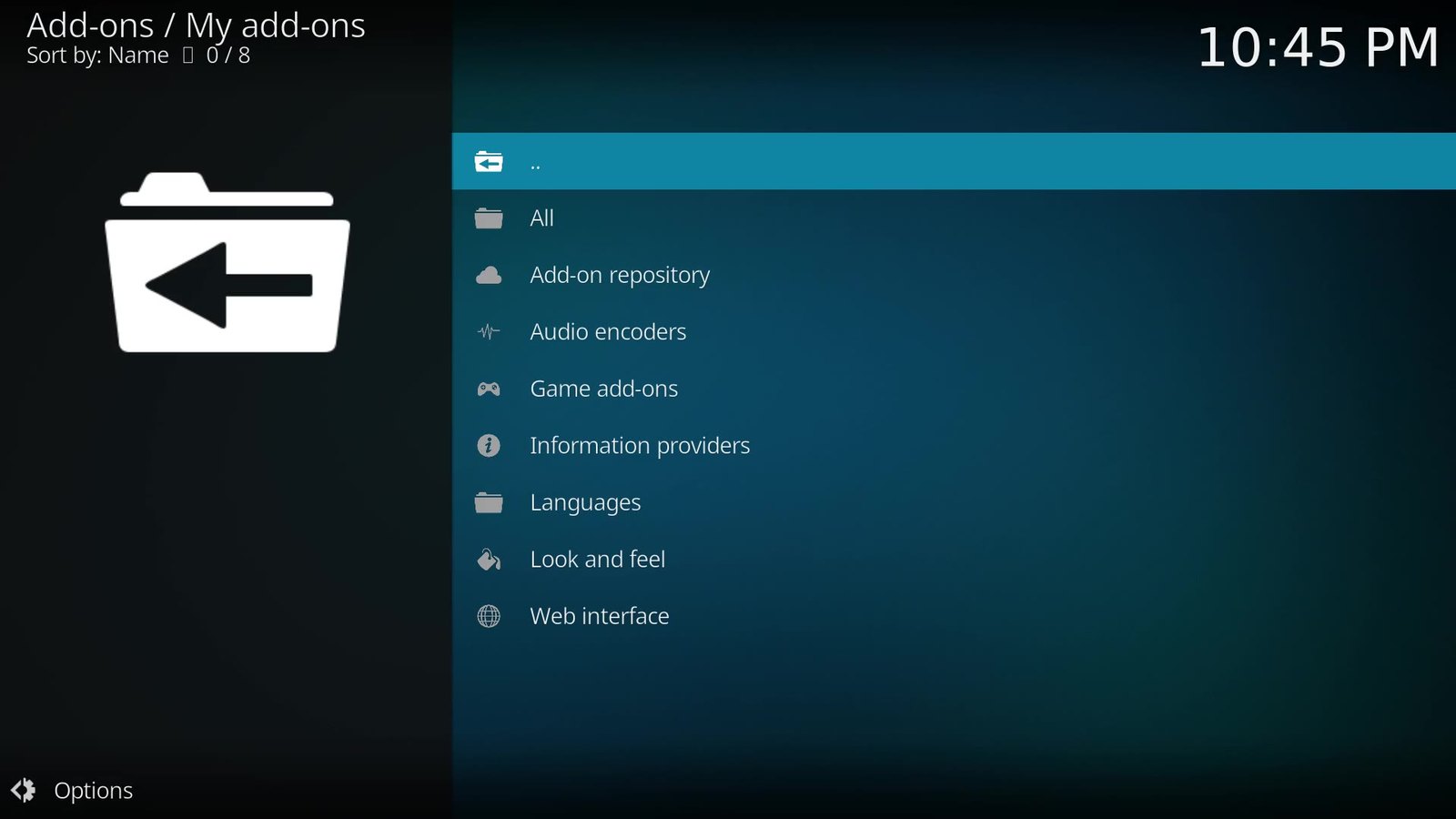
Installed add-ons can load parts of themselves in the background and check for updates. Go to Add-ons > My add-ons, open a category, pick something you have not touched in months and choose Disable. Disable rather than uninstall, so you can switch it back on if you miss it. And keep to the official Kodi add-on repository, which is built in and is the only one I use.
Fix 3: stop the library scanning itself
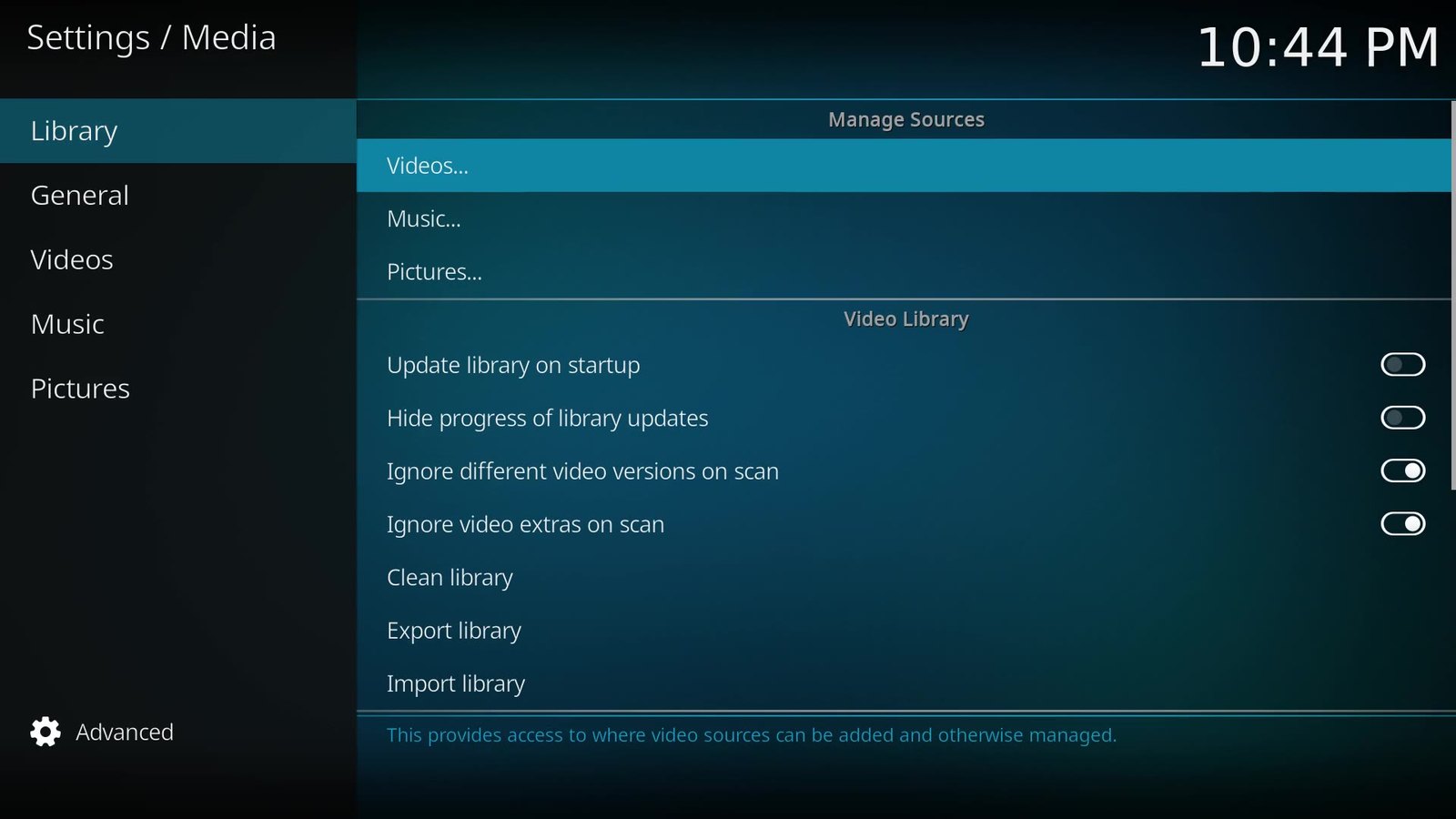
In Settings > Media > Library there is a switch called Update library on startup. Kodi’s wiki is clear: if your content does not change often, leave it disabled, because it will scan for no benefit and may make internet lookups for files it cannot identify. Turn it off and update the library yourself when you add something.
While you are there, check your video sources. That old hard drive you unplugged in 2019? Kodi is still politely looking for it. Remove sources you no longer use.
Fix 4: leave hardware acceleration on
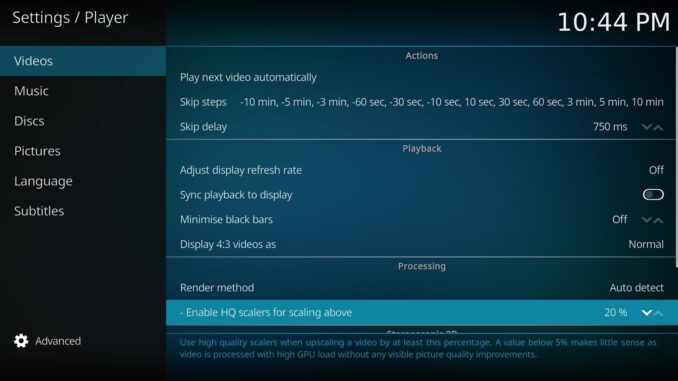
This one is the opposite: do not turn it off. In Settings > Player > Videos, the Processing section holds the hardware acceleration options. The names depend on your platform: MediaCodec on Android, DXVA2 on Windows, VAAPI or VDPAU on Linux. Hardware decoding lets the video chip do the heavy lifting instead of the main processor, and on a cheap box that is the difference between smooth 4K and a slideshow. If an old forum post told you to switch it off to fix a glitch, switch it back on and only change it for a specific problem file.
Fix 5: close background apps the official way
On Android TV boxes, other apps can keep running and eat memory. You do not need a RAM booster for this; most of those just add one more app running in the background. Use the device’s own settings instead: usually Settings > Apps, pick the app, then Force stop. Or simply restart the box now and then.
Fix 6: fix judder with refresh rate switching
This is about smoothness rather than speed. If pans look jerky, your TV’s refresh rate probably does not match the film’s frame rate. In Settings > Player > Videos, set Adjust display refresh rate to On start/stop. Kodi switches the TV to match the film when it starts and switches back when it stops. The wiki notes that your screen may go black for a few seconds while it switches; that is the TV, not Kodi wobbling. It also notes that On start/stop becomes the default from Kodi 22, so Kodi agrees with me for once.
Fix 7: actually exit Kodi
Lots of us leave Kodi running for weeks. On Android, pressing Home just sends it to the background, still running. Use the power button on the Kodi home screen and choose Exit, then open it again. Turning it off and on again is the oldest fix in IT, and it still works.
Bonus: is it Kodi, or is it the file?
If one particular film stutters, press O during playback to see the player info, including the video decoder. On my test machine it shows software decoding, because that machine has no video chip for Kodi to use. On a proper streaming box you want to see hardware decoding there. If one huge file struggles and everything else is smooth, blame the file. The file can take it.
| Fix | Where |
|---|---|
| Use Estuary | Settings > Interface > Skin |
| Disable unused add-ons | Add-ons > My add-ons |
| Stop scanning on startup, remove dead sources | Settings > Media > Library |
| Keep hardware acceleration on | Settings > Player > Videos > Processing |
| Force stop background apps | Your device’s Settings > Apps |
| Fix judder | Settings > Player > Videos > Adjust display refresh rate |
| Exit Kodi properly | Power button > Exit |
Still sluggish? It may be buffering rather than speed, so try the settings in my Kodi buffering guide. And if storage is nearly full, the next episode in the series deals with Kodi’s thumbnail hoard, safely. Kodi itself should only come from kodi.tv/download or your official app store.
Sources: Kodi wiki: Settings/Player/Videos (updated for v22), Kodi wiki: Settings/Media/Library, Kodi wiki: Estuary, checked on official Kodi 21.2 on my test machine.
If the seven fixes above did nothing and the same file plays fine on another network, the route is the suspect. That is when a VPN is a diagnostic tool, not magic. Surfshark (IPTV notes) or PureVPN are enough to A/B test a different egress. If both paths stutter, stop buying VPN trials and check the source bitrate instead.
Best IPTV boxes to buy
These are media boxes and sticks that can run players and licensed apps. The first six are Google certified Android TV or Google TV devices with Google Play; the last one, the Formuler, runs its own Android and is not certified. They are not pirate hardware. They do not come with channels or playlists. I am not claiming I personally lab-tested every SKU this month.
Buy one of these when: Fire TV sideload is a hassle on your model, you want Play Store apps on a proper TV OS, or you want a dedicated player shell behind the sofa. No Fire TV device is on this shortlist.
- NVIDIA SHIELD TV Pro: the premium pick, a certified Android TV player with AI upscaling, Dolby Vision/Atmos and Gigabit Ethernet for the main living-room telly. Amazon UK | Amazon US | Amazon DE | Amazon FR | Amazon IT
- Google TV Streamer 4K: solid Google TV living-room default with Ethernet, 32GB storage and Dolby Vision/Atmos. Amazon UK | Amazon US | Amazon DE | Amazon FR | Amazon IT
- Xiaomi TV Box S (3rd Gen): Google TV box with 32GB storage, Wi-Fi 6 and Dolby Vision/Atmos, the cheaper box route than the Streamer. Amazon UK | Amazon US | Amazon DE | Amazon FR | Amazon IT
- Xiaomi TV Stick 4K (2nd Gen): budget Google TV stick with Wi-Fi 6 and Dolby Vision/Atmos when you want HDMI-simple, not a full box. Amazon UK | Amazon US | Amazon DE | Amazon FR | Amazon IT
- Budget Google TV 4K player: a cheaper certified Google TV player for a second telly. The model differs by store, so each link names the one you get there. MECOOL KD3 (Amazon UK) | onn. Google TV 4K Streaming Box (Amazon US) | Strong LEAP-NOVA-X (Amazon DE) | Strong LEAP-NOVA-X (Amazon FR) | Strong LEAP-NOVA-X (Amazon IT)
- MECOOL MEon1: Google TV certified 4K box with AI upscaling and 32GB storage for a dedicated player behind the sofa. Amazon UK
- Formuler Z12 Ultra SE: the newest Formuler box, built around MYTVOnline 4 for IPTV playlists. It runs Formuler’s own Android rather than certified Google TV, so there is no Netflix in HD and it is the one box here without Google certification. Formuler Z12 Ultra SE (Amazon UK) | Formuler Z12 Ultra SE (Amazon US) | Formuler Z12 Ultra SE (Amazon DE) | Formuler Z12 Ultra SE (Amazon FR) | Formuler Z12 Ultra SE (Amazon IT)
Still shopping for a Fire TV device? Fine for Prime Video and the Appstore universe. Not the shortlist above. And none of these boxes magically make unlicensed streams legal.
Written by Dr Husham Memar