Kodi buffers, and the first thing everyone blames is the Wi-Fi. Sometimes that is fair. But a surprising amount of the time your network is fine and Kodi is simply being cautious about how much of the film it grabs ahead of you. The fix lives in a menu most people have never seen, because Kodi hides it behind a little gear icon.
Here is the twist that makes most old tutorials useless: since Kodi 21 Omega, the cache settings are no longer in a file at all. They moved into the normal settings screens, and Kodi’s own wiki says any old cache tags still sitting in advancedsettings.xml are now ignored. Years of copying and pasting XML, straight in the bin. So let’s do it the current way, with official Kodi settings only.
First, is it really your Wi-Fi?
Play something and press O on a keyboard (or open the player info from your remote). Kodi shows the decoder, resolution and frame rate. Now look at the progress bar at the bottom: the lighter grey section running ahead of the playhead is what Kodi has already cached. A long grey bar means a happy film. A tiny one means Kodi is living hand to mouth.
If the bar stays tiny even with the settings below, the problem really is on the network side, and I cover that in why even 10Gbps broadband still buffers and fixing Wi-Fi on Google TV sticks.
- Open Settings, then Services.
- Look at the bottom left of the screen. The gear probably says Standard.
- Click it until it says Advanced (or Expert).
- A new Caching entry appears in the left list, along with SMB client and NFS client.
That is the whole secret. Buffering settings are apparently too dangerous for Standard mode, like a kitchen knife or a microwave.
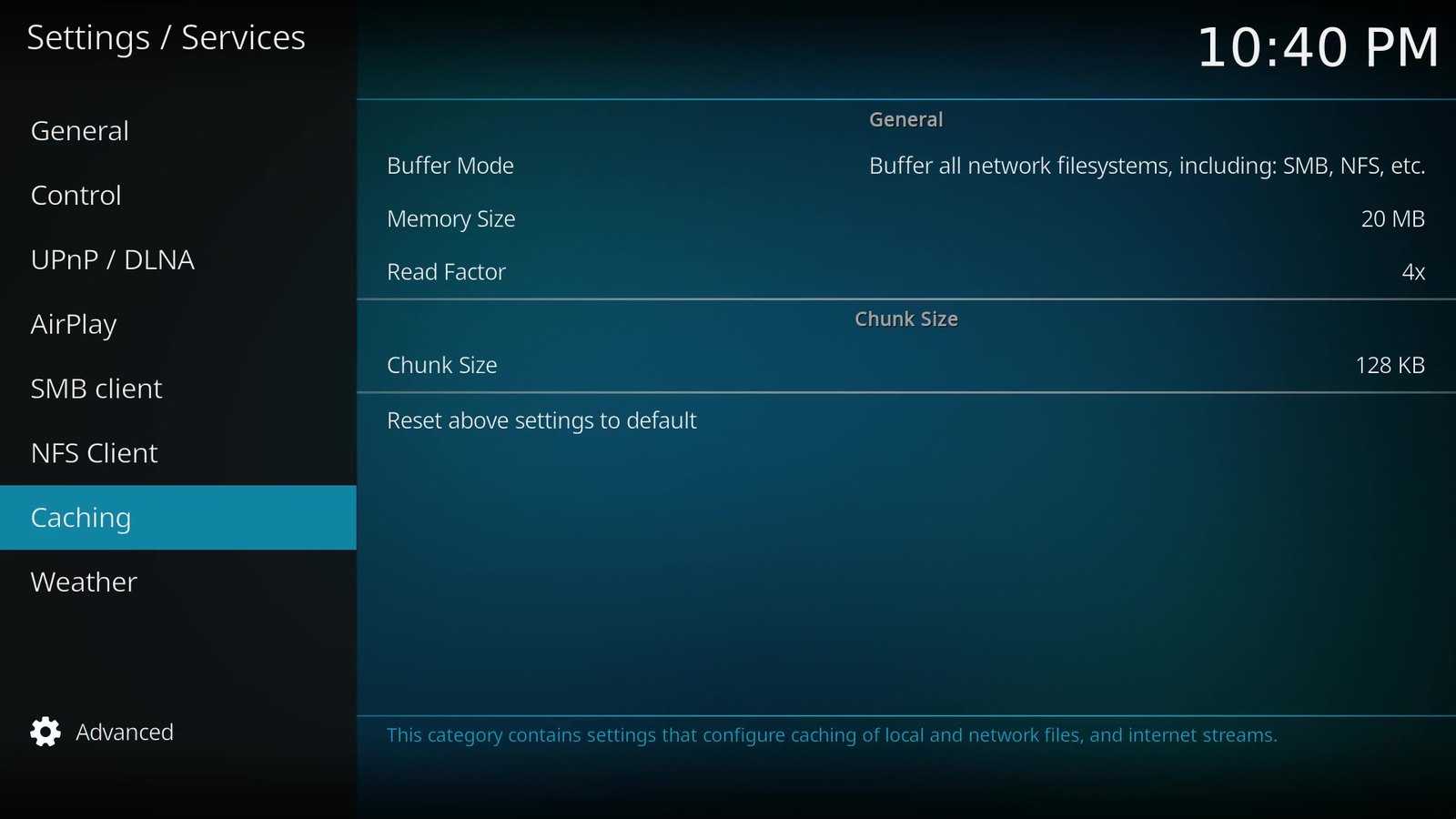
The four settings, one by one
1. Buffer mode
This decides what Kodi bothers to buffer at all. The choices, straight from the Kodi wiki, are:
- No buffer
- Only buffer true internet streams (HTTP, HTTPS and so on)
- Buffer all internet filesystems, including FTP and WebDAV
- Buffer all network filesystems, including SMB and NFS
- Buffer all filesystems, including local files
On a fresh copy of Kodi 21 on my test machine, the default was already all network filesystems, which is exactly what you want if your films live on a NAS or a shared folder on another computer. So the job here is to check it. If an old tutorial (or a 2am version of you) set it to No buffer, put it back. Files stored on the box itself rarely need buffering.
2. Memory size
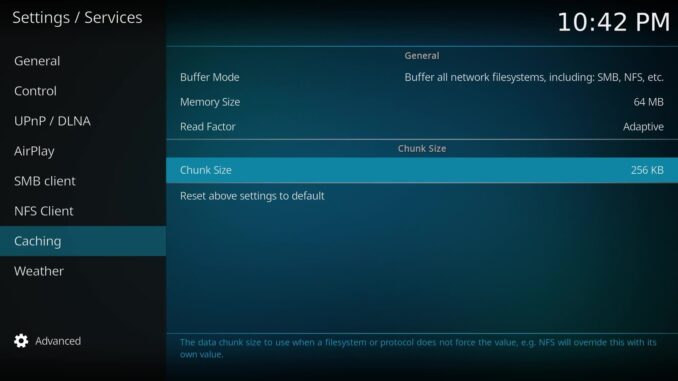
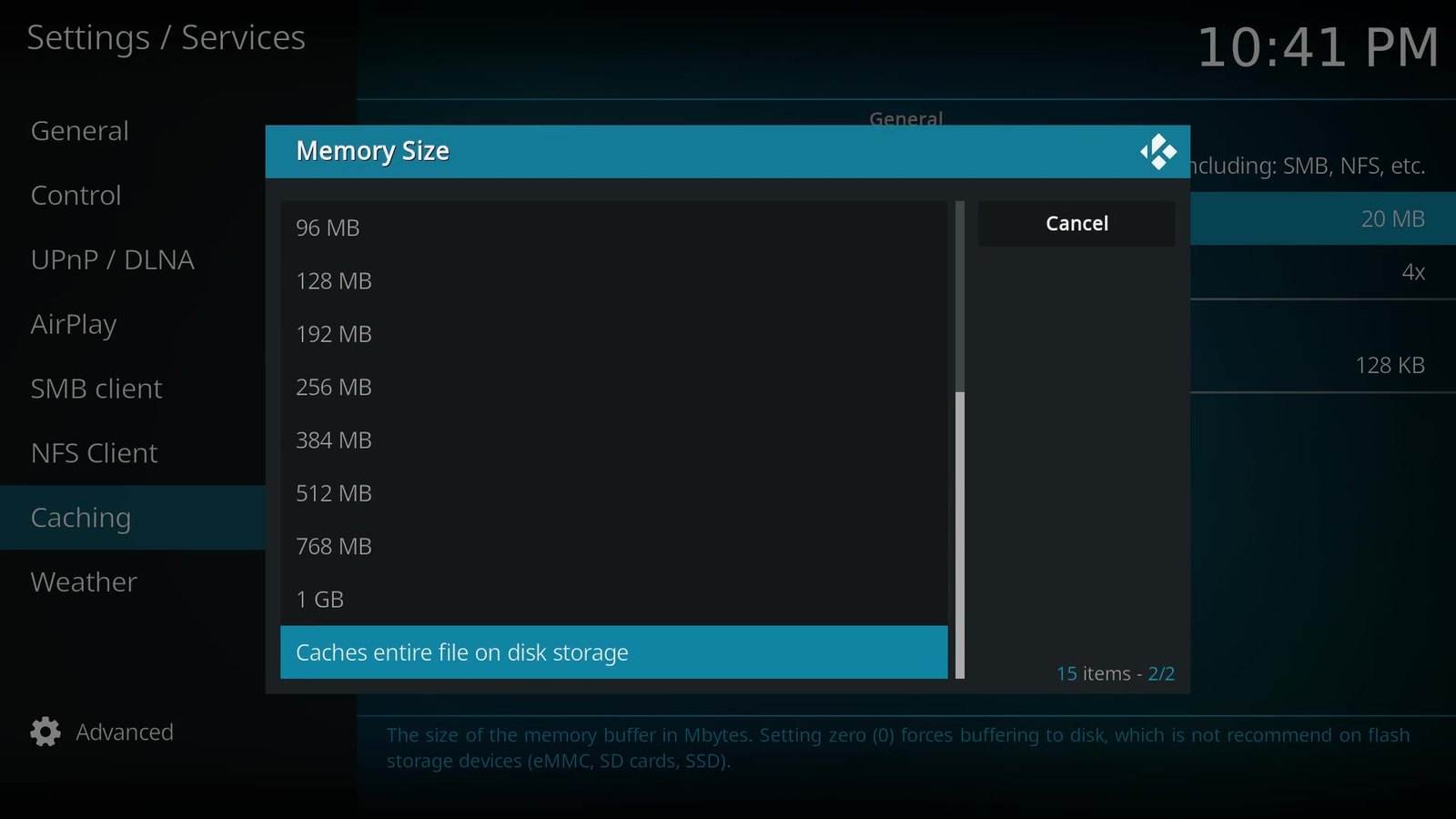
This is how many megabytes of RAM Kodi uses as its buffer. My default was 20 MB, which for a big 4K film is a bit like filling a swimming pool with an egg cup.
The last option in the list is labelled Caches entire file on disk storage. That is the old “0” setting and it writes the cache to storage instead of RAM. Kodi’s own help text warns against it on flash storage, which is exactly what cheap streaming sticks use. Your poor little stick has enough problems already.
So pick a sensible number. I used 64 MB. My rule of thumb, and this is my advice rather than an official Kodi figure: on a box with 1 or 2 GB of RAM, stay well under a third of the free memory. Max it out and Kodi can fall over, very dramatically.
3. Read factor
This controls how fast Kodi fills the cache, as a multiple of the video’s average bitrate. The default is 4x. The wiki notes that low read factors are kinder to weaker Android boxes because they avoid CPU spikes and do not flood the network with Blu-ray sized files, but low values had drawbacks.
That is why Kodi added Adaptive at the top of the list. It reads aggressively while the cache is empty or low, throttles back as it fills, and settles at 1.5x once the cache is full and stable. Cruise control for buffering. If you change only one thing today, make it this. I go deeper on it in the companion Short and article on read factor.
4. Chunk size
This is the size of each bite Kodi takes when reading a file. Options run from 16 KB to 1 MB and the default is 128 KB. The wiki says bigger chunks may help high bitrate UHD files, especially on low powered devices or slow networks. One catch that is right there in the help text: some protocols set their own value, and NFS overrides this setting entirely.
For 4K films over SMB, try 256 KB, watch a whole film, then decide. Change one thing at a time so you know what actually helped.
My starting recipe
| Setting | Kodi 21 default | What I use |
|---|---|---|
| Buffer mode | All network filesystems | Leave it (ideal for NAS and shared folders) |
| Memory size | 20 MB | 64 MB on a 2 GB box, never the disk option on a stick |
| Read factor | 4x | Adaptive |
| Chunk size | 128 KB | 256 KB for big 4K files over SMB |
Honesty time: these settings help Kodi make the most of the connection you have. They cannot invent bandwidth. If your Wi-Fi is one bar behind three brick walls and a fish tank, no menu on earth will save you, so try a cable or move the router.
What about old advancedsettings.xml tutorials?
The Kodi wiki is blunt about it: the advancedsettings.xml method for these cache settings is deprecated, and any tags you still have in the file will be ignored. The settings themselves did not change; they simply moved into the menu. If you have an old file with cache tags, it is doing nothing, so set the values in the GUI instead.
On Kodi 22 “Piers”, which reached its first release candidate on 10 October 2026, the Caching page on the wiki has been updated for v22 and the same four settings are there. Still, re-check them after any upgrade. And only ever get Kodi from kodi.tv/download or your device’s official app store. Kodi comes empty: it plays your own media, which is the whole point.
If you have decided Kodi is not for you at all, I compared the options in the best Kodi alternatives for 2026.
Sources: Kodi wiki: Settings/Services/Caching, Kodi wiki: Modify the video cache, plus defaults checked on official Kodi 21.2 on my own test machine (menus match 21.3).
Best IPTV boxes to buy
These are media boxes and sticks that can run players and licensed apps. The first six are Google certified Android TV or Google TV devices with Google Play; the last one, the Formuler, runs its own Android and is not certified. They are not pirate hardware. They do not come with channels or playlists. I am not claiming I personally lab-tested every SKU this month.
Buy one of these when: Fire TV sideload is a hassle on your model, you want Play Store apps on a proper TV OS, or you want a dedicated player shell behind the sofa. No Fire TV device is on this shortlist.
- NVIDIA SHIELD TV Pro: the premium pick, a certified Android TV player with AI upscaling, Dolby Vision/Atmos and Gigabit Ethernet for the main living-room telly. Amazon UK | Amazon US | Amazon DE | Amazon FR | Amazon IT
- Google TV Streamer 4K: solid Google TV living-room default with Ethernet, 32GB storage and Dolby Vision/Atmos. Amazon UK | Amazon US | Amazon DE | Amazon FR | Amazon IT
- Xiaomi TV Box S (3rd Gen): Google TV box with 32GB storage, Wi-Fi 6 and Dolby Vision/Atmos, the cheaper box route than the Streamer. Amazon UK | Amazon US | Amazon DE | Amazon FR | Amazon IT
- Xiaomi TV Stick 4K (2nd Gen): budget Google TV stick with Wi-Fi 6 and Dolby Vision/Atmos when you want HDMI-simple, not a full box. Amazon UK | Amazon US | Amazon DE | Amazon FR | Amazon IT
- Budget Google TV 4K player: a cheaper certified Google TV player for a second telly. The model differs by store, so each link names the one you get there. MECOOL KD3 (Amazon UK) | onn. Google TV 4K Streaming Box (Amazon US) | Strong LEAP-NOVA-X (Amazon DE) | Strong LEAP-NOVA-X (Amazon FR) | Strong LEAP-NOVA-X (Amazon IT)
- MECOOL MEon1: Google TV certified 4K box with AI upscaling and 32GB storage for a dedicated player behind the sofa. Amazon UK
- Formuler Z12 Ultra SE: the newest Formuler box, built around MYTVOnline 4 for IPTV playlists. It runs Formuler’s own Android rather than certified Google TV, so there is no Netflix in HD and it is the one box here without Google certification. Formuler Z12 Ultra SE (Amazon UK) | Formuler Z12 Ultra SE (Amazon US) | Formuler Z12 Ultra SE (Amazon DE) | Formuler Z12 Ultra SE (Amazon FR) | Formuler Z12 Ultra SE (Amazon IT)
Still shopping for a Fire TV device? Fine for Prime Video and the Appstore universe. Not the shortlist above. And none of these boxes magically make unlicensed streams legal.
Written by Dr Husham Memar