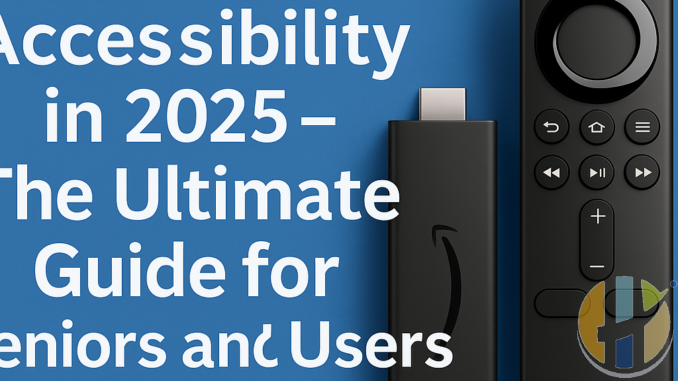
Firestick Accessibility in 2025 – The Ultimate Guide for Seniors and Users with Disabilities
Published by Husham.com | Ask questions at forum.husham.com
In 2025, the Amazon Firestick remains one of the most affordable and powerful streaming devices. But for seniors or people with disabilities, using a standard Firestick setup can still be confusing or frustrating. That’s why we’ve created this ultimate guide—designed to make Firestick accessible, simplified, and fully usable for everyone.
Why Accessibility Matters in Streaming
Streaming content is now a daily experience. For older adults, visually impaired users, and those with mobility challenges, making that experience easier to navigate is key to independence and enjoyment.
1. Voice Control with Alexa – Hands-Free Firestick
- Use the Alexa Voice Remote or pair with an Echo Dot
- Say commands like “Open YouTube” or “Play Dua Kumayl on YouTube”
- Perfect for those with limited mobility or visual impairment
2. Enable Firestick Screen Reader (VoiceView)
- Hold the back and menu button to enable VoiceView
- Reads menus, settings, and app names aloud
- Adjust reading speed, volume, and pitch
3. Adjust Display and Text Settings
For seniors or low-vision users:
- Increase font size from Display Settings
- Enable High Contrast Mode for better visibility
- Turn off motion for sensitive users
4. Simplify the Home Screen
- Remove unused apps to reduce clutter
- Pin only the most-used apps to the top row
- Use “App Launcher” apps with large icons
5. Use Bluetooth Assistive Devices
- Connect wireless headphones or hearing aids
- Use Bluetooth keyboards or trackpads for easier typing
- Some remotes have built-in tactile feedback for blind users
Set up dedicated Firestick profiles for:
- Seniors – with favorite religious and TV apps
- Children or cognitively challenged users – with only safe content
7. Install IPTV Apps with Large Fonts & Icons
Recommended apps for accessibility:
- IPTV Smarters Pro – customizable layout, large buttons
- TiviMate – easy navigation and font scaling
- SmartTubeNext – ad-free YouTube with simplified interface
8. Enable Closed Captions and Multilingual Subtitles
Most Firestick apps support CC. You can:
- Adjust size, background, and color of captions
- Choose from multiple subtitle languages
Conclusion
Firestick can be an incredible tool for connection, learning, and entertainment—especially when customized for accessibility. Whether you're helping an elder family member or setting up a device for someone with limited mobility, these features can transform the experience. For more accessibility guides and IPTV support, visit husham.com.
FAQs – Firestick Accessibility
- Q1: Does Firestick have a screen reader?
A: Yes, it’s called VoiceView and can be activated by holding the back and menu button. - Q2: Can I use Firestick without touching the remote?
A: Yes, using Alexa voice commands via the remote or Echo device. - Q3: Can subtitles be made larger?
A: Yes, you can customize subtitles in Settings > Accessibility > Captions. - Q4: What is the best IPTV app for seniors?
A: TiviMate and IPTV Smarters Pro—both allow font scaling and layout customization. - Q5: Can Firestick work with hearing aids?
A: Yes, through Bluetooth or a headphone adapter connected to the TV. - Q6: What if my parent forgets how to use it?
A: Auto-launch apps, simplified menus, and voice control can solve that. - Q7: Is Firestick better than cable for elderly users?
A: Yes. It offers more control, easier navigation, and custom apps for faith, news, and nostalgia. - Q8: Can I control Firestick from another room for someone else?
A: Yes, using Alexa app or Amazon’s Fire TV Remote App over Wi-Fi.