If you only have one minute and one setting to change in Kodi, make it this one. It is called read factor, it lives in a menu Kodi hides from you by default, and since Kodi 21 it has an option called Adaptive that quietly fixes a lot of buffering on modest boxes.
And please stop copying 2018 tutorials. Since Kodi 21 Omega, the cache tags people used to paste into advancedsettings.xml are ignored. The settings moved into the normal menu, and that is where we are going.
Where to find it (60 seconds)
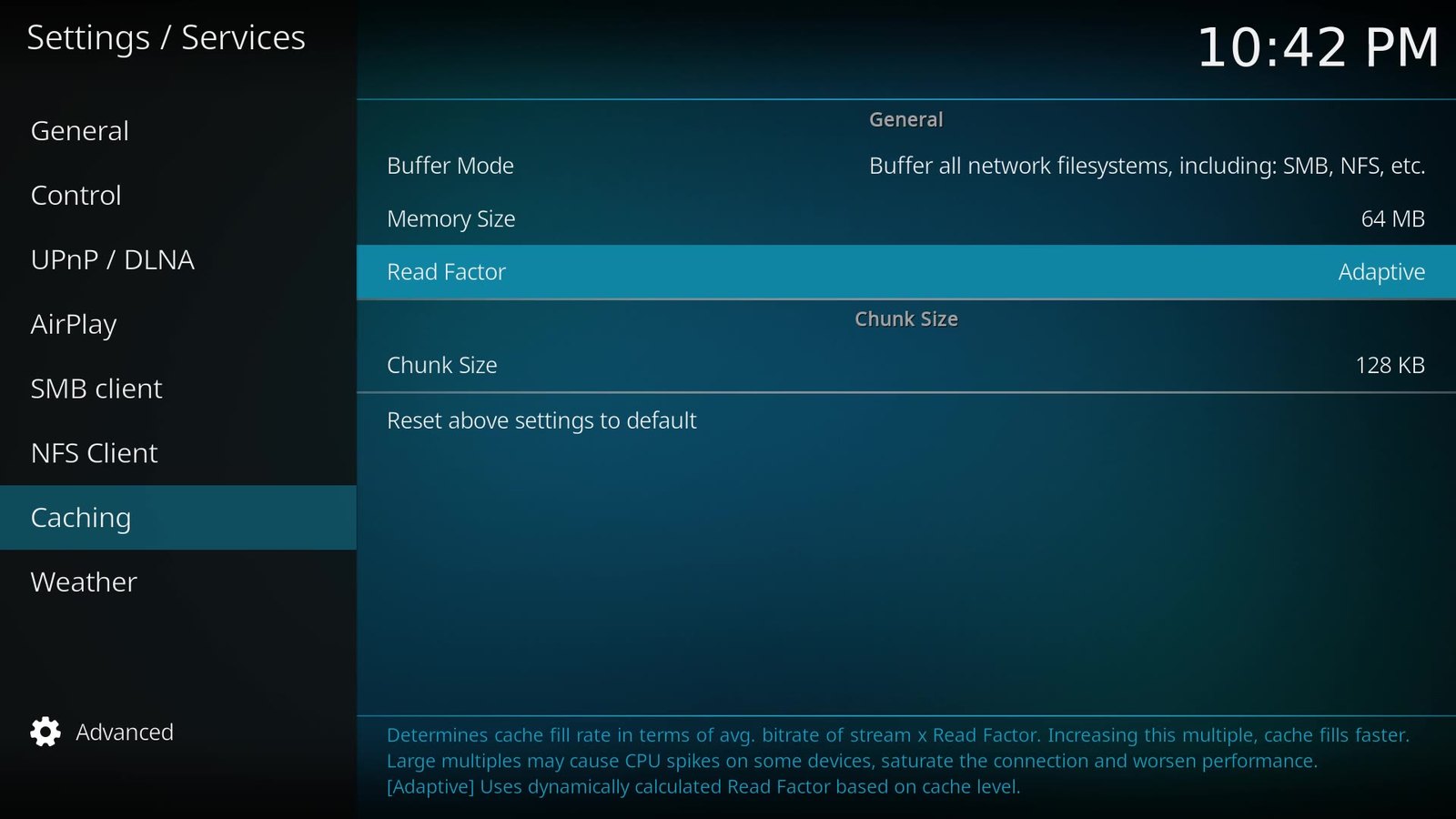
- Open Settings, then Services.
- Bottom left, click the gear until it says Advanced. Buffering is apparently too spicy for Standard mode.
- Open Caching, which has now appeared in the list.
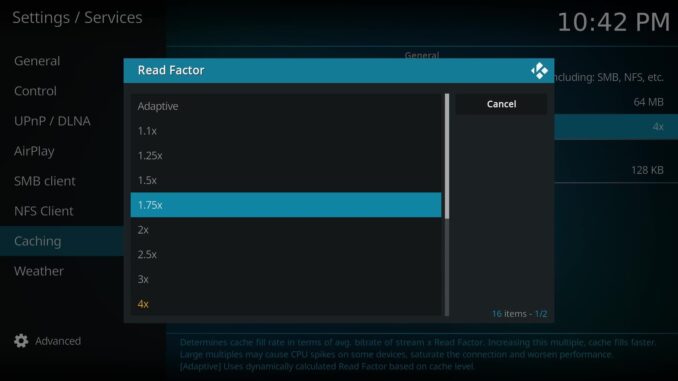
- Select Read factor and choose Adaptive.
- While you are there, give Memory size a sensible number of megabytes, not the “Caches entire file on disk storage” option.
What read factor actually does
Kodi’s wiki describes read factor as the cap on how fast Kodi reads ahead, expressed as read factor multiplied by the average bitrate of the video. With the default of 4x, a film that averages 20 Mbps can be read at up to about 80 Mbps while Kodi fills its cache. A higher number fills the buffer faster and helps on shaky connections.
The catch is that a high fixed value can make a weak Android box work hard. The wiki says low read factors suit less powerful Android devices because they prevent CPU spikes and reduce the chance of saturating your network with Blu-ray or UHD Blu-ray bitrates. But a low fixed value means the cache refills slowly after a hiccup. Neither is perfect.
Why Adaptive is the one to pick
Adaptive solves that trade-off. According to the wiki, it uses a more aggressive read factor when the cache is empty or low, throttles back as the cache fills, and eventually settles at 1.5x once the cache is full and stable. So you get the fast start of a high setting and the calm, low-CPU behaviour of a low setting once the film is rolling. I think of it as cruise control: floor it when the road is empty, ease off once you are up to speed.
| Read factor | Good for | Downside |
|---|---|---|
| Low fixed (1x to 2x) | Very weak boxes, busy home networks | Slow to refill after a dropout |
| 4x (default) | Most devices with a decent connection | Can spike CPU and network on cheap boxes with big files |
| Adaptive | Almost everyone, especially Android TV boxes and sticks | None worth worrying about for normal viewing |
One honest note: read factor helps Kodi make the most of the connection you have. It cannot invent bandwidth. If your stick is on one bar of Wi-Fi, a cable or a better router position will do more than any setting.
Want every caching setting explained?
This is the short version. Buffer mode, memory size and chunk size all matter too, and I go through each one, with the defaults I found on a fresh Kodi 21 install, in the full guide: Kodi buffering fix: the hidden Caching menu in Kodi 21.
Kodi itself should only come from kodi.tv/download or your device’s official app store. It ships with no content and plays your own media.
Source: Kodi wiki: Settings/Services/Caching (page updated for v22), checked against official Kodi 21.2 on my own test machine.
Best IPTV boxes to buy
These are media boxes and sticks that can run players and licensed apps. The first six are Google certified Android TV or Google TV devices with Google Play; the last one, the Formuler, runs its own Android and is not certified. They are not pirate hardware. They do not come with channels or playlists. I am not claiming I personally lab-tested every SKU this month.
Buy one of these when: Fire TV sideload is a hassle on your model, you want Play Store apps on a proper TV OS, or you want a dedicated player shell behind the sofa. No Fire TV device is on this shortlist.
- NVIDIA SHIELD TV Pro: the premium pick, a certified Android TV player with AI upscaling, Dolby Vision/Atmos and Gigabit Ethernet for the main living-room telly. Amazon UK | Amazon US | Amazon DE | Amazon FR | Amazon IT
- Google TV Streamer 4K: solid Google TV living-room default with Ethernet, 32GB storage and Dolby Vision/Atmos. Amazon UK | Amazon US | Amazon DE | Amazon FR | Amazon IT
- Xiaomi TV Box S (3rd Gen): Google TV box with 32GB storage, Wi-Fi 6 and Dolby Vision/Atmos, the cheaper box route than the Streamer. Amazon UK | Amazon US | Amazon DE | Amazon FR | Amazon IT
- Xiaomi TV Stick 4K (2nd Gen): budget Google TV stick with Wi-Fi 6 and Dolby Vision/Atmos when you want HDMI-simple, not a full box. Amazon UK | Amazon US | Amazon DE | Amazon FR | Amazon IT
- Budget Google TV 4K player: a cheaper certified Google TV player for a second telly. The model differs by store, so each link names the one you get there. MECOOL KD3 (Amazon UK) | onn. Google TV 4K Streaming Box (Amazon US) | Strong LEAP-NOVA-X (Amazon DE) | Strong LEAP-NOVA-X (Amazon FR) | Strong LEAP-NOVA-X (Amazon IT)
- MECOOL MEon1: Google TV certified 4K box with AI upscaling and 32GB storage for a dedicated player behind the sofa. Amazon UK
- Formuler Z12 Ultra SE: the newest Formuler box, built around MYTVOnline 4 for IPTV playlists. It runs Formuler’s own Android rather than certified Google TV, so there is no Netflix in HD and it is the one box here without Google certification. Formuler Z12 Ultra SE (Amazon UK) | Formuler Z12 Ultra SE (Amazon US) | Formuler Z12 Ultra SE (Amazon DE) | Formuler Z12 Ultra SE (Amazon FR) | Formuler Z12 Ultra SE (Amazon IT)
Still shopping for a Fire TV device? Fine for Prime Video and the Appstore universe. Not the shortlist above. And none of these boxes magically make unlicensed streams legal.
Written by Dr Husham Memar