Every few weeks someone asks me how to run Android TV 13 or Google TV from a USB stick on an old laptop, usually after watching a video with a thumbnail of a shocked face and a glowing arrow. It is a lovely idea: plug in a stick, boot a TV interface, turn the dusty laptop into a media box, and never touch the hard drive. So I went looking for the trustworthy build that makes it happen.
Here is the honest answer first, because the internet clearly needs one: as of October 2026 there is no official or trustworthy Android TV 13 or Google TV build for ordinary PCs. Google does not release Google TV for x86 hardware. It is licensed to device makers, with certification, small print and lawyers attached. What does exist are community projects that run regular Android on PCs, and some of them can be made to feel like a TV box. This guide shows you how to do that from a USB drive, as a live portable setup, without touching your hard drive.
This is a community method, not an official one. Results vary wildly between machines. A laptop that runs it perfectly will sit next to an identical looking one that boots to a black screen out of spite.
What actually exists in 2026
- Android-x86. The long running open source project. Its latest stable release listed on the official site is 9.0-r2, released on 25 March 2020 and based on Android 9 Pie. It comes as 64 bit and 32 bit ISO files, and the release notes say most modern devices should run the 64 bit one. It is old, but it is the project with the clearest official downloads and checksums.
- Bliss OS. The best known newer Android for PC project. Right now its official site says Bliss OS is still under development and public images are paused, while the source code continues. So there is no current official ISO to download from them today.
- “Android TV 13 x86” ISOs on video descriptions, file lockers and forums. These are third party builds by unknown people. Some may be genuine hobby work. Others are repacked with Google apps they have no licence to distribute, or worse. I will not link them, and I would not run one on a machine logged into anything I care about.
So the realistic goal is: a standard Android build booted live from USB, set up as a media player with TV friendly apps. It will not be certified Google TV, and certain streaming apps that check for certified devices may refuse to play in HD or at all. That is the small print Google wrote, not me.
What you need
- A USB drive of 8GB or more. The Android-x86 64 bit ISO is under a gigabyte, but the live system needs headroom.
- A fast drive, ideally USB 3.0 or newer, in a USB 3 port. Running a whole operating system from a cheap USB 2 stick is like streaming 4K over hotel Wi-Fi. A small USB SSD is better still.
- A 64 bit PC or laptop with Intel or AMD graphics if possible. Community Android builds generally have better luck with Intel and AMD graphics than with NVIDIA.
- Rufus on a Windows PC, from the official site rufus.ie. The current release is version 4.15 from 30 June 2026. It runs without installation on Windows 8 or later, and the executable should be digitally signed by Akeo Consulting. If the signature says anything else, you downloaded the wrong thing.
- The ISO itself, from the project’s official download links only. For Android-x86 that is the release page on android-x86.org, which points to FossHub and OSDN.
- A USB keyboard and mouse for setup, because a laptop trackpad may not be detected.
Check the ISO before you write it
The Android-x86 9.0-r2 release notes publish a SHA1 checksum for each file. On Windows, open PowerShell in your Downloads folder and run Get-FileHash android-x86_64-9.0-r2.iso -Algorithm SHA1, then compare the result with the release notes. If they do not match, delete it and download again. Ten seconds of checking beats a weekend of wondering why your laptop is mining something.
Step by step: make the live USB with Rufus
- Plug in the USB drive. Everything on it will be erased, so copy off your holiday photos first.
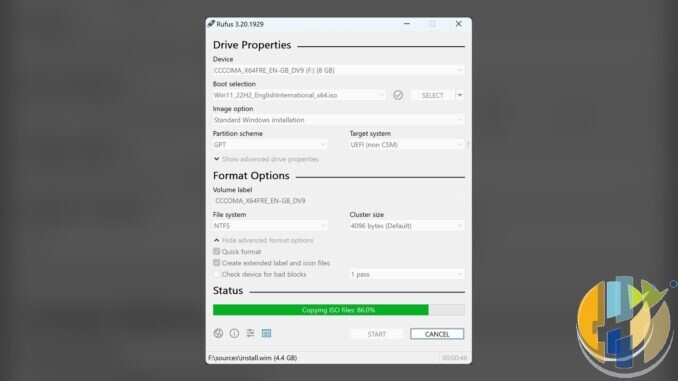
- Run Rufus and pick your USB drive under Device. Check it twice. Rufus will happily format the wrong disk if you ask it to.
- Click SELECT and choose the ISO.
- Leave the partition scheme and target system as Rufus suggests for the ISO, unless your machine is very old and legacy BIOS only.
- Click START. If Rufus asks whether to write in ISO image mode or DD image mode, and ISO mode will not boot later, recreate the drive using DD image mode. The Android-x86 project itself suggests a raw image write (dd on Linux or Win32 Disk Imager on Windows), which is what DD mode does.
- Wait for it to finish, then safely eject the drive.
The boot process
- Shut the PC down fully. On Windows, Fast Startup can make “shut down” more of a nap, so use Restart or hold Shift while choosing Shut down.
- Plug in the USB drive and power on, tapping the one time boot menu key. It is usually F12, F11, F10, F9 or Esc, depending on whichever key the manufacturer felt like that year. The startup screen or the manual will tell you.
- Pick the USB drive, preferably the UEFI entry.
- From the Android-x86 boot menu, choose the Live CD option to run without installing. Do not choose Installation unless you want to change the hard drive, and this guide is specifically about not doing that.
- The first boot can take a while. If you get a black screen, reboot and try the menu’s alternative options, which are there for graphics trouble.
Be aware that a pure live session may not keep your settings or apps after a reboot. Treat the first run as a hardware test, not your final media centre.
Secure Boot
Most PCs from the last decade ship with Secure Boot turned on, and community Android builds are not signed for it in the way Windows and major Linux distributions are. If the USB drive is ignored or you see a security violation message, enter the firmware setup (often F2 or Del at power on), turn Secure Boot off, save and try again.
Two warnings. If your Windows drive uses BitLocker, changing firmware settings may trigger a recovery key prompt next time Windows boots, so make sure you have your key before you start. And turn Secure Boot back on when you are finished testing. It exists for a reason, even if that reason is mainly to annoy hobbyists.
Common hardware issues
No Wi-Fi
This is the most common problem. Android-x86 includes drivers for many Intel and older chips, but newer Wi-Fi cards, especially some Realtek and MediaTek models, may not work. Easy workarounds: use a wired Ethernet connection or a USB Ethernet adapter, or try a different USB Wi-Fi dongle. Old hardware tends to work better here, which is a rare win for the laptop at the back of the cupboard.
No sound
Audio is the second classic. Try plugging into the TV via HDMI and checking if sound comes through there instead of the laptop speakers, or try a USB headset or USB sound card. If you have no audio at all, that machine may simply not be a good match.
Black screen or wrong resolution
Usually a graphics driver issue. Try the alternative boot options in the menu, plug in an external display, or try a different machine. NVIDIA based laptops are the usual suspects.
Touchpad, Bluetooth, sleep and battery
Any of these may misbehave. For a media box you mostly do not care: use a USB keyboard, a wireless keyboard with its own dongle, or an air mouse remote, and leave the laptop plugged in.
Performance tips
- Use the fastest USB port and drive you have. Storage speed affects everything, from boot time to how long apps take to open.
- Plug into mains power and set the laptop to its highest performance mode in the firmware if it offers one.
- Install a TV style launcher and stick to apps that suit a remote. You want a media box, not a phone on a 55 inch screen.
- For your own films and music, a client app for Jellyfin, Plex, Kodi or VLC is the sensible choice. I compare them in my Kodi alternatives guide.
- Expect some streaming services to limit quality or refuse to run on uncertified hardware. That is a licensing decision, not a setting you can fix.
Is it worth it?
As a fun weekend project and a way to give an old laptop a second job, yes. As a replacement for a proper TV box, honestly, not really. You get an older Android version, patchy drivers, no certified Google TV, and no security updates from Google. A cheap certified Google TV device costs less than the electricity you will spend troubleshooting audio drivers, and it just works with every major streaming app.
Player-only note: whatever you run, use it for your own media and services you subscribe to. I do not provide playlists, codes or links to content.
If the old laptop experiment turns into a rescue mission, these are the proper boxes I would consider instead.
Best IPTV boxes to buy
These are media boxes and sticks that can run players and licensed apps. The first six are Google certified Android TV or Google TV devices with Google Play; the last one, the Formuler, runs its own Android and is not certified. They are not pirate hardware. They do not come with channels or playlists. I am not claiming I personally lab-tested every SKU this month.
Buy one of these when: Fire TV sideload is a hassle on your model, you want Play Store apps on a proper TV OS, or you want a dedicated player shell behind the sofa. No Fire TV device is on this shortlist.
- NVIDIA SHIELD TV Pro: the premium pick, a certified Android TV player with AI upscaling, Dolby Vision/Atmos and Gigabit Ethernet for the main living-room telly. Amazon UK | Amazon US | Amazon DE | Amazon FR | Amazon IT
- Google TV Streamer 4K: solid Google TV living-room default with Ethernet, 32GB storage and Dolby Vision/Atmos. Amazon UK | Amazon US | Amazon DE | Amazon FR | Amazon IT
- Xiaomi TV Box S (3rd Gen): Google TV box with 32GB storage, Wi-Fi 6 and Dolby Vision/Atmos, the cheaper box route than the Streamer. Amazon UK | Amazon US | Amazon DE | Amazon FR | Amazon IT
- Xiaomi TV Stick 4K (2nd Gen): budget Google TV stick with Wi-Fi 6 and Dolby Vision/Atmos when you want HDMI-simple, not a full box. Amazon UK | Amazon US | Amazon DE | Amazon FR | Amazon IT
- Budget Google TV 4K player: a cheaper certified Google TV player for a second telly. The model differs by store, so each link names the one you get there. MECOOL KD3 (Amazon UK) | onn. Google TV 4K Streaming Box (Amazon US) | Strong LEAP-NOVA-X (Amazon DE) | Strong LEAP-NOVA-X (Amazon FR) | Strong LEAP-NOVA-X (Amazon IT)
- MECOOL MEon1: Google TV certified 4K box with AI upscaling and 32GB storage for a dedicated player behind the sofa. Amazon UK
- Formuler Z12 Ultra SE: the newest Formuler box, built around MYTVOnline 4 for IPTV playlists. It runs Formuler’s own Android rather than certified Google TV, so there is no Netflix in HD and it is the one box here without Google certification. Formuler Z12 Ultra SE (Amazon UK) | Formuler Z12 Ultra SE (Amazon US) | Formuler Z12 Ultra SE (Amazon DE) | Formuler Z12 Ultra SE (Amazon FR) | Formuler Z12 Ultra SE (Amazon IT)
Still shopping for a Fire TV device? Fine for Prime Video and the Appstore universe. Not the shortlist above. And none of these boxes magically make unlicensed streams legal.
Written by Dr Husham Memar