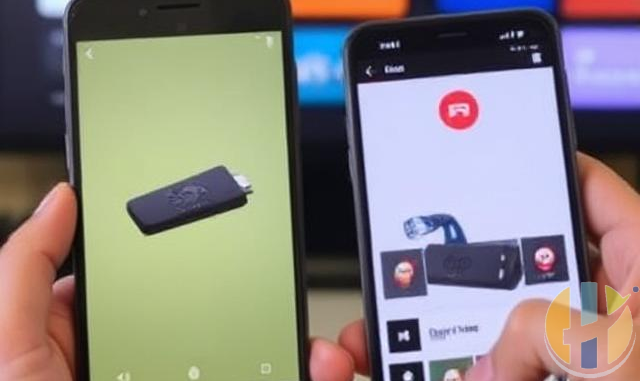
How to Control Your Firestick from a Smartphone
Did you know that you can control your Amazon Firestick using your smartphone? If you’ve misplaced your Firestick remote or simply prefer using your phone, the Amazon Fire TV app provides a convenient solution.
Step 1: Download the Amazon Fire TV App
To get started, download the Amazon Fire TV app from the Google Play Store or the Apple App Store.
Step 2: Connect Your Smartphone to the Same Wi-Fi Network
Ensure that your smartphone and Firestick are connected to the same Wi-Fi network. This is essential for the app to detect your Firestick.
Step 3: Open the Fire TV App and Select Your Device
Once installed, open the Fire TV app and sign in with your Amazon account. The app will automatically search for available Firestick devices on your network. Tap on your Firestick to connect.
Step 4: Enter the Code Displayed on Your TV
After selecting your device, a code will appear on your TV screen. Enter this code into the app to pair your smartphone with the Firestick.
Step 5: Start Controlling Your Firestick
Once connected, you can use your smartphone as a remote control. The app includes a touchpad for navigation, a keyboard for easy text entry, and quick access buttons for home, back, and menu functions.
Additional Features
- Voice Control: Use the microphone button to issue voice commands to your Firestick.
- Keyboard Input: Enter text easily instead of navigating with the on-screen keyboard.
- Shortcut Buttons: Quickly access your apps, settings, and playback controls.
Troubleshooting Tips
- If your Firestick doesn’t appear in the app, ensure both devices are on the same Wi-Fi network.
- Restart your Firestick and try again.
- Ensure you’re using the latest version of the Fire TV app.
Conclusion
Controlling your Firestick with a smartphone is a simple and effective way to navigate your device without needing a physical remote. With features like voice commands and keyboard input, the Amazon Fire TV app makes the experience even more convenient. Try it out today!
Best IPTV boxes to buy
These are media boxes and sticks that can run players and licensed apps. The first six are Google certified Android TV or Google TV devices with Google Play. The three Fire TV Sticks run Amazon’s own systems with the Appstore instead of Google Play: the 4K Max and 4K Plus run Fire OS, which is Android based, while the new Fire TV Stick 4K (2026) runs Vega OS, which does not allow sideloading Android apps, only Appstore apps. The last one, the Formuler, runs its own Android and is not certified. They are not pirate hardware. They do not come with channels or playlists. I am not claiming I personally lab-tested every SKU this month.
Pick a Google TV box when you want Play Store apps on a proper TV OS or a dedicated player behind the sofa. Pick a Fire TV Stick when Prime Video and the Appstore already cover what you watch. If you need an Android player from outside the Appstore, skip the Vega OS stick.
- NVIDIA SHIELD TV Pro: the premium pick, a certified Android TV player with AI upscaling, Dolby Vision/Atmos and Gigabit Ethernet for the main living-room telly. Amazon UK | Amazon US | Amazon DE | Amazon FR | Amazon IT
- Google TV Streamer 4K: solid Google TV living-room default with Ethernet, 32GB storage and Dolby Vision/Atmos. Amazon UK | Amazon US | Amazon DE | Amazon FR | Amazon IT
- Xiaomi TV Box S (3rd Gen): Google TV box with 32GB storage, Wi-Fi 6 and Dolby Vision/Atmos, the cheaper box route than the Streamer. Amazon UK | Amazon US | Amazon DE | Amazon FR | Amazon IT
- Xiaomi TV Stick 4K (2nd Gen): budget Google TV stick with Wi-Fi 6 and Dolby Vision/Atmos when you want HDMI-simple, not a full box. Amazon UK | Amazon US | Amazon DE | Amazon FR | Amazon IT
- Budget Google TV 4K player: a cheaper certified Google TV player for a second telly. The model differs by store, so each link names the one you get there. MECOOL KD3 (Amazon UK) | onn. Google TV 4K Streaming Box (Amazon US) | Strong LEAP-NOVA-X (Amazon DE) | Strong LEAP-NOVA-X (Amazon FR) | Strong LEAP-NOVA-X (Amazon IT)
- MECOOL MEon1: Google TV certified 4K box with AI upscaling and 32GB storage for a dedicated player behind the sofa. Amazon UK
- Fire TV Stick 4K Max: the most powerful Fire TV Stick, with Wi-Fi 6E, Dolby Vision/Atmos and 16GB storage. It runs Fire OS, which is Android based, so you get Appstore apps and can still sideload an Android player. Amazon UK | Amazon US | Amazon DE
- Fire TV Stick 4K Plus: the older Fire OS stick with Wi-Fi 6 and Dolby Vision/Atmos. It is being phased out, so buy it only while stock lasts. Like the Max, it can still sideload Android apps. Amazon UK | Amazon US | Amazon DE | Amazon FR | Amazon IT
- Fire TV Stick 4K (2026): the newest and slimmest 4K stick, with a new remote. It runs Vega OS, which does not allow sideloading Android apps, only Appstore apps, so check your player is in the Appstore before you buy. Amazon UK | Amazon US | Amazon DE | Amazon FR | Amazon IT
- Formuler Z12 Ultra SE: the newest Formuler box, built around MYTVOnline 4 for IPTV playlists. It runs Formuler’s own Android rather than certified Google TV, so there is no Netflix in HD and no Google certification. Formuler Z12 Ultra SE (Amazon UK) | Formuler Z12 Ultra SE (Amazon US) | Formuler Z12 Ultra SE (Amazon DE) | Formuler Z12 Ultra SE (Amazon FR) | Formuler Z12 Ultra SE (Amazon IT)
Whichever you pick, check that the app you need is in its store before you pay. And none of these boxes or sticks magically make unlicensed streams legal.