There are two kinds of Kodi users: those with backups, and those about to learn. Meet Panic Pete and Backup Becky. Both spent three weekends getting their library, posters and menus exactly right. Then the same update goes wrong on both boxes. Pete screams into a cushion. Becky makes a cup of tea, restores her backup and is watching a film before the kettle has cooled.
Today we turn you into Becky, using only official Kodi tools: the Backup add-on from the official repository, Kodi’s built-in library export, and LibreELEC’s own backup if that is your system. Here are the five mistakes to avoid, counting down.
What a Kodi backup actually is
Everything Kodi knows lives in one place, the Kodi data folder (the parent of userdata). The Kodi wiki lists it per platform:
| Platform | Kodi data folder |
|---|---|
| Android | Android/data/org.xbmc.kodi/files/.kodi |
| Windows | C:\Users\YourName\AppData\Roaming\Kodi |
| Linux | ~/.kodi |
| macOS | /Users/YourName/Library/Application Support/Kodi |
| LibreELEC | /storage/.kodi |
Copy that one folder and you have copied Kodi’s whole brain: settings, libraries, add-ons and their settings, skins and artwork cache. Some Android devices use a slightly different path, the wiki notes.
Mistake 5: thinking your films are in the backup
The wiki is explicit: your media files are external to Kodi and are not part of a Kodi backup. The data folder holds the poster, the plot and the watched tick, not the film. So back up your Kodi data and back up your media drive separately. Two things, two backups.
Mistake 4: using a random backup wizard
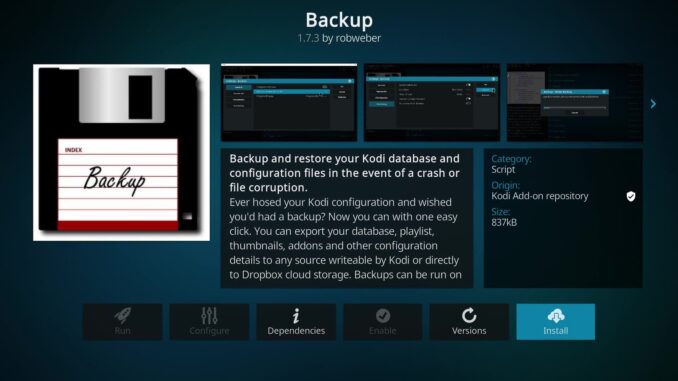
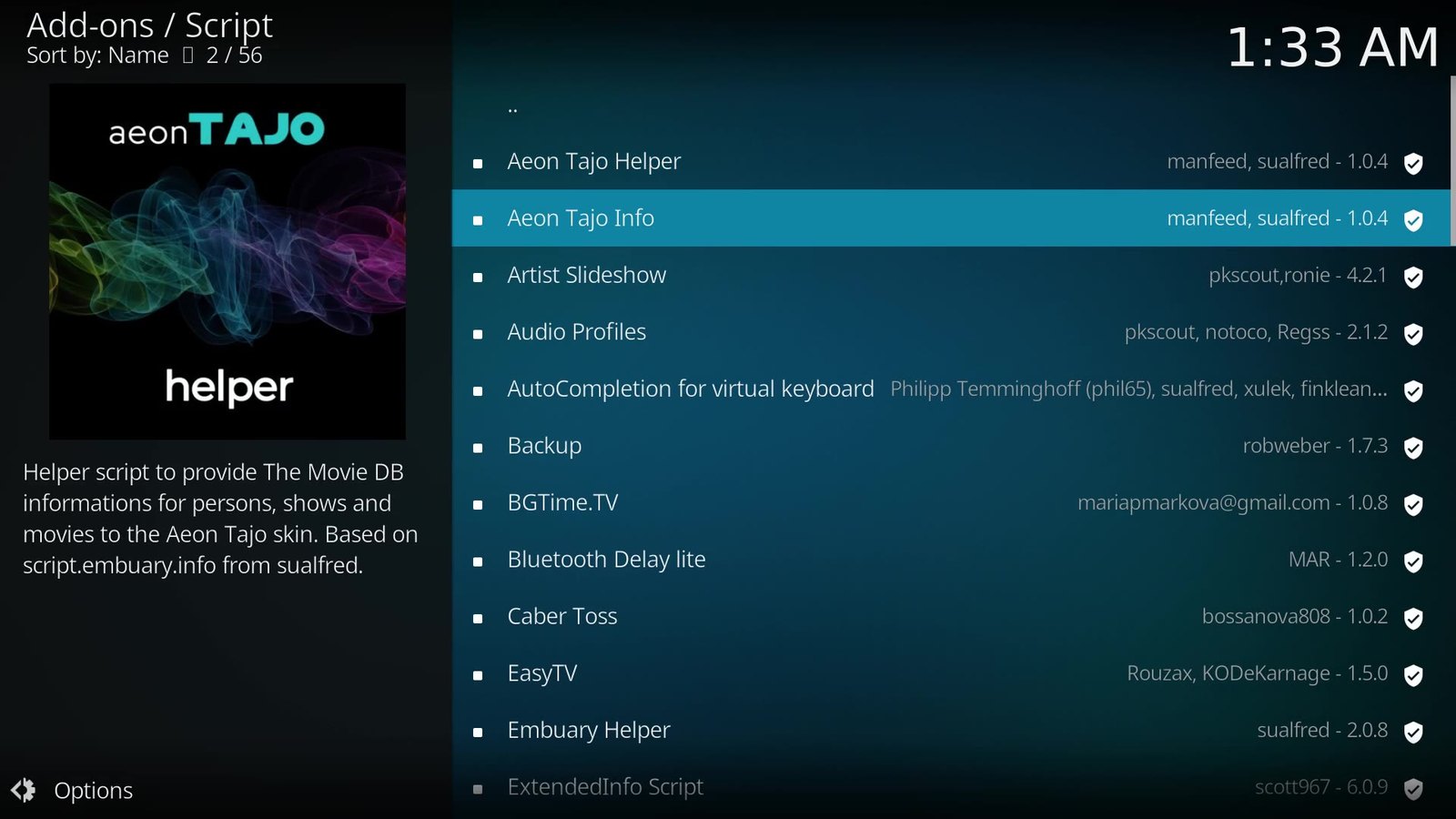
There is an official option. Go to Add-ons > Install from repository > Kodi Add-on repository > Program add-ons and look for Backup. On my Kodi 21 test install it is version 1.7.3 by robweber, and the info page shows Origin: Kodi Add-on repository. That line is what you want to see.
It can back up your database, playlists, thumbnails, add-ons and configuration to any location Kodi can write to, on demand or on a schedule. Restoring is the same add-on: choose restore, point it at your backup, let it work, then restart Kodi.
Mistake 3: saving the backup on the same box
A backup stored next to the thing that is about to break is a spare house key kept inside the house. Set the backup location to a USB drive you can unplug, or a network share on your computer. If you use LibreELEC, its own Settings include Backup and Restore, so use that as well.
Mistake 2: only ever doing full backups
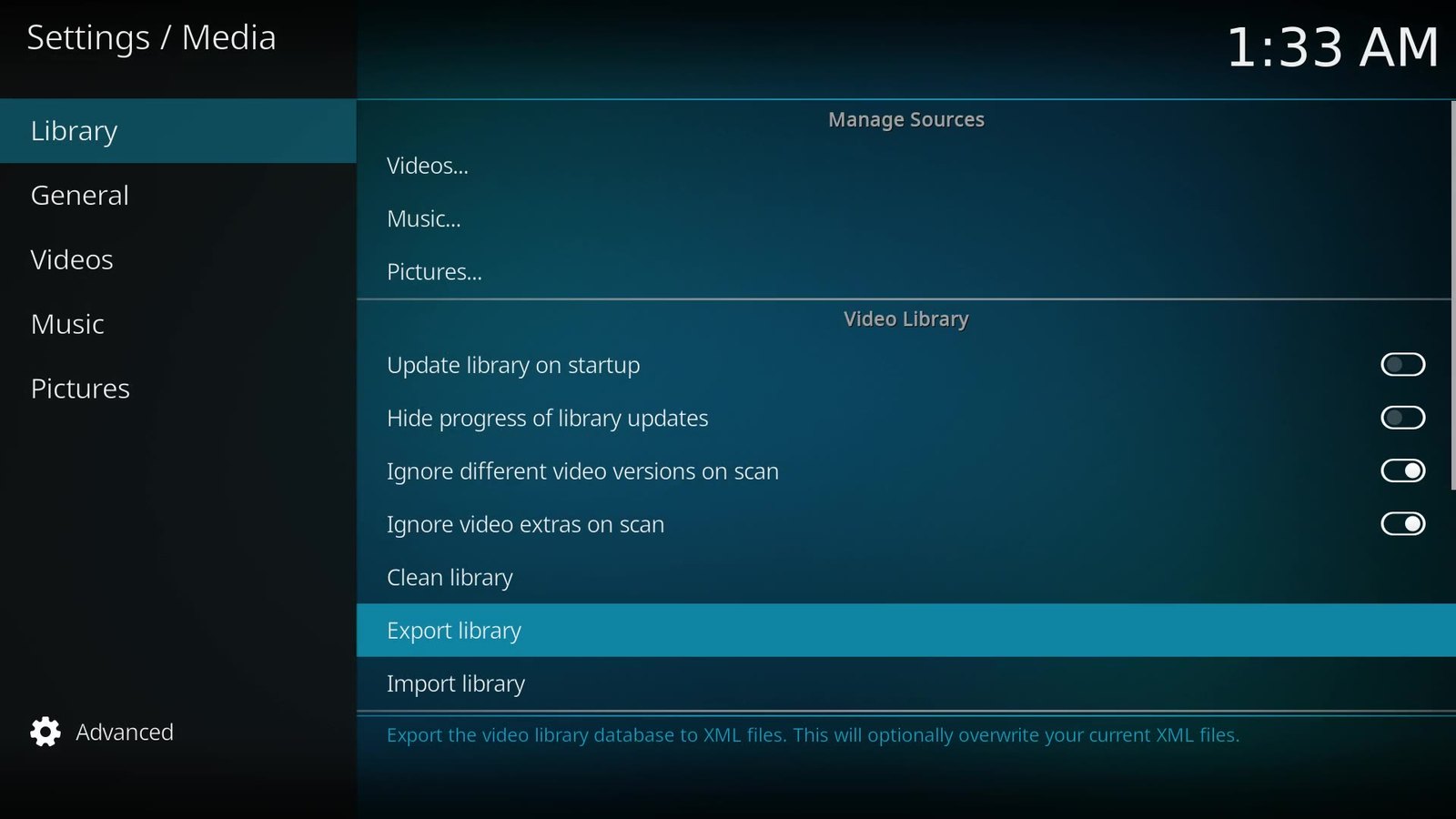
A full backup is perfect for restoring the same box. For moving your library somewhere new, also export it: Settings > Media > Library > Export library (Advanced settings level). The wiki’s advice is Separate files for the video library, which writes info files alongside your media so any Kodi scanning those folders picks the details back up, and Single file for music, which also keeps play counts, ratings and last played data.
Mistake 1: restoring across platforms or major versions
Pete restores his Android backup onto a Windows PC, then onto a newer major version of Kodi for good measure. It goes as well as you would expect. The wiki says a full data folder backup should not be used to move between different operating systems, or between major Kodi versions. Point releases, such as 21.1 to 21.2, are fine. Moving platforms is what library export is for.
The Becky routine
- Install the official Backup add-on from the Kodi repository.
- Save backups off the box, ideally on a schedule.
- Export the library: separate files for video, single file for music.
- Back up your media drive separately.
- Restore a full backup only to the same platform and the same major version.
- Test it once: open the backup folder and check the files are really there.
A backup you have never checked is just a hopeful feeling, and Pete runs entirely on hopeful feelings. Do this now, because Kodi 22 “Piers” is on the way and Team Kodi’s own release candidate post ends with three words: take a backup first. If you are clearing space before backing up, see how to clear Kodi’s thumbnails and cache safely.
Sources: Kodi wiki: Backup, Kodi wiki: Settings/Media/Library, kodi.tv: Kodi 22 Piers RC 1, checked on official Kodi 21.2 on my test machine.
Best IPTV boxes to buy
These are media boxes and sticks that can run players and licensed apps. The first six are Google certified Android TV or Google TV devices with Google Play. The three Fire TV Sticks run Amazon’s own systems with the Appstore instead of Google Play: the 4K Max and 4K Plus run Fire OS, which is Android based, while the new Fire TV Stick 4K (2026) runs Vega OS, which does not allow sideloading Android apps, only Appstore apps. The last one, the Formuler, runs its own Android and is not certified. They are not pirate hardware. They do not come with channels or playlists. I am not claiming I personally lab-tested every SKU this month.
Pick a Google TV box when you want Play Store apps on a proper TV OS or a dedicated player behind the sofa. Pick a Fire TV Stick when Prime Video and the Appstore already cover what you watch. If you need an Android player from outside the Appstore, skip the Vega OS stick.
- NVIDIA SHIELD TV Pro: the premium pick, a certified Android TV player with AI upscaling, Dolby Vision/Atmos and Gigabit Ethernet for the main living-room telly. Amazon UK | Amazon US | Amazon DE | Amazon FR | Amazon IT
- Google TV Streamer 4K: solid Google TV living-room default with Ethernet, 32GB storage and Dolby Vision/Atmos. Amazon UK | Amazon US | Amazon DE | Amazon FR | Amazon IT
- Xiaomi TV Box S (3rd Gen): Google TV box with 32GB storage, Wi-Fi 6 and Dolby Vision/Atmos, the cheaper box route than the Streamer. Amazon UK | Amazon US | Amazon DE | Amazon FR | Amazon IT
- Xiaomi TV Stick 4K (2nd Gen): budget Google TV stick with Wi-Fi 6 and Dolby Vision/Atmos when you want HDMI-simple, not a full box. Amazon UK | Amazon US | Amazon DE | Amazon FR | Amazon IT
- Budget Google TV 4K player: a cheaper certified Google TV player for a second telly. The model differs by store, so each link names the one you get there. MECOOL KD3 (Amazon UK) | onn. Google TV 4K Streaming Box (Amazon US) | Strong LEAP-NOVA-X (Amazon DE) | Strong LEAP-NOVA-X (Amazon FR) | Strong LEAP-NOVA-X (Amazon IT)
- MECOOL MEon1: Google TV certified 4K box with AI upscaling and 32GB storage for a dedicated player behind the sofa. Amazon UK
- Fire TV Stick 4K Max: the most powerful Fire TV Stick, with Wi-Fi 6E, Dolby Vision/Atmos and 16GB storage. It runs Fire OS, which is Android based, so you get Appstore apps and can still sideload an Android player. Amazon UK | Amazon US | Amazon DE
- Fire TV Stick 4K Plus: the older Fire OS stick with Wi-Fi 6 and Dolby Vision/Atmos. It is being phased out, so buy it only while stock lasts. Like the Max, it can still sideload Android apps. Amazon UK | Amazon US | Amazon DE | Amazon FR | Amazon IT
- Fire TV Stick 4K (2026): the newest and slimmest 4K stick, with a new remote. It runs Vega OS, which does not allow sideloading Android apps, only Appstore apps, so check your player is in the Appstore before you buy. Amazon UK | Amazon US | Amazon DE | Amazon FR | Amazon IT
- Formuler Z12 Ultra SE: the newest Formuler box, built around MYTVOnline 4 for IPTV playlists. It runs Formuler’s own Android rather than certified Google TV, so there is no Netflix in HD and no Google certification. Formuler Z12 Ultra SE (Amazon UK) | Formuler Z12 Ultra SE (Amazon US) | Formuler Z12 Ultra SE (Amazon DE) | Formuler Z12 Ultra SE (Amazon FR) | Formuler Z12 Ultra SE (Amazon IT)
Whichever you pick, check that the app you need is in its store before you pay. And none of these boxes or sticks magically make unlicensed streams legal.
Written by Dr Husham Memar