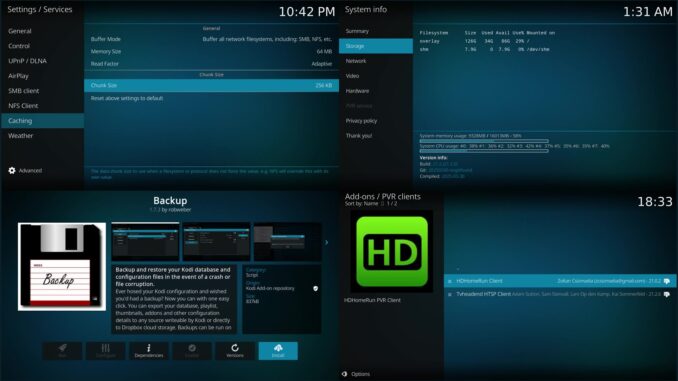
Kodi is brilliant, free, open source and a little bit like a new kitchen: everything you need is in there, but nobody tells you which drawer the spoons are in. So this is the drawer map. Every Kodi guide from my series, in the order I would actually do them, using official Kodi settings and official add-ons only.
Each chapter is short, uses real screenshots from my own test machine, and links to the official Kodi wiki so you can check every claim yourself. Start at the top, or jump straight to the problem that is annoying you tonight.
Before you start
Get Kodi only from kodi.tv/download or your device’s official app store. Kodi comes with no content of its own: it plays your own films, music and recordings, plus whatever official add-ons you choose. Everything in this guide works on Kodi 21 Omega (21.2 and 21.3), and the last chapters cover the move to Kodi 22 Piers.
| Step | Guide | What it fixes |
|---|---|---|
| 1 | The hidden caching menu | Buffering and stuttering |
| 2 | Read factor explained | Why Adaptive is the safe setting |
| 3 | 7 built-in speed fixes | Slow menus and laggy remotes |
| 4 | Clear thumbnails and cache safely | Kodi eating your storage |
| 5 | Back up Kodi properly | Losing your setup |
| 6 | Kodi 21 to 22 pre-flight checklist | Upgrades that go wrong |
| 7 | 3D films on Kodi | 3D files that look like two pictures |
| 8 | Live TV from your aerial | The empty TV button |
Part 1: stop the buffering
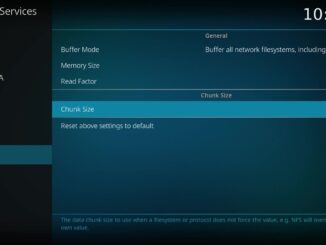
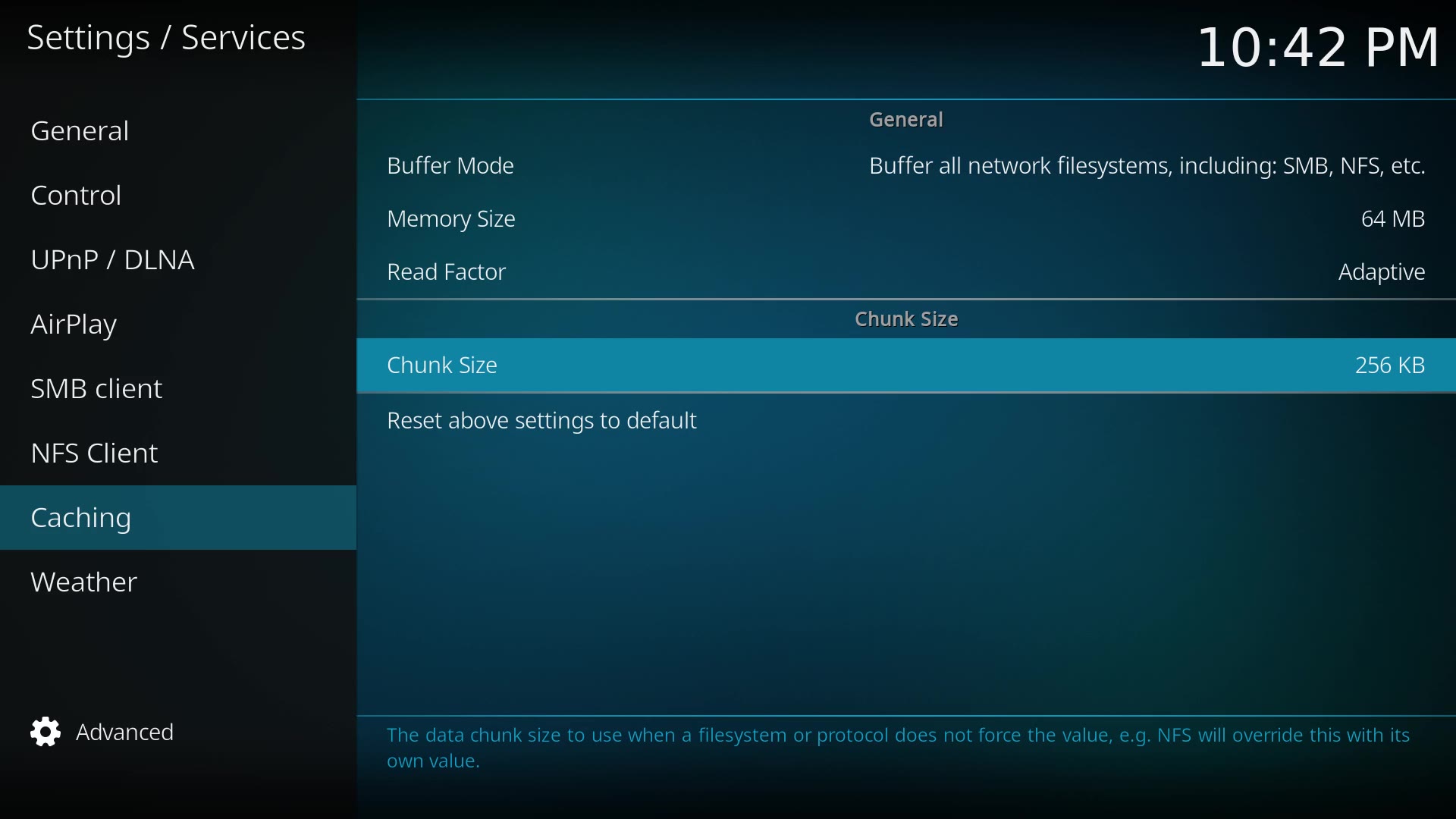
Buffering is the number one Kodi complaint, and since Kodi 21 the fix lives in a proper menu instead of a hand written file. The hidden caching menu guide shows you where it is (Settings > Services > Caching, in Advanced mode), what Buffer mode, Memory size and Chunk size really do, and the numbers I would start with.
Then read Kodi read factor explained. It is one setting, but it is the one people change wrongly, and Adaptive is usually the right answer. Short chapter, big difference.
Part 2: make Kodi fast and tidy
If the menus feel like wading through custard, slow Kodi: 7 built-in fixes goes through the official settings that make the biggest difference, from the skin to library updates, with no cleaner add-ons needed.
After that, clear thumbnails and cache safely shows you how to see what is really using space (Settings > System information > Storage) and how to tidy it without breaking your library artwork.
Part 3: protect your setup
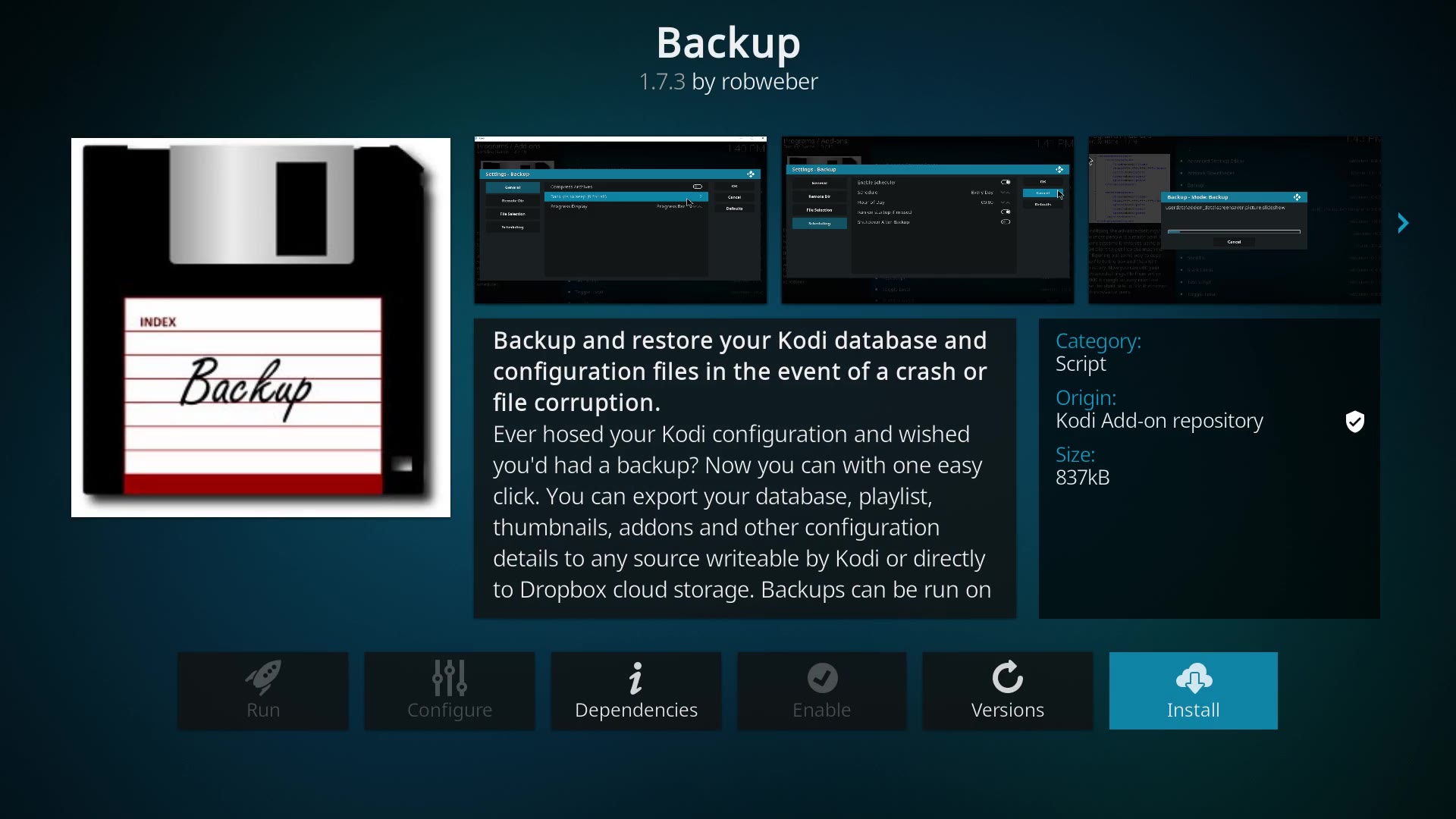
You have spent an evening getting Kodi just right. Do not let one bad update take it away. How to back up Kodi properly covers the official Backup add-on from the Kodi Add-on repository and Kodi’s own library export, so you have two copies, not zero.
With a backup in hand, the Kodi 21 to 22 Piers pre-flight checklist walks you through checking your version, your add-ons and your add-on settings before you move up to Kodi 22, so the upgrade is boring. Boring is good.
Part 4: go further
Got 3D films or a 3D telly gathering dust? How to watch 3D films on Kodi explains side by side, top and bottom and anaglyph, and the two settings that decide what you actually see.
And if Kodi’s TV button has only ever told you off, live TV from your aerial the legal way shows you how to add a Freeview tuner, a Tvheadend or HDHomeRun backend and the official PVR client add-ons, with a TV guide and recording.
More chapters on the way
This page grows with the series. As each new guide goes live it gets added here in its proper place, so bookmark this one page and you will always have the whole map.
Sources: Kodi wiki, kodi.tv download, kodi.tv news. Every chapter lists its own sources at the end.
Best IPTV boxes to buy
These are media boxes and sticks that can run players and licensed apps. The first six are Google certified Android TV or Google TV devices with Google Play. The three Fire TV Sticks run Amazon’s own systems with the Appstore instead of Google Play: the 4K Max and 4K Plus run Fire OS, which is Android based, while the new Fire TV Stick 4K (2026) runs Vega OS, which does not allow sideloading Android apps, only Appstore apps. The last one, the Formuler, runs its own Android and is not certified. They are not pirate hardware. They do not come with channels or playlists. I am not claiming I personally lab-tested every SKU this month.
Pick a Google TV box when you want Play Store apps on a proper TV OS or a dedicated player behind the sofa. Pick a Fire TV Stick when Prime Video and the Appstore already cover what you watch. If you need an Android player from outside the Appstore, skip the Vega OS stick.
- NVIDIA SHIELD TV Pro: the premium pick, a certified Android TV player with AI upscaling, Dolby Vision/Atmos and Gigabit Ethernet for the main living-room telly. Amazon UK | Amazon US | Amazon DE | Amazon FR | Amazon IT
- Google TV Streamer 4K: solid Google TV living-room default with Ethernet, 32GB storage and Dolby Vision/Atmos. Amazon UK | Amazon US | Amazon DE | Amazon FR | Amazon IT
- Xiaomi TV Box S (3rd Gen): Google TV box with 32GB storage, Wi-Fi 6 and Dolby Vision/Atmos, the cheaper box route than the Streamer. Amazon UK | Amazon US | Amazon DE | Amazon FR | Amazon IT
- Xiaomi TV Stick 4K (2nd Gen): budget Google TV stick with Wi-Fi 6 and Dolby Vision/Atmos when you want HDMI-simple, not a full box. Amazon UK | Amazon US | Amazon DE | Amazon FR | Amazon IT
- Budget Google TV 4K player: a cheaper certified Google TV player for a second telly. The model differs by store, so each link names the one you get there. MECOOL KD3 (Amazon UK) | onn. Google TV 4K Streaming Box (Amazon US) | Strong LEAP-NOVA-X (Amazon DE) | Strong LEAP-NOVA-X (Amazon FR) | Strong LEAP-NOVA-X (Amazon IT)
- MECOOL MEon1: Google TV certified 4K box with AI upscaling and 32GB storage for a dedicated player behind the sofa. Amazon UK
- Fire TV Stick 4K Max: the most powerful Fire TV Stick, with Wi-Fi 6E, Dolby Vision/Atmos and 16GB storage. It runs Fire OS, which is Android based, so you get Appstore apps and can still sideload an Android player. Amazon UK | Amazon US | Amazon DE
- Fire TV Stick 4K Plus: the older Fire OS stick with Wi-Fi 6 and Dolby Vision/Atmos. It is being phased out, so buy it only while stock lasts. Like the Max, it can still sideload Android apps. Amazon UK | Amazon US | Amazon DE | Amazon FR | Amazon IT
- Fire TV Stick 4K (2026): the newest and slimmest 4K stick, with a new remote. It runs Vega OS, which does not allow sideloading Android apps, only Appstore apps, so check your player is in the Appstore before you buy. Amazon UK | Amazon US | Amazon DE | Amazon FR | Amazon IT
- Formuler Z12 Ultra SE: the newest Formuler box, built around MYTVOnline 4 for IPTV playlists. It runs Formuler’s own Android rather than certified Google TV, so there is no Netflix in HD and no Google certification. Formuler Z12 Ultra SE (Amazon UK) | Formuler Z12 Ultra SE (Amazon US) | Formuler Z12 Ultra SE (Amazon DE) | Formuler Z12 Ultra SE (Amazon FR) | Formuler Z12 Ultra SE (Amazon IT)
Whichever you pick, check that the app you need is in its store before you pay. And none of these boxes or sticks magically make unlicensed streams legal.
Written by Dr Husham Memar