Kodi has had a full 3D movie mode since version 13, more than ten years ago, and almost nobody uses it. Side by side, top and bottom, even the old red and cyan cardboard glasses. No add-ons, no faff: it is all built in. Here is how to get your own 3D films playing properly: what a 3D file is, how to name it so Kodi spots it, the two settings that matter, and the small print device makers forget to mention.
What a 3D file actually looks like
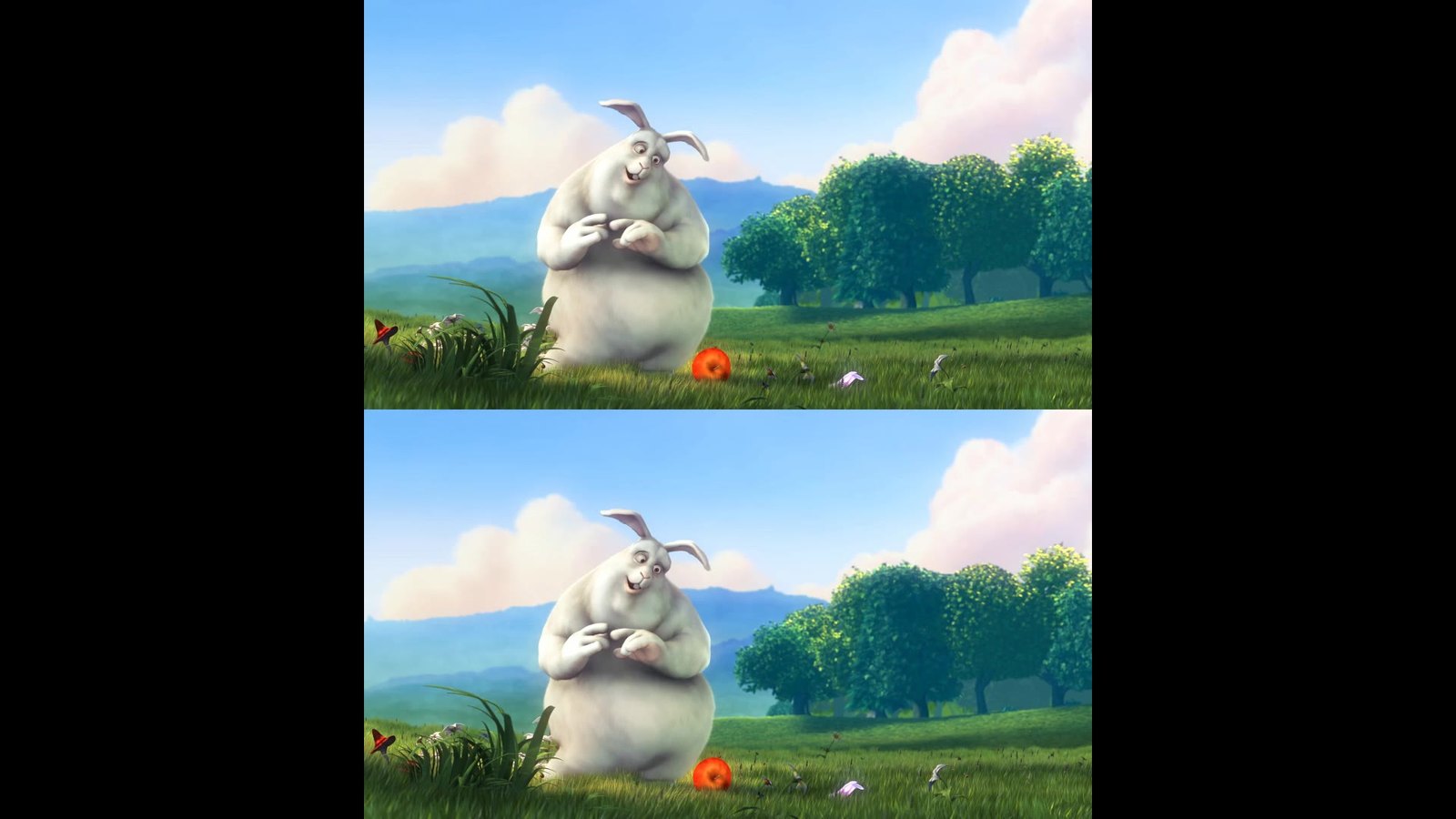
A 3D video packs two pictures into one frame, one for each eye. Side by side (SBS) puts the left and right eye images next to each other. Top and bottom (TAB) stacks them. Play one without telling Kodi it is 3D and you get two copies of the film on screen at once: very arty, not very 3D.
For my test I used the official stereo version of Big Buck Bunny from the Blender Foundation, which is free, openly licensed (CC BY 3.0) and top and bottom.
What you need
- A 3D TV or 3D projector and the right glasses for it, or
- Any computer screen plus red and cyan glasses (anaglyph), and
- Kodi from kodi.tv/download or your official app store.
Small print from the Kodi wiki: new flat-screen TVs stopped offering proper 3D around 2018 to 2019, and these days it is mostly home cinema projectors that still do it, with even some big brands dropping it outside their pricier models. If you have a 3D telly in the spare room, look after it.
Step 1: name your files
Kodi can detect 3D from the file name, and it needs two tags: a 3D tag, plus either SBS or TAB. HSBS and HTAB (the half width and half height versions) work too. The tags must be separated by a dot, hyphen, space or underscore, and capitals do not matter.
Big Buck Bunny (2008).3D.TAB.mp4moviename (year).3d.hsbs.mkvmoviename 3d sbs.mkvmoviename.3D-HTAB.mkv
Bonus fact from the wiki: Kodi actually checks two things before the file name. First, a 3D flag stored inside the file (the Matroska StereoMode field that many MKV files have). Second, whether you manually picked a 3D mode for that file before. The name is the backup plan, but name it right anyway.
Step 2: switch to the Advanced settings level
The 3D options stay hidden at the Standard level. Open any settings page such as System or Player, click the gear at the bottom left until it says Advanced, and the stereoscopic options appear.
Step 3: the two settings that matter
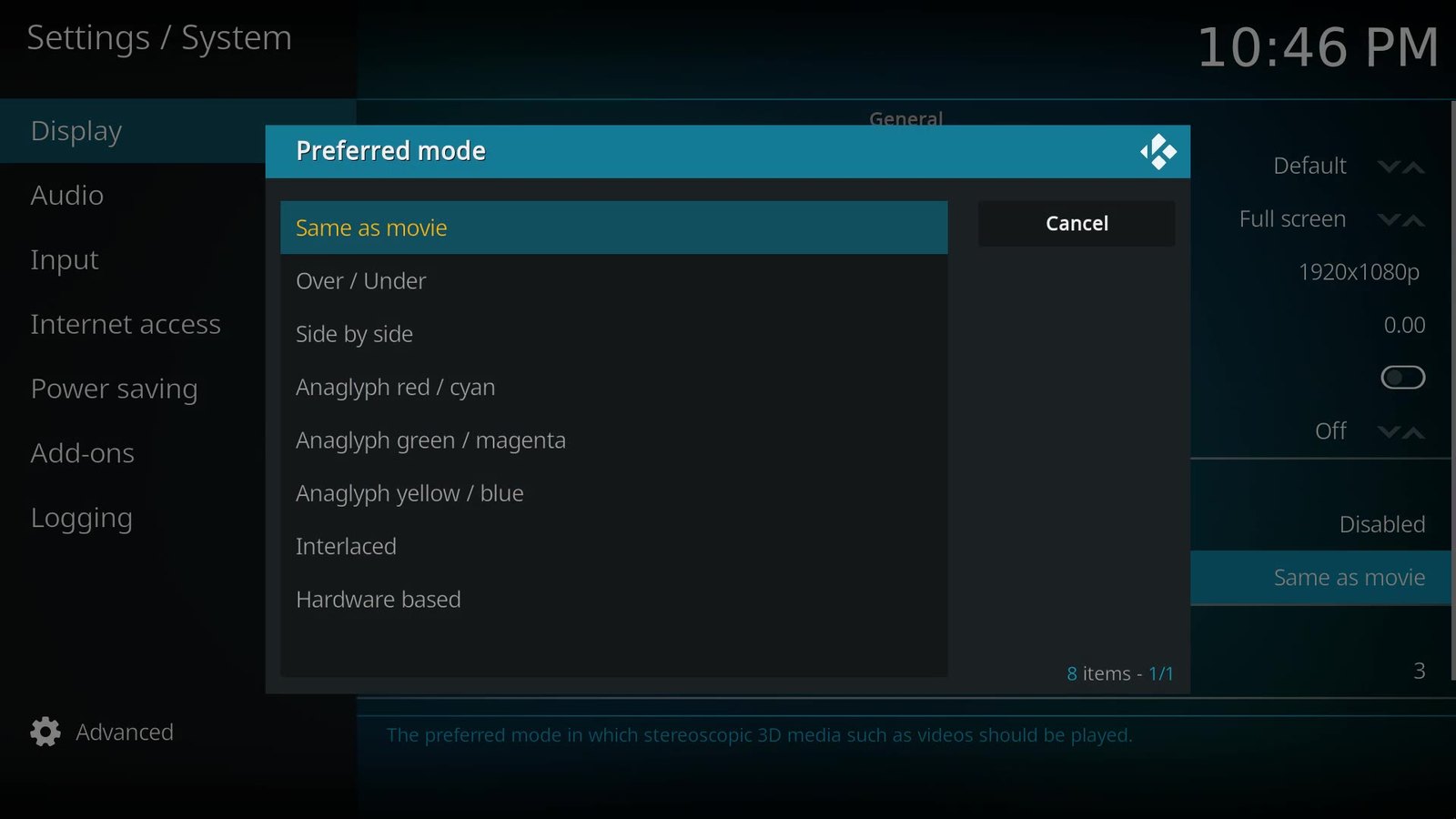
Preferred mode: Settings > System > Display, scroll to the Stereoscopic 3D section and open Preferred mode. On my Kodi 21 install the list is: Same as movie, Over/Under, Side by side, Anaglyph red/cyan, Anaglyph green/magenta, Anaglyph yellow/blue, Interlaced and Hardware based. “Same as movie” is the safe choice; otherwise match it to your screen and glasses.
Playback mode: Settings > Player > Videos, at the bottom: Playback mode of stereoscopic 3D videos. The wiki lists four options:
| Option | What it does |
|---|---|
| Ask me (default) | Shows a menu to choose the mode each time you play a 3D film |
| Preferred mode | Uses the Preferred mode you set under Display, automatically |
| Monoscopic/2D | Plays the film in normal 2D, perfect when the glasses have gone missing again |
| Ignore | Switches off all stereoscopic 3D handling |
Underneath is Disable stereoscopic mode when playback is stopped. Leave it on so your menus and TV return to 2D after the film.
Step 4: play it
Because my file is named .3D.TAB, Kodi spotted it straight away and asked: preferred mode, monoscopic 2D, or select alternate mode. On a normal computer monitor I chose alternate mode, then Anaglyph red/cyan, and out came the red and cyan fringes. Glasses on, and the bunny jumps out of the screen. Kodi renders its menus and subtitles in 3D too, so they do not turn into a wonky mess.
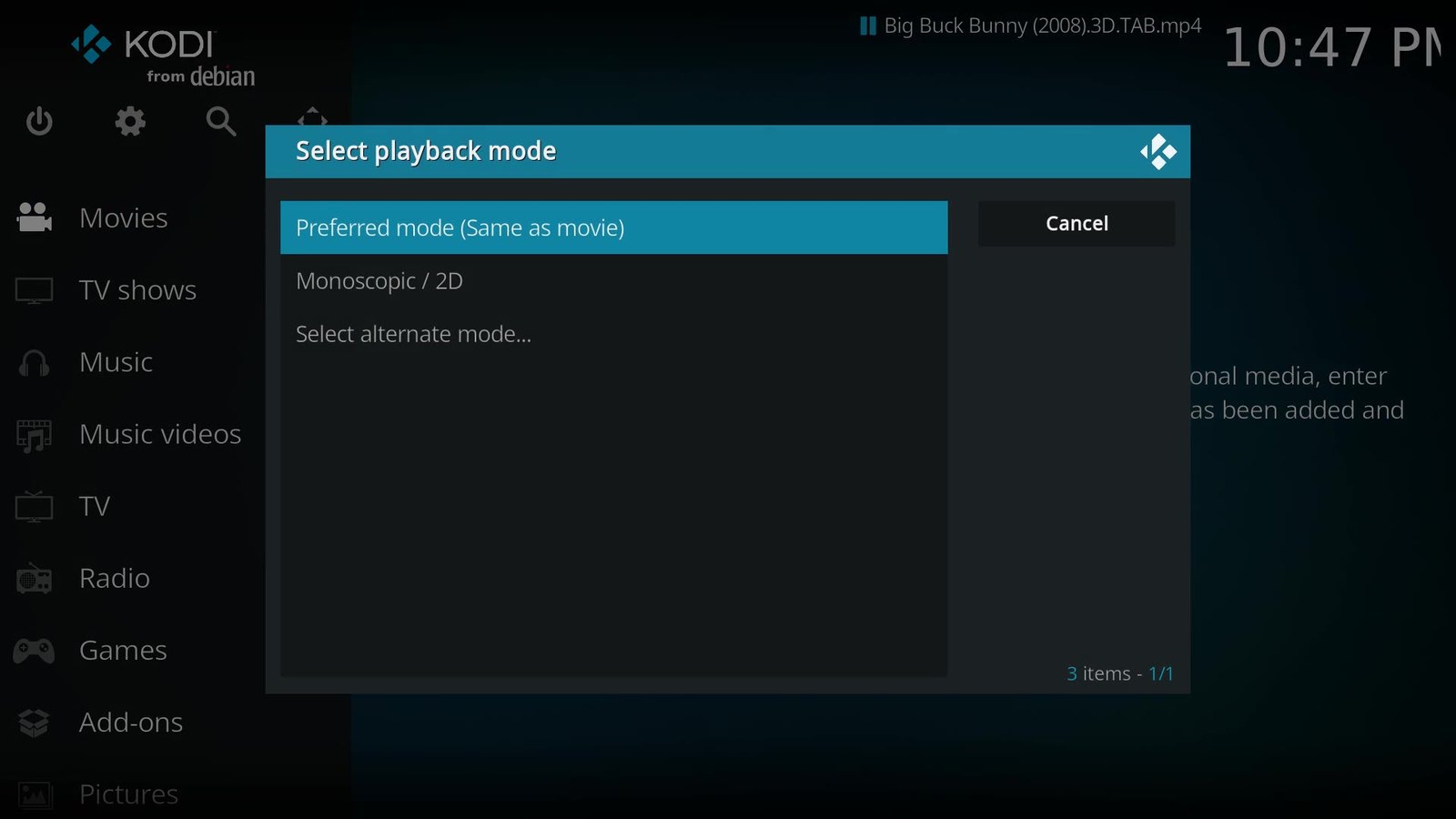
File not detected? During playback, open the video settings and choose the stereoscopic mode yourself. Kodi remembers that choice for that file next time.
Platforms and the small print
- Windows 8.1 and later: Kodi can send full HD 3D at 24 Hz to HDMI 3D displays using the Hardware based mode (HDMI 1.4 frame packing).
- Android, iOS and Raspberry Pi: anaglyph and interlaced modes are not supported on these ARM platforms, so the red and cyan trick is a computer thing.
- MVC (the 3D Blu-ray format): Kodi cannot decode it in software. It only works where the device hardware and its maker support it. Check before you buy, not after. SBS and TAB work almost everywhere.
- On a computer: use proper Full screen, not “Full screen window”, or 3D can misbehave.
One more for the future: the Kodi 22 “Piers” RC 1 changelog fixes 3D side by side PGS subtitles and improves HQ scaler selection for stereoscopic video, so 3D fans have something to look forward to when the final release lands.
Want smoother playback in general? See my Kodi buffering guide and seven fixes for a slow Kodi.
Sources: Kodi wiki: 3D, Kodi wiki: Settings/Player/Videos, kodi.tv: Kodi 22 Piers RC 1, checked on official Kodi 21.2 on my test machine. Big Buck Bunny (c) 2008 Blender Foundation, peach.blender.org, licensed CC BY 3.0.
Best IPTV boxes to buy
These are media boxes and sticks that can run players and licensed apps. The first six are Google certified Android TV or Google TV devices with Google Play. The three Fire TV Sticks run Amazon’s own systems with the Appstore instead of Google Play: the 4K Max and 4K Plus run Fire OS, which is Android based, while the new Fire TV Stick 4K (2026) runs Vega OS, which does not allow sideloading Android apps, only Appstore apps. The last one, the Formuler, runs its own Android and is not certified. They are not pirate hardware. They do not come with channels or playlists. I am not claiming I personally lab-tested every SKU this month.
Pick a Google TV box when you want Play Store apps on a proper TV OS or a dedicated player behind the sofa. Pick a Fire TV Stick when Prime Video and the Appstore already cover what you watch. If you need an Android player from outside the Appstore, skip the Vega OS stick.
- NVIDIA SHIELD TV Pro: the premium pick, a certified Android TV player with AI upscaling, Dolby Vision/Atmos and Gigabit Ethernet for the main living-room telly. Amazon UK | Amazon US | Amazon DE | Amazon FR | Amazon IT
- Google TV Streamer 4K: solid Google TV living-room default with Ethernet, 32GB storage and Dolby Vision/Atmos. Amazon UK | Amazon US | Amazon DE | Amazon FR | Amazon IT
- Xiaomi TV Box S (3rd Gen): Google TV box with 32GB storage, Wi-Fi 6 and Dolby Vision/Atmos, the cheaper box route than the Streamer. Amazon UK | Amazon US | Amazon DE | Amazon FR | Amazon IT
- Xiaomi TV Stick 4K (2nd Gen): budget Google TV stick with Wi-Fi 6 and Dolby Vision/Atmos when you want HDMI-simple, not a full box. Amazon UK | Amazon US | Amazon DE | Amazon FR | Amazon IT
- Budget Google TV 4K player: a cheaper certified Google TV player for a second telly. The model differs by store, so each link names the one you get there. MECOOL KD3 (Amazon UK) | onn. Google TV 4K Streaming Box (Amazon US) | Strong LEAP-NOVA-X (Amazon DE) | Strong LEAP-NOVA-X (Amazon FR) | Strong LEAP-NOVA-X (Amazon IT)
- MECOOL MEon1: Google TV certified 4K box with AI upscaling and 32GB storage for a dedicated player behind the sofa. Amazon UK
- Fire TV Stick 4K Max: the most powerful Fire TV Stick, with Wi-Fi 6E, Dolby Vision/Atmos and 16GB storage. It runs Fire OS, which is Android based, so you get Appstore apps and can still sideload an Android player. Amazon UK | Amazon US | Amazon DE
- Fire TV Stick 4K Plus: the older Fire OS stick with Wi-Fi 6 and Dolby Vision/Atmos. It is being phased out, so buy it only while stock lasts. Like the Max, it can still sideload Android apps. Amazon UK | Amazon US | Amazon DE | Amazon FR | Amazon IT
- Fire TV Stick 4K (2026): the newest and slimmest 4K stick, with a new remote. It runs Vega OS, which does not allow sideloading Android apps, only Appstore apps, so check your player is in the Appstore before you buy. Amazon UK | Amazon US | Amazon DE | Amazon FR | Amazon IT
- Formuler Z12 Ultra SE: the newest Formuler box, built around MYTVOnline 4 for IPTV playlists. It runs Formuler’s own Android rather than certified Google TV, so there is no Netflix in HD and no Google certification. Formuler Z12 Ultra SE (Amazon UK) | Formuler Z12 Ultra SE (Amazon US) | Formuler Z12 Ultra SE (Amazon DE) | Formuler Z12 Ultra SE (Amazon FR) | Formuler Z12 Ultra SE (Amazon IT)
Whichever you pick, check that the app you need is in its store before you pay. And none of these boxes or sticks magically make unlicensed streams legal.
Written by Dr Husham Memar