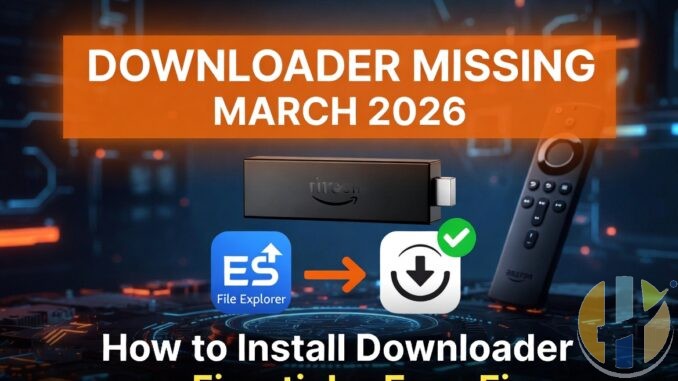
How to Install Downloader on Firestick When It’s Missing from the Appstore – Super Easy Guide (March 2026)
Updated: March 28, 2026
Is the **Downloader** app gone from your Firestick Appstore? Don’t worry — this happens sometimes. Amazon temporarily removed it in March 2026, but you can still get it back easily using a free app called **ES File Explorer** that is still in the store.
This guide is written for complete beginners. We will go super slow, step by step, like you have never used a Firestick before.
Step 1: Turn On Developer Options (Very Important!)
- From the Firestick home screen, look at the top and click the gear icon (Settings).
- Scroll down and click My Fire TV (it might say “Device” on some models).
- Click About.
- Find the line that shows your device name (example: “Fire TV Stick 4K”).
- Click on that device name 7 times quickly with the center button on your remote. You will see a message: “You are now a developer.”
- Go back one screen. You will now see Developer Options.
- Inside Developer Options, turn ON these two things:
- ADB Debugging
- Apps from Unknown Sources (or “Install unknown apps”)
- When it asks which app, allow it for ES File Explorer later.
Step 2: Install ES File Explorer (Still Available in the Store)
- Go back to the Firestick home screen.
- Click the Amazon Appstore icon (shopping bag or magnifying glass).
- In the search bar at the top, type ES File Explorer slowly using your remote.
- Find the free version by “ES Mobile” and click Install or Get.
- Wait until it says “Installed”.
Step 3: Download and Install Downloader Using ES File Explorer
- Open the **ES File Explorer** app you just installed.
- On the left side, look for the menu and click Tools (or tap the three lines if you don’t see it).
- Click Download Manager.
- At the bottom, click New or the + icon.
- In the big box labeled “Path” or “URL”, carefully type or copy this exact link:
www.husham.com/dwapk2 - (Optional) In the Name box, type “Downloader” so you remember what it is.
- Click Download.
- Wait until the download finishes (you will see a progress bar).
- After it downloads, go to the Download folder inside ES File Explorer.
- Find the file called **Downloader.apk** (or similar) and click on it.
- Click Install.
- Click Open or Done when it finishes.
Congratulations! Downloader is now installed. Open it and you can use your usual codes or URLs again.
Safety Tips (Please Read)
- Only use the link from Husham.com above — it is safe and verified.
- Do NOT install random apps from unknown websites.
- After you have Downloader working, you can delete ES File Explorer to save space if you want.
- If you already had Downloader before it disappeared, just leave it installed — it still works.
What Happens When Downloader Returns to the Store?
Amazon usually fixes this in a few days. Once it’s back, just search for “Downloader by AFTVnews” in the Appstore and install it the normal way.
Troubleshooting for Beginners
- Download fails? Make sure your Firestick is connected to Wi-Fi and has enough free space.
- Can’t find Developer Options? Repeat the 7-click step slowly.
- Install button is grayed out? Go back to Developer Options and allow unknown apps for ES File Explorer.
- Still stuck? Tell us your exact Firestick model in the comments (check in Settings → My Fire TV → About).
Also useful: the two devices I would compare if your current Fire TV device cannot run Downloader.
- Amazon Fire TV Stick 4K Max (newest gen): the current Wi-Fi 6E model; check the listing says Fire OS rather than Vega OS before you pay. Amazon UK | Amazon US | Amazon DE | Amazon FR | Amazon IT
- Google TV Streamer 4K: a simple Google TV box with Ethernet and the full Play Store. Amazon UK | Amazon US | Amazon DE | Amazon FR | Amazon IT
Best IPTV boxes to buy
These are media boxes and sticks that can run players and licensed apps. The first six are Google certified Android TV or Google TV devices with Google Play; the last one, the Formuler, runs its own Android and is not certified. They are not pirate hardware. They do not come with channels or playlists. I am not claiming I personally lab-tested every SKU this month.
Buy one of these when: Fire TV sideload is a hassle on your model, you want Play Store apps on a proper TV OS, or you want a dedicated player shell behind the sofa. No Fire TV device is on this shortlist.
- NVIDIA SHIELD TV Pro: the premium pick, a certified Android TV player with AI upscaling, Dolby Vision/Atmos and Gigabit Ethernet for the main living-room telly. Amazon UK | Amazon US | Amazon DE | Amazon FR | Amazon IT
- Google TV Streamer 4K: solid Google TV living-room default with Ethernet, 32GB storage and Dolby Vision/Atmos. Amazon UK | Amazon US | Amazon DE | Amazon FR | Amazon IT
- Xiaomi TV Box S (3rd Gen): Google TV box with 32GB storage, Wi-Fi 6 and Dolby Vision/Atmos, the cheaper box route than the Streamer. Amazon UK | Amazon US | Amazon DE | Amazon FR | Amazon IT
- Xiaomi TV Stick 4K (2nd Gen): budget Google TV stick with Wi-Fi 6 and Dolby Vision/Atmos when you want HDMI-simple, not a full box. Amazon UK | Amazon US | Amazon DE | Amazon FR | Amazon IT
- Budget Google TV 4K player: a cheaper certified Google TV player for a second telly. The model differs by store, so each link names the one you get there. MECOOL KD3 (Amazon UK) | onn. Google TV 4K Streaming Box (Amazon US) | Strong LEAP-NOVA-X (Amazon DE) | Strong LEAP-NOVA-X (Amazon FR) | Strong LEAP-NOVA-X (Amazon IT)
- MECOOL MEon1: Google TV certified 4K box with AI upscaling and 32GB storage for a dedicated player behind the sofa. Amazon UK
- Formuler Z12 Ultra SE: the newest Formuler box, built around MYTVOnline 4 for IPTV playlists. It runs Formuler’s own Android rather than certified Google TV, so there is no Netflix in HD and it is the one box here without Google certification. Formuler Z12 Ultra SE (Amazon UK) | Formuler Z12 Ultra SE (Amazon US) | Formuler Z12 Ultra SE (Amazon DE) | Formuler Z12 Ultra SE (Amazon FR) | Formuler Z12 Ultra SE (Amazon IT)
Still shopping for a Fire TV device? Fine for Prime Video and the Appstore universe. Not the shortlist above. And none of these boxes magically make unlicensed streams legal.
Related Articles
→ Best Working Downloader Codes 2026
→ How to Install Kodi on Firestick
→ Firestick 4K Max Setup Guide
Disclaimer: This is for educational purposes only. Always use legal apps and content. Husham.com does not provide or promote illegal streaming.
Did this simple guide help you? Leave a comment below and tell us which Firestick model you have! 👍