Every AI company currently has the same business model: sell you a monthly subscription, then sell you a second subscription so an “agent” can use the first one while you make a cup of tea. By the time you pay for ChatGPT, Claude, Grok and whichever wrapper app promised to run your life this Tuesday, your bank statement looks like a Silicon Valley charity appeal.
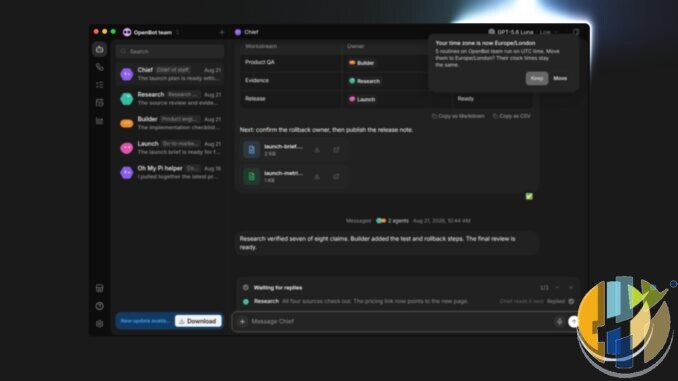
That is why OpenBot caught my eye. It is a free, local-first desktop app for Windows, macOS and Linux that runs a team of persistent AI agents on your own computer, using the AI plans and command-line tools you already pay for. Instead of one forgetful chat tab at a time, you get named teammates with their own folders, instructions and message queues that talk to each other and hand work across.
I went through OpenBot’s docs, its GitHub repository and the October 2026 release notes (up to version 0.48.1 on 22 October) to see how it holds up for website, content and tech work on a Windows PC. Here is what works, what does not, and why you must read the security warning before letting bots near your C: drive.
What OpenBot actually is (and why the licence matters)
Built by Norbert Bodziony and Synthetify Labs, OpenBot pitches itself in its launch announcement as a free, local-first alternative to cloud agent workspaces like Grok Bot. It does not train its own AI model. Instead, it wraps the official coding and agent CLIs you already use:
- Codex (local Codex App Server, using your ChatGPT plan)
- Claude Code (using your Claude plan)
- Grok CLI (connected to xAI, including SuperGrok)
- Gemini (Google AI Pro or Ultra plan)
- OpenCode (includes free models that need no account)
- Cursor CLI and Cline CLI
- Local models and custom APIs: any OpenAI-compatible endpoint, plus Ollama or LM Studio
If you plan to pair it with local models in Ollama or LM Studio, read my guide on testing how fast local AI models run before you buy a GPU or Mac.
Now for the small print on “free”. OpenBot costs $0 with no locked features, and the source code is public on GitHub under the PolyForm Noncommercial License 1.0.0. As OpenBot’s FAQ openly notes, that is not an OSI-approved open-source licence. Personal and noncommercial use is free (hobby sites, learning, testing), while commercial business use requires a paid licence from Synthetify Labs or their managed OpenBot for Teams plan.
How the local-first, multi-agent setup works
Standard AI chats have goldfish memory. OpenBot’s OpenBot 101 guide explains why its agents stick around: each one owns four permanent parts on your PC.
- A workspace folder: its own directory at
~/OpenBot/Agents/, plus~/OpenBot/Sharedfor file handoffs. - A durable thread: every prompt, file read, shell command and agent reply in one log.
- An identity: name, avatar, role and custom instructions.
- A private provider session: the underlying CLI resume state.
Workspaces, chats and browser data live in a local SQLite database called openbot.db. Because the workspace and thread belong to the agent rather than the model provider, you can switch an agent from Codex to Claude Code or Grok mid-task and keep its files and history intact.
Agents also coordinate in shared Channels. Instead of copying text across browser tabs, you can build a practical site and content team:
- Researcher agent: checks primary sources in the built-in browser and saves notes to
~/OpenBot/Shared. - Writer agent: drafts the article or page update in your house voice.
- Fact-checker / SEO agent: checks links, flags weak claims and verifies headings and metadata.
- Publisher / Dev agent: formats the HTML pack or updates your local repo.
One agent owns a channel task at a time and hands it off explicitly, while extra prompts wait in a pauseable queue.

OpenBot vs Grok Bot: local PC vs cloud computer
Since OpenBot compares itself directly to Grok Bot, here is the practical difference between running agents on your own desktop versus a cloud computer.
| Feature | OpenBot (Local Desktop App) | Grok Bot (Cloud Agent Workspace) |
|---|---|---|
| Where it runs | Directly on your Windows 10/11 PC, Mac (macOS 13+) or Linux machine | On a persistent cloud Linux computer hosted for you |
| When you shut your laptop | Stops the moment your PC sleeps, shuts down or restarts | Runs 24/7 in the cloud, including scheduled routines while you sleep |
| File access | Direct access to local folders, scripts and tools on your drive | Isolated cloud box; files move to your PC only when copied |
| Safety boundary | Runs with your local OS user permissions (danger-full-access in preview) |
Sandboxed inside a remote Linux machine away from your personal desktop |
| Model billing | Uses your existing ChatGPT, Claude, Grok, Gemini or Ollama plans ($0 app fee for personal use) | Integrated cloud workspace subscription |
| Mobile access | iOS (TestFlight) and Android apps connect to your PC over WebRTC while the PC stays on | Reachable anytime without leaving a home computer running |
Put simply, Grok Bot is a remote Linux staff room that never sleeps and cannot touch the family photos on your Windows desktop. OpenBot invites the team straight into your study: free for personal work and right next to your files, until Windows decides to reboot.
What OpenBot is good for (and what it is NOT)
On a Windows PC, OpenBot excels at text, code and local file workflows:
- Website updates and WordPress prep: turning rough notes into HTML packs, checking links or editing local theme templates. (See my earlier guide on building your own Android TV player app with AI and Cursor.)
- Research and fact-checking: one agent pulls specs from release notes while a second audits every number.
- Local file crunching: cleaning CSVs, batch-renaming images or running local Python scripts.
Be clear about what OpenBot is not:
- Not a video generator: it will not render AI avatars, replace HeyGen or edit 4K video out of thin air unless an agent is driving a local script or external API you already own.
- No native email inbox: there is no built-in email client or agent inbox out of the box.
- WhatsApp is browser-only: there is no native WhatsApp integration, though agents can drive OpenBot’s built-in Chromium browser (and optional
cua-driverComputer Use tool) to use WhatsApp Web if you sign in there. Think twice before giving an autonomous preview bot live access to your chats.
The serious caveats: Windows sandboxing, sleep mode and “local-first” myths
1. Unrestricted file access and weaker Windows sandboxing
OpenBot’s GitHub README warns that the app is a development preview. After first-launch consent, agents run with danger-full-access and approvalPolicy: never, reading and editing files, running shell commands and driving the browser without per-action prompts.
As OpenBot 101 states: “This is a product decision, not a security boundary. An agent starts in its own workspace, but these provider modes are unrestricted on purpose. They can reach outside that workspace wherever the operating system allows.”
On Linux or macOS, cautious users often isolate tools in containers or AppArmor profiles. On a standard Windows 10 or 11 PC, OS sandboxing for local CLI child processes is much weaker by default. A bad PowerShell command or web prompt injection runs with your Windows user permissions and can reach your Documents, Desktop or saved credentials outside ~/OpenBot/Agents/.
2. Your PC must stay switched on and awake
Scheduled Routines and the mobile companion apps only work while your PC is awake. If Windows sleeps, hibernates or reboots for Patch Tuesday, your agents stop dead.
3. “Local-first” does not mean offline
As OpenBot’s privacy note explains, local-first means openbot.db stays on your drive rather than Synthetify Labs’ servers. Unless you use local models in Ollama or LM Studio, your prompts still go over the internet to your chosen AI provider, and backing up openbot.db is entirely your job.
How to get started on Windows (safely)
- Use a separate Windows user account or spare PC: run OpenBot on a secondary standard Windows profile, virtual machine or spare mini PC rather than your main admin account.
- Download from openbot.run or GitHub Releases: grab the code-signed
OpenBot-*-x64.exeinstaller and verify the SHA-256 checksum if Windows SmartScreen warns on a brand-new build. - Connect your existing CLI plans: verify
grok(with SuperGrok),claudeorcodexworks in your terminal, then pick your provider in OpenBot’s Settings; it reuses your terminal sign-in without copying credentials. - Start with two distinct roles: create one Researcher/Checker agent and one Writer/Builder agent rather than three identical clones.
- Set Windows sleep and backups: keep Windows awake while plugged in during queued runs and back up
~/OpenBotregularly.
Who should use OpenBot and who should skip it
- Use it if: you already pay for SuperGrok, ChatGPT or Claude, want multiple agents collaborating on local site, code or research files, and want zero extra subscription cost for personal projects.
- Skip it if: you need cloud agents that run while your laptop is shut, need commercial use without paying for a licence, expect built-in video generation or native email, or do not want unrestricted preview agents on your main Windows PC.
Your best next step: install OpenBot on a secondary Windows user profile, connect one CLI plan you already pay for (or a free OpenCode model), and give one agent a small, checkable job inside its folder, such as checking links in one HTML file. Inspect the command log under its reply before trusting it with anything bigger.
And once your agents finish tidying your drafts and you want to sit down in the living room with a proper telly box instead of a desktop terminal, here is my current hardware shortlist.
Best IPTV boxes to buy
These are media boxes and sticks that can run players and licensed apps. The first six are Google certified Android TV or Google TV devices with Google Play; the last one, the Formuler, runs its own Android and is not certified. They are not pirate hardware. They do not come with channels or playlists. I am not claiming I personally lab-tested every SKU this month.
Buy one of these when: Fire TV sideload is a hassle on your model, you want Play Store apps on a proper TV OS, or you want a dedicated player shell behind the sofa. No Fire TV device is on this shortlist.
- NVIDIA SHIELD TV Pro: the premium pick, a certified Android TV player with AI upscaling, Dolby Vision/Atmos and Gigabit Ethernet for the main living-room telly. Amazon UK | Amazon US | Amazon DE | Amazon FR | Amazon IT
- Google TV Streamer 4K: solid Google TV living-room default with Ethernet, 32GB storage and Dolby Vision/Atmos. Amazon UK | Amazon US | Amazon DE | Amazon FR | Amazon IT
- Xiaomi TV Box S (3rd Gen): Google TV box with 32GB storage, Wi-Fi 6 and Dolby Vision/Atmos, the cheaper box route than the Streamer. Amazon UK | Amazon US | Amazon DE | Amazon FR | Amazon IT
- Xiaomi TV Stick 4K (2nd Gen): budget Google TV stick with Wi-Fi 6 and Dolby Vision/Atmos when you want HDMI-simple, not a full box. Amazon UK | Amazon US | Amazon DE | Amazon FR | Amazon IT
- Budget Google TV 4K player: a cheaper certified Google TV player for a second telly. The model differs by store, so each link names the one you get there. MECOOL KD3 (Amazon UK) | onn. Google TV 4K Streaming Box (Amazon US) | Strong LEAP-NOVA-X (Amazon DE) | Strong LEAP-NOVA-X (Amazon FR) | Strong LEAP-NOVA-X (Amazon IT)
- MECOOL MEon1: Google TV certified 4K box with AI upscaling and 32GB storage for a dedicated player behind the sofa. Amazon UK
- Formuler Z12 Ultra SE: the newest Formuler box, built around MYTVOnline 4 for IPTV playlists. It runs Formuler’s own Android rather than certified Google TV, so there is no Netflix in HD and it is the one box here without Google certification. Formuler Z12 Ultra SE (Amazon UK) | Formuler Z12 Ultra SE (Amazon US) | Formuler Z12 Ultra SE (Amazon DE) | Formuler Z12 Ultra SE (Amazon FR) | Formuler Z12 Ultra SE (Amazon IT)
Still shopping for a Fire TV device? Fine for Prime Video and the Appstore universe. Not the shortlist above. And none of these boxes magically make unlicensed streams legal.
Written by Dr Husham Memar