In general, Kodi is known to be a reliable software. This home theater software is incredibly powerful out-of-the-box. You can easily import your content library and play almost every type of media files. On top of that, you can install highly useful add-ons that extend Kodi’s capabilities. However, all these features can be too much for Kodi at times. Our readers have reported various issues, which is why we wanted to publish a guide to solving them. So, is your Kodi not working? Are you seeing the ‘No stream available’ error? Not a problem! Continue reading our Kodi troubleshooting guide to learn more.
First, we will cover some of the most common issues with Kodi. These are usually connected to streaming or buffering issues. On the other hand, some issues can be more serious. For example, when Kodi displays an error preventing you from playing media. Finally, some issues are specific to certain add-ons. We plan on covering all of them and hope this will help you solve those issues. In addition, it’s also helpful sometimes to go through Kodi’s basics, which is what you can find in our Beginners Guide to Kodi. Now, let’s start with our Kodi troubleshooting guide.
Disclaimer: We will be talking about software developed for Kodi – which is based on open-source code. However, the following software comes from unofficial third-parties. In addition, it is publicly available and free of charge. Husham.com doesn’t claim any responsibility for how our readers decide to utilize the following software. Please note that we don’t condone sharing pirated content and copyright infringement. Husham.com is not affiliated with the software mentioned in this article in no way. Make sure to carefully read the above-said disclaimer and ensure the proper use of the software.
WARNING: Before You Continue…
Even without your explicit consent, your ISP (Internet Service Provider) is collecting and filtering your Web browser data. This means that using Kodi to stream copyrighted content might get you into legal trouble. Also, your ISP might block access to specific streams, which leads to Kodi errors, or entirely blocked and throttled streaming. This is why users of Kodi should always use a VPN to make sure their identity and privacy are protected while streaming.
Husham.com’s editorial team uses and strongly recommends ExpressVPN. This is, by far, the fastest and most reliable VPN with the power to unblock any website and service. Once activated, ExpressVPN encrypts your Web traffic and makes it anonymous – keeping it away from your ISP’s prying eyes. In fact, you will become invisible on the Web since your user logs, and your traffic history isn’t stored on any server.
Make sure your Web browsing and streaming aren’t used against you. Subscribe to ExpressVPN and enjoy using Kodi without any restrictions!
Kodi Troubleshooting Guide: Streaming Issues
First, we will cover streaming and buffering issues. These kinds of issues occur when you click on a media file and receive different kinds of errors. Here are some of the cases of streaming issues that you might be experiencing:
- You try to play a media file, but it never starts;
- You receive a ‘No stream available’ error message;
- A video starts playing, but it buffers way too much;
- Movies and TV shows start playing, but freeze at some point;
- You can’t find any source links when browsing third-party add-ons.
There is a number of different solutions to the above-mentioned issues. Please note that we are going to list possible solutions that are applicable to the latest version of Kodi. It’s up to you to try them out and hopefully resolve any technical difficulties.
Solution #1: Run the Latest Version of Kodi
Before doing anything else, you need to make sure you are running the latest version of Kodi. Sadly, this software doesn’t come with an automatic update tool, which means that you need to update Kodi manually. Please note that a new version of Kodi is being released every couple of months. Some of those are larger updates (like Kodi 15, Kodi 16, and Kodi 17) while others are incremental updates (for example Kodi 17.1, up to Kodi 17.6). In case you haven’t updated Kodi in a while, it’s wise to check out if there’s a new update available. Here’s how to do that:
- Go to Kodi’s official website and click on a blue ‘Download’ button. This is where you’ll find the latest versions for different platforms and operating systems.
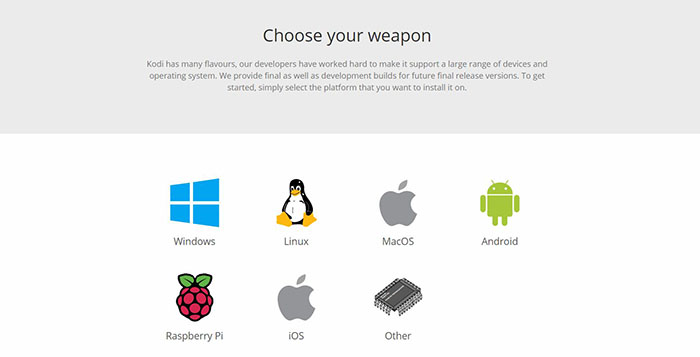
- Select your operating system in the ‘Choose Your Weapon’ section and proceed with downloading the needed file.
- Once downloaded, double-click to install Kodi. You don’t have to uninstall the old version. Instead, re-install Kodi and all your add-ons and customizations will be left intact.
As you probably know, Kodi comes with wide compatibility with almost every popular operating system. This means that updating Kodi is done differently on different platforms. We are going to provide links towards our existing installation guides, which will tell you how to install (and update) Kodi.
- There are two ways to install Kodi on Windows, so pick the one you used the first time you installed Kodi;
- Kodi for macOSÂ (OS X) is installed using a DMG file. Simply drag-and-drop the new file over your existing Kodi installation.
- Linux installation of Kodi is a bit more complicated since you need to use commands within the terminal. However, you won’t have a hard time if you follow our in-depth guide.
- Mobile versions of Kodi are also updated often. Kodi for Android comes via Google Play Store, while Kodi for iOS needs to be sideloaded from your Mac.
- Finally, there’s a Raspberry Pi version of Kodi. Use the provided link to learn how to install a new version of Kodi.
Solution #2: Keep Your Add-Ons Updated
We’ll continue our Kodi troubleshooting guide by telling you how to update add-ons. Even though Kodi is set to check for updates automatically, you can do this manually as well.
Once you launch Kodi, the application will try to search for new versions of add-ons. If there are pending updates, you can see them in the Add-ons section – under Kodi’s logo. You’ll recognize this icon as a circular arrow. Click on it to perform manual updates.
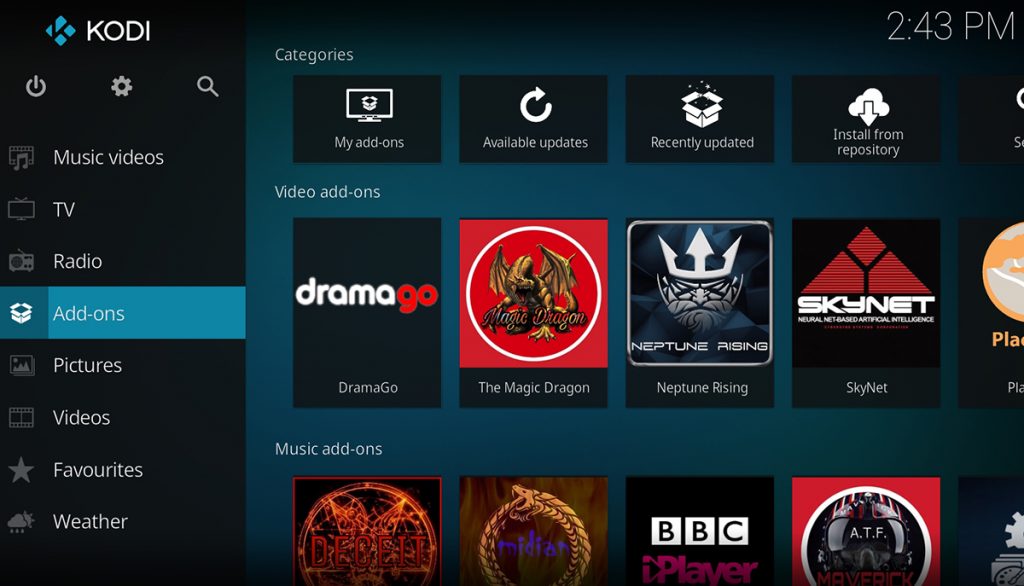
You also probably have a few of your favorite add-ons that you use on a daily basis. For us here at Husham.com, these are Exodus for Kodi, Covenant, and Incursion. Here’s how to update any of them.
- Open Kodi and navigate to the Add-ons section;
- Now go to Video Add-ons where you’ll find the add-on you are looking for;
- Once you find it, right-click on its icon and pick ‘Information’;
- You will see an overview of the add-on. Click on the ‘Update’ button to manually check for a newer version.
Make sure to occasionally check for new updates. We understand that this can be tiresome if you have dozens of installed add-ons. However, make sure to keep your frequently used add-ons updated at all times. And finally, here’s how to uninstall addons that you no longer use.
Solution #3: Take Advantage of Real-Debrid
Long-time Kodi users are well-aware of an amazing tool called Real-Debrid. This service is used to help Kodi users deal with the uncertainty of streaming movies and TV shows using add-ons.
The truth is that Kodi’s addons act as repositories of links towards media files. When you start streaming a movie, for example, it isn’t served from a particular addon’s server. Instead, that addon is using a link found on the Web to help you stream that content. This is why you can often find broken links forcing you to search for alternatives.
Real-Debrid solves this issue by letting you download and stream media files as fast as your Internet connection allows. Even if a download gets interrupted, you can resume downloading the file at a later time. However, you need to know what add-ons support this service. So, check our article on how to configure Real Debrid on Kodi.
Please note that Real-Debrid is a premium-priced service. However, it’s quite affordable. If you depend on Kodi for all your media streaming needs, this service can be a wise investment.
Solution #4: Clear The Cache Of Your Add-ons
If your streaming issues are connected to a particular add-on, it’s time to clear its cache. However, you should know that not every addon brings this option. We are going to talk about that later in the article, where we’ll recommending using a maintenance addon called Indigo. Still, the majority of popular addons do come with a dedicated Settings section.
Let’s take a look how to reset Exodus by deleting cache and providers.
- Open Kodi, navigate to Add-ons and launch Exodus;
- On the add-on’s Main Page, click on ‘Tools’;
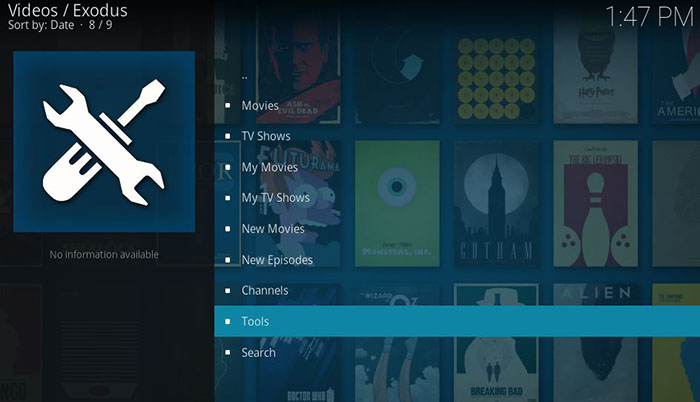
- This is where you’ll see two options – ‘Clear Cache’ and ‘Clear Providers’. Feel free to use them.
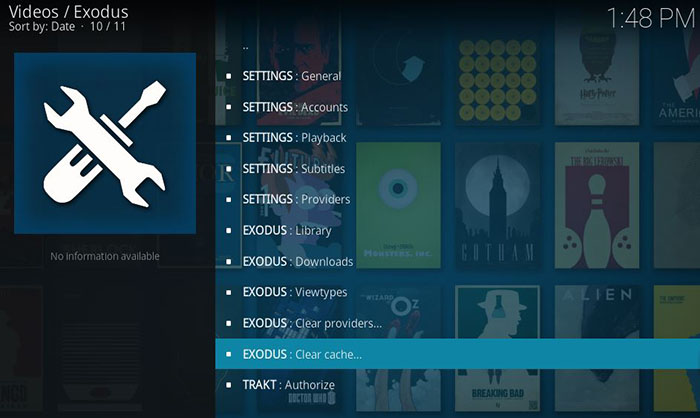
- You will be asked whether you’d like to proceed. Click ‘Yes’ to finish.
At any moment, you can check our article on how to clear the cache on Kodi. This should eliminate any buffering issues and make your Kodi run at it best.
Kodi Troubleshooting Guide: Advanced Settings
In general, the more powerful computer (or device) you have, the better. Even though Kodi is a lightweight application, you can allocate more resources to help the application run better. This is done via an XML file that you need to create and place within your User Data folder. We’ll tell you how to create that file, where to place it and how to make Kodi more powerful.
Create a New XML File
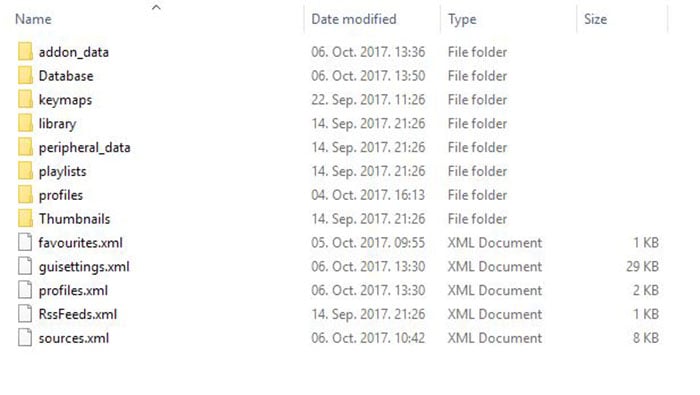
The first step is to create a new file with the XML extension that needs to be placed in your User Data folder. Here’s how to locate your User Data on different operating systems:
- Windows: Open the Run command by pressing the Windows Key + R. Paste the following code: ‘%APPDATA%roamingkodiuserdata’. Press Enter and you’ll see the directory. You can also use the provided navigation path by launching the Start menu in Windows 10 and pasting it.
- Mac: Go to ‘/Users//Library/Application Support/Kodi/userdata/’;
- Linux: Navigate to ‘~/.kodi/userdata/’;
- Android: Use your default File Manager and go to ‘Android/data/org.xbmc.kodi/files/.kodi/userdata/’;
- iOS: Use your devices File Manager and open ‘/private/var/mobile/Library/Preferences/Kodi/userdata/’.
Once you’ve found the directory create a new file and name it ‘advancedsettings.xml’. This can be done by creating a new text file and making sure you are using the XML extension.
Populate the Newly Created XML
Using the below-placed image, you can see the final look of the Advanced Settings file. Please note that the blue-colored text must be placed as you see on the image. The white text presents variations you can use, depending on your device’s specification. The green-colored texts are explanations for what each of the available commands can do.
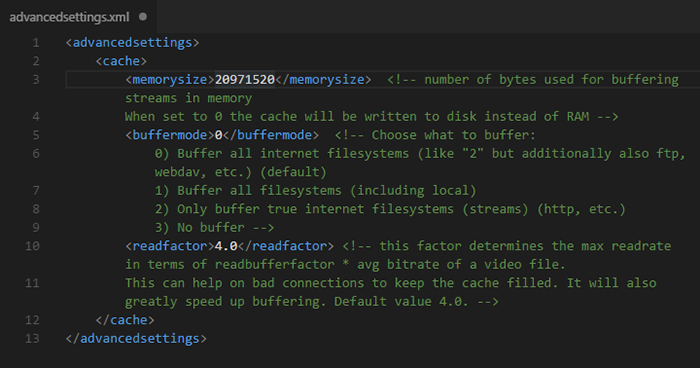
To help you understand what each of the commands is used for, we’ll take a closer look at every one of them:
- is a command used to tell Kodi how many bytes to use. In general, you can use up to one-third of your free RAM memory and dedicate it to Kodi. Make sure to know how much RAM you have, and divide that number by three. However, make sure to calculate that number in bytes. You can use this Online Converter to switch between gigabytes and bytes.
- is a setting that defines the types of content that are allowed to be buffered. For example, you can instruct Kodi to only buffer locally stored content or to buffer any type of file. ‘0’ is used to buffer all internet streams, ‘1’ is used to buffer anything compatible with Kodi, while ‘2’ is used to buffer true Internet-based filesystems.
- is how Kodi tries to read a video file. If you have a powerful processor, you can take advantage of that. The default value is ‘4.0’. You can double it if you have a CPU that is above mid-range.
Once you’ve entered the new values, save your file. Once again, make sure the file has the XML extension. That’s all you need to know. Kodi will do the rest.
Important note: Make sure that every symbol is properly entered. Take a close look at the image above and make sure every command has its start and end. For example: and . You will see that every command needs to be closed in order for Kodi to recognize this file. In case you mess something up, you can delete this file and Kodi will return to its original state.
Kodi Troubleshooting Guide: Errors with Kodi’s Log
A certain portion of Kodi users is aware of the infamous ‘Check the log for more information’ message. This error message can be displayed in different cases but it often happens when you try to play a media file. Since this can prevent you from streaming media from the Web, we will take a look at possible solutions in this Kodi troubleshooting guide.
Add Indigo to Kodi
A Kodi add-on named Indigo can be used as a maintenance tool for this application. As such, it can be used to keep Kodi optimized as well as to resolve certain issues. Even if Indigo fails to provide a solution, it can be used to restore this application to the original settings.

We have previously published an in-depth guide on how to Install Indigo. This is where you can find the updated repository as well as series of screenshots helping you to add this add-on to your copy of Kodi. If you continue reading, you will learn how to use this add-on as well as what some of its options can do.
Use Indigo to Fix Issues
Upon launching Indigo, you will see a series of different tools. We’ll focus on those that can be used to fix issues with Kodi.
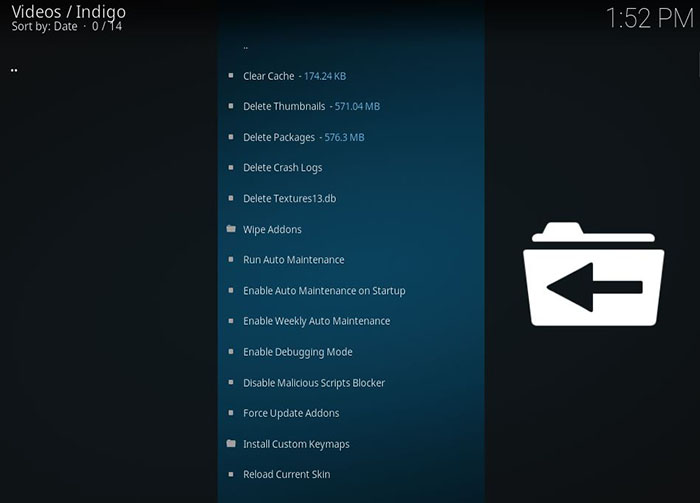
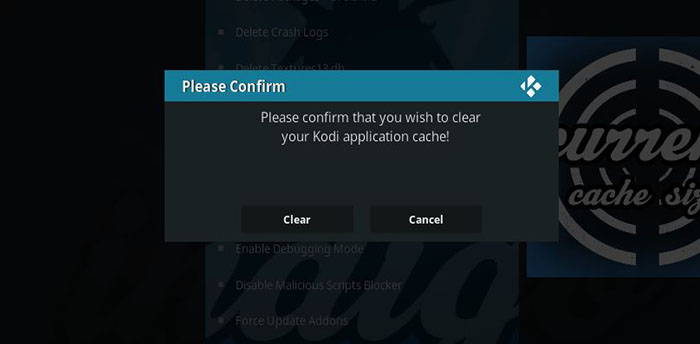
- Maintenance Tools: This is a comprehensive section bringing lots of useful options. We recommend clearing Kodi’s cache, deleting thumbnails, and deleting packages as well. As you can see, this section can also be used to keep Kodi optimized by using auto-maintenance scripts. You should know that Kodi does all these things by default, which means that Indigo can be used to force these operations. This can be helpful when it comes to removing different kinds of issues.
- Rejuvenate Kodi: In case you try different options and still face issues, it’s advisable to restore Kodi’s installation. What you need to know is that this option erases the current configuration as well as any add-ons or skins for Kodi you have installed. You’ll have to start from scratch once this operation is completed. It’s also worth knowing that once Indigo rejuvenates Kodi, you’ll be greeted with the Config Wizard which will help you set up the application.
- Factory Restore: This option also restores Kodi to its original configuration. However, you’ll be greeted with a blank slate. You can use this option if you don’t plan on using the Config Wizard.
Identify Issues Using Log Viewer
If you’re still unable to solve issues with Kodi, we are going to give you one more tip. Even though we hope you’ll benefit from reading this Kodi troubleshooting guide, we want to prepare you in case that doesn’t happen. This is why it’s important to know how to check Kodi’s log and send it to another person (or upload it online).
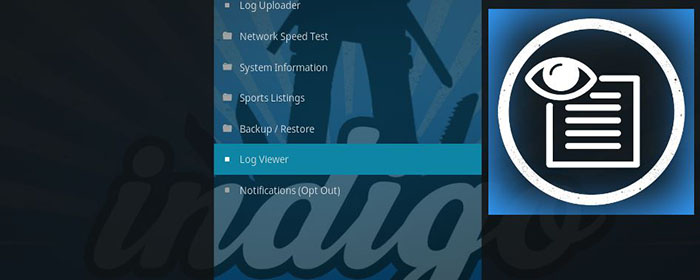
The easiest way to check Kodi’s log file is by using Indigo (click on ‘Log Viewer‘ in the Main Menu). This will display’s Kodi’s activities and provide information if something goes wrong. This is helpful in more ways than one:
- Kodi doesn’t provide specific information about errors, once they happen. Instead, it says that you should check its log file. By opening this file, you can find different error codes that can be used to search online. Since there are dozens of different errors, you can use Google to find information on specific error codes.
- You can also ask for help on forums. Kodi is known for its vibrant and helpful community of users. However, they won’t be able to help you if you don’t have a log file. This is why Indigo provides a convenient way to export or upload logs. This is done by opening Indigo and going to Log Viewer > Upload Log. This option can also be used to send your log to someone by knowing their email address.
Kodi Troubleshooting Guide: Additional Considerations
To make sure that this article is as helpful as possible, we are going to include additional considerations. As you’ll see, we’ll present additional info via series of questions, so keep on reading.
Is Kodi Playing Only The First Episode?
Some of our readers noted that their Kodi only plays the first episode of a TV show – and this issue seems to be related to Exodus. To solve this issue, here’s what you need to do:
- Open Exodus and go to Settings (right-click on the addon, select ‘Information’ and then click on ‘Configure’);
- Click on ‘Providers‘;
- Uncheck the following options: Ymovies, MoviesHD, and Torba;
- Hit ‘OK‘ and restart Kodi.
Can You Web Connection Handle Media Streaming?
To stream video files on the Web, it’s recommended to have at a very minimum 10 megabytes per second. When it comes to HD videos, you need at least 20 Mbps. To check if you meet this requirement, do a test at SpeedTest.
Are You Using an Old Kodi Box?
Kodi boxes, especially those from lesser-known manufacturers, can be underpowered. So, maybe you need to consider buying a new device. For more information, read our guide to the best Kodi boxes.
Are You Being Throttled by Your ISP?
Some ISPs (Internet Service Providers) throttle your connection when they catch you using Kodi to stream videos. The only way to overcome this obstacle is by using a reliable VPN. So, check out the best VPNs for Kodi that can easily solve this issue.
Final Thoughts
We hope that our Kodi troubleshooting guide helped you solve your issues. The truth is that some errors can be more specific than others, forcing you to turn to the Web and seek answers. This is why it’s beneficial to know how to identify an issue – which is done via Kodi’s log file. Even if you don’t resolve technical problems, there are numerous individuals online that can assist you.
In case you think other Kodi user would like to read this article, why not share it online? And you can also follow us on Facebook and Twitter – so, let’s stay in touch. Thanks!