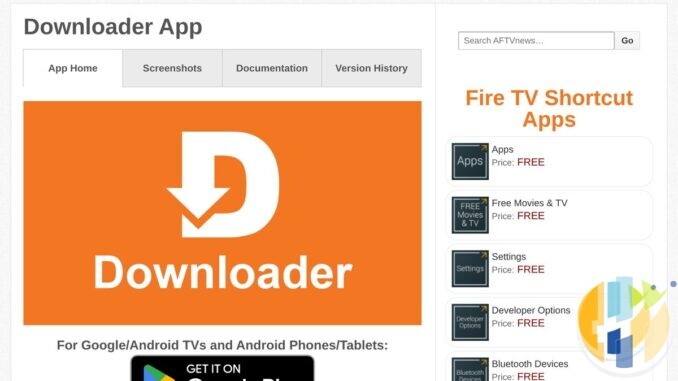
Downloader is the app I install first on almost every streaming box that lands on my desk, mostly because the alternative is typing a 90 character URL into a web browser with a TV remote, which is how I imagine tech company product managers punish interns. It is free, it is made by Elias Saba of AFTVnews, and it does one simple job: it fetches a file from a web address or a numeric short code, then hands it to your TV’s installer.
The catch in 2026 is that Amazon and Google keep moving the furniture. The switch you flipped in 2019 is now hidden, renamed, split per app, or gone completely on certain Fire TV Sticks. So here is how I install Downloader properly on Google TV, Android TV and Fire TV today, plus the fixes for the errors that fill my YouTube comments every week.
Player-only note: Downloader and every app mentioned here are tools. I am talking about installing legitimate apps and players for your own media and services you pay for. I do not supply playlists, codes or links to content, and nothing here is a guide to watching anything you do not have the rights to.
First, check your device can sideload at all
This is the bit Amazon’s box art forgets to mention. Some newer Fire TV devices run Vega OS, Amazon’s own Linux based system, instead of Android based Fire OS. Vega OS devices do not install Android APK files, so Downloader cannot sideload anything on them, no matter how many settings you toggle. I have a full guide on how to tell Vega OS from Android based Fire OS before you pay, and a buying list of which Fire TV Stick models can sideload.
Quick check on a Fire TV you already own: go to Settings > My Fire TV > About and look at the Fire OS version. If you cannot find Developer Options anywhere and the software says Vega, stop here and save yourself an evening.
Google TV and Android TV devices still allow sideloading, though Google has been tightening the rules around unverified developers. I covered that in why Google is quietly following Amazon on third party app installs. For now, the steps below work.
How to install Downloader on Fire TV (Fire OS)
- From the home screen, open search and look for Downloader. The one you want is by AFTVnews. Install it from the Amazon Appstore.
- Go to Settings > My Fire TV (called Device on some older models).
- If you do not see Developer Options, go into About, highlight your device name and press the select button on the remote seven times. Amazon’s own developer documentation describes this trick, and yes, it really is the official method. Nothing says “premium user experience” like a hidden menu unlocked by a cheat code.
- Go back, open Developer Options and allow unknown apps. On older software this is a single Apps from Unknown Sources switch. On newer Fire OS it opens an Install unknown apps list, where you turn on Downloader only.
- Open Downloader, allow it to access files when asked, and type the address of the APK you want, straight from the developer’s own site.
How to install Downloader on Google TV
This covers the Google TV Streamer, Chromecast with Google TV and TVs running Google TV. Google does not give you a tidy master switch here, so the order matters.
- Go to Settings > System > About.
- Scroll to Android TV OS build at the bottom and select it about seven times until you see You are now a developer!
- Install Downloader by AFTVnews from the Google Play Store.
- Open Downloader and fetch your APK.
- When the security message appears, select Settings and toggle Downloader to Allowed on the Install unknown apps screen.
- Go back and select Install.
- Choose Done rather than Open, return to Downloader and delete the APK file. Small devices like the Chromecast have the storage of a polite sandwich, so do not leave installers lying around.
How to install Downloader on older Android TV
Older Android TV boxes and televisions (think the NVIDIA Shield, older Sony and Philips sets) usually expose the permission directly. Install Downloader from Google Play, then look under Settings > Device Preferences > Security & restrictions > Unknown sources and switch on Downloader only. Manufacturers love to rename menus to feel creative, so if the path differs, just try to install an APK. The TV will complain and offer a Settings button that goes to the right switch.
Unknown sources is now per app, and that is a good thing
Since Android 8, there is no single “trust everything” switch on Android TV and Google TV. You grant install permission to one app at a time, the app that opens the APK. Give it to Downloader and nothing else. Your browser, your file manager and that weird launcher you installed in 2022 do not need it. You can switch it back off afterwards and anything already installed keeps working.
Fire OS vs Google TV: the differences that trip people up
- Where you get Downloader: Amazon Appstore on Fire TV, Google Play on Google TV and Android TV. Same developer, same app.
- Developer menu: Fire TV hides it under About, unlocked by pressing select seven times on the device name. Google TV unlocks it by selecting Android TV OS build seven times.
- Permission prompt: Google TV sends you to Install unknown apps from the pop up. Fire TV expects you to set it in Developer Options first.
- Play Protect: Google TV may show Blocked by Play Protect. If you trust the source, select Details then Install anyway. Fire TV does not have Play Protect, so you get fewer warnings, which is not the same as being safer.
- Vega OS: no sideloading at all. Google TV has no equivalent block yet.
Fixing common Downloader problems
“‘Unknown Sources’ is disabled” message in Downloader
On Google TV, this means developer options did not unlock properly. Go back to Settings > System > About and select Android TV OS build again until the TV confirms you are a developer, or says you already are. On Fire TV, check Developer Options and make sure Downloader specifically is allowed.
The APK downloads but nothing installs
- The install prompt sometimes just does not appear. Go to Downloader’s Files tab and select the file you downloaded to trigger it again.
- Check free storage. Delete old APKs from the Files tab and clear cache in apps you rarely use.
- If an older version of the same app is installed from a different source, Android may refuse to install over it because the signatures do not match. Uninstall the old one first, accepting you lose its settings.
- On Google TV, look for a hidden Play Protect block and use Details, then Install anyway, only for a source you trust.
“There was a problem parsing the package”
This is Android’s way of saying “I do not understand this file”, in the same tone as an airline explaining hand luggage rules. The usual causes:
- Incomplete download. The file stopped halfway, so it is not a valid APK. Delete it and download again on a stable connection.
- Not actually an APK. You downloaded a web page, a ZIP, or a split app bundle (APKS, XAPK) that the standard installer cannot open. Get the plain APK from the developer’s site.
- Wrong Android version. The app needs a newer Android than your box runs. Older Fire TV Sticks on Fire OS 5 or 6 hit this often. Look for an older release on the developer’s own download page.
- Wrong processor type. Some APKs are built for 64 bit ARM only and many Fire TV Sticks run 32 bit software. Pick the armeabi-v7a or “universal” download if the developer offers one.
“Connection closed” or downloads failing
This one is almost always the network or the server rather than Downloader itself.
- Restart the TV device and your router. Boring, effective.
- Check the address. One wrong character and you are downloading a 404 page, which then cheerfully fails to parse.
- The site may block downloads from apps rather than browsers, or the file may have moved. Visit the developer’s page in Downloader’s built in browser and select the download link from there.
- If you use a VPN or DNS filtering on the router, try switching it off briefly. Some filters treat APK downloads as suspicious, which, to be fair, is their job.
Developer Options missing on Fire TV
Press select seven times on your device name under About. If it still never appears, check whether your device is a Vega OS model. That is not a bug you can fix, it is the product.
Safe sources: where I actually download APKs from
- The official store first. If an app is on Google Play or the Amazon Appstore for your device, install it from there and get updates for free.
- The developer’s own website or GitHub releases page. Open source media players such as Kodi, VLC and Jellyfin publish their own downloads. I compare those in my Kodi alternatives guide.
- Avoid “modded” or “premium unlocked” versions of paid apps, random mirror sites, and any app that promises free channels or films. If it is free and the small print is missing, you are the product, or the malware is.
- Only enter Downloader short codes you trust. A short code is just a redirect to a URL. Check the publisher before typing one in.
One last tip: after installing what you need, go back and switch off the install permission for Downloader. It takes ten seconds and it means nothing can quietly install another app later. You can always turn it back on.
If your Fire TV turns out to be a Vega model, or you are simply tired of Amazon rearranging the menus every update, a proper Google TV or Android TV box is the easier route. Here are the ones I would look at this month.
Best IPTV boxes to buy
These are media boxes and sticks that can run players and licensed apps. The first six are Google certified Android TV or Google TV devices with Google Play; the last one, the Formuler, runs its own Android and is not certified. They are not pirate hardware. They do not come with channels or playlists. I am not claiming I personally lab-tested every SKU this month.
Buy one of these when: Fire TV sideload is a hassle on your model, you want Play Store apps on a proper TV OS, or you want a dedicated player shell behind the sofa. No Fire TV device is on this shortlist.
- NVIDIA SHIELD TV Pro: the premium pick, a certified Android TV player with AI upscaling, Dolby Vision/Atmos and Gigabit Ethernet for the main living-room telly. Amazon UK | Amazon US | Amazon DE | Amazon FR | Amazon IT
- Google TV Streamer 4K: solid Google TV living-room default with Ethernet, 32GB storage and Dolby Vision/Atmos. Amazon UK | Amazon US | Amazon DE | Amazon FR | Amazon IT
- Xiaomi TV Box S (3rd Gen): Google TV box with 32GB storage, Wi-Fi 6 and Dolby Vision/Atmos, the cheaper box route than the Streamer. Amazon UK | Amazon US | Amazon DE | Amazon FR | Amazon IT
- Xiaomi TV Stick 4K (2nd Gen): budget Google TV stick with Wi-Fi 6 and Dolby Vision/Atmos when you want HDMI-simple, not a full box. Amazon UK | Amazon US | Amazon DE | Amazon FR | Amazon IT
- Budget Google TV 4K player: a cheaper certified Google TV player for a second telly. The model differs by store, so each link names the one you get there. MECOOL KD3 (Amazon UK) | onn. Google TV 4K Streaming Box (Amazon US) | Strong LEAP-NOVA-X (Amazon DE) | Strong LEAP-NOVA-X (Amazon FR) | Strong LEAP-NOVA-X (Amazon IT)
- MECOOL MEon1: Google TV certified 4K box with AI upscaling and 32GB storage for a dedicated player behind the sofa. Amazon UK
- Formuler Z12 Ultra SE: the newest Formuler box, built around MYTVOnline 4 for IPTV playlists. It runs Formuler’s own Android rather than certified Google TV, so there is no Netflix in HD and it is the one box here without Google certification. Formuler Z12 Ultra SE (Amazon UK) | Formuler Z12 Ultra SE (Amazon US) | Formuler Z12 Ultra SE (Amazon DE) | Formuler Z12 Ultra SE (Amazon FR) | Formuler Z12 Ultra SE (Amazon IT)
Still shopping for a Fire TV device? Fine for Prime Video and the Appstore universe. Not the shortlist above. And none of these boxes magically make unlicensed streams legal.
Written by Dr Husham Memar