Husham Play is a free media player for Android, Fire TV, Windows, Mac and Linux, available worldwide. It comes pre-configured with quick access to my YouTube channel, website, forum and speed test. No ads, no tracking, no “premium tier” hiding the button you actually wanted.
Husham Play was previously called Husham Media; if you already have it installed, the new version simply updates it. It’s a free app and has nothing to do with the paid HushPlay smart TV player, so please don’t send me HushPlay invoices.
What’s new in Husham Play 1.1
- A brand-new Husham Play skin, so it finally looks like mine and not a beige box from 2009.
- A simple setup screen on first launch: add your own IPTV with an Xtream Codes login or an M3U playlist link, or add your own videos and films from USB, a folder or your home network.
- PVR IPTV Simple Client pre-installed and empty. Bring your own legal subscription; Husham Play provides no channels, playlists or content of any kind.
- Official add-ons pre-installed: YouTube, Internet Archive, Radio Browser, SoundCloud, Podcasts, OpenSubtitles (bring your own free account) and Open-Meteo weather.
- One-tap links to the official Netflix, Disney+, Hulu, Prime Video and YouTube apps or websites. Subscriptions sold separately, obviously.
- Built-in links to my YouTube, TikTok, website, forum and speed test, plus settings backup and an update check.
- International by default: it follows your device’s language and region, wherever in the world you are.
Only use services and media you have the right to access.
Download Husham Play 1.1
- Android / Fire TV 4K & Max (64-bit APK, about 97 MB). Most phones, Android TV boxes and newer Fire TV devices.
Download from GitHub | Download from MediaFire - Older Fire Sticks / 32-bit Android (APK, about 95 MB). If the 64-bit one says “App not installed”, use this one.
Download from GitHub | Download from MediaFire - Windows 10/11 (64-bit portable zip, about 94 MB)
Download from GitHub | Download from MediaFire - Linux x86_64, Ubuntu 22.04 or newer (tar.xz, about 49 MB). On Linux, install PVR IPTV Simple Client from the official add-on list if you want IPTV.
Download from GitHub | Download from MediaFire - Mac with Apple Silicon M1 or newer (version 1.0 DMG, about 112 MB). The 1.1 Mac version is on its way.
Android needs version 5.0 or newer. If your device runs on coal, I can’t help you. iPhone and iPad aren’t available, because Apple wants a toll for that.
How to install on Android phones and Android TV
- Open the download link above on your device.
- When Android clutches its pearls about “unknown apps”, allow your browser (or file manager) to install apps: Settings, Apps, Special app access, Install unknown apps.
- Open the downloaded downloaded APK and tap Install.
- Open Husham Play. Bask.
How to install on Fire TV / Fire Stick
- From the Home screen, search for and install the free Downloader app.
- Go to Settings, My Fire TV, Developer Options, Install unknown apps, and turn Downloader on. No Developer Options? Go to My Fire TV, About, and click your device name 7 times. Yes, really. Amazon thinks this is fun.
- Open Downloader, type
https://github.com/hmemar/kodi-builder/releases/download/v1.1-android-arm64-v8a-24/Husham-Play-1.1-android-arm64.apkand press Go. - Click Install, then Open. You are now morally obliged to watch my channel.
How to install on Windows
- Download the zip, right-click it and choose Extract All.
- Open the folder and double-click
Husham Play.exe. - Windows SmartScreen will gasp, because the app isn’t signed by a company with a big legal department. Click More info, then Run anyway.
How to install on Mac
- Open the DMG and drag Husham Play into Applications.
- The first time, right-click the app and choose Open, then Open again. Apple charges developers for the privilege of skipping this step.
How to install on Linux
- Extract it:
tar -xf Husham-Play-1.1-linux-x86_64.tar.xz - Run the
husham-playlauncher in the extracted folder.
Husham Play for dummies (said with love)
Never used a media player like this before? Perfect. Read this slowly, follow it step by step, and you’ll be done before the kettle boils. No tech degree needed; I have one so you don’t have to.

Step 0: The first time you open it
- Open Husham Play. You’ll see the orange Husham Play logo.
- A box may pop up asking for access to your device’s media and files. It may still say “Kodi” (the open-source engine underneath); I’m fixing that wording in the next update. Tap Continue, then tap Allow. If you tap Deny, the app closes, which is a bit dramatic but there we are.
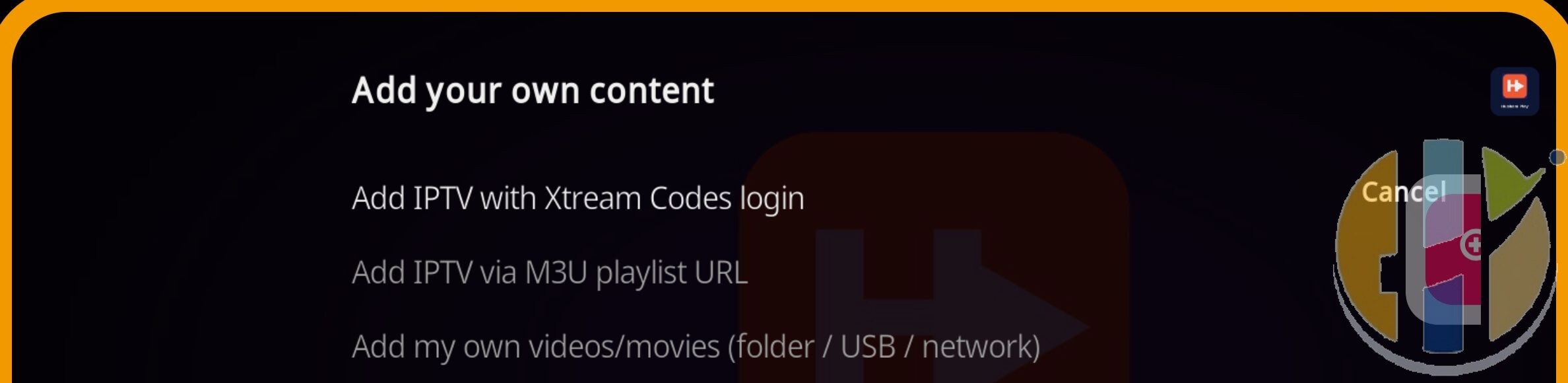
- Next you’ll see a screen called Add your own content. This is where you choose what to add. Pick one option below. You can come back to this screen later from the big setup tile on the home screen.
Option A: Add IPTV with an Xtream Codes login
Use this if your IPTV provider sent you a server address, a username and a password. It’s usually in their welcome email. Have it open on another screen or write it down.
- On the Add your own content screen, choose Add IPTV with Xtream Codes login.
- Server URL: type the server address exactly as your provider gave it, including the
http://at the start and the port number at the end if there is one, for examplehttp://example-server.com:8080. No spaces. One wrong letter and it won’t work, so check it twice. - Username: type your username. Capital letters matter:
Johnandjohnare different people as far as the server is concerned. - Password: type your password, again minding capital letters.
- Confirm with OK. Husham Play sets up your channels and the TV guide for you.
- Wait about a minute while the channels load. Big lists can take longer, so this is a good time for that kettle.
- Go back to the home screen and open TV (Live TV). Your channels are there. Tap one to watch.
Didn’t work? Nine times out of ten it’s a typo. Re-enter the details carefully. Still nothing? Check your subscription is active, or ask your provider whether your account allows more than one device.
Option B: Add IPTV with an M3U playlist link
Use this if your provider gave you one long web link (often ending in .m3u or containing get.php) instead of a username and password.
- Choose Add IPTV via M3U playlist URL.
- Type or paste the whole playlist link. Every character counts.
- If your provider also gave you a TV guide link (called EPG or XMLTV), add it when asked. If not, skip it; channels still work, you just won’t see what’s on next.
- Confirm with OK, wait a minute, then open TV from the home screen.
Tip for TV remotes: typing long links with a remote is a special kind of misery. Use the Android TV or Fire TV phone app as a keyboard, or pick Option A if your provider offers a login.
Option C: Add your own videos and films
Use this for films and videos you already own: on your phone, a USB stick, or a computer at home.
- Choose Add my own videos/movies (folder / USB / network).
- Pick where your videos are:
- On this device: pick the folder, such as Movies, Download or DCIM for phone videos.
- USB stick or hard drive: plug it in first, then pick it from the list.
- Another computer at home: choose the network option (it may be called SMB, Windows network or UPnP), then pick the computer and the shared folder. The computer must be switched on and sharing that folder.
- Give it a simple name like My Films and press OK.
- Go to the home screen, open Videos (or Movies), then your new source, and tap a file to play it.
Tip: name files clearly, like The Matrix (1999).mp4, and Husham Play shows them nicely instead of as VID_20230101_final_FINAL2.mp4.
Keep it legal
Husham Play comes with no channels, playlists or films. It’s an empty player, like a DVD player without DVDs. Only add services and media you have the right to watch, such as a paid IPTV subscription from a legitimate provider or files you own. If an offer is £5 for every channel on Earth, it isn’t a bargain; it’s a warning.
Common questions
- Where do I find my Xtream login? In the email or message your IPTV provider sent when you subscribed.
- Do I need a VPN? Not to use the app, but a VPN can protect your privacy on public Wi-Fi. See my VPN links on husham.com.
- How do I change or remove my IPTV later? Open the setup tile on the home screen again and enter the new details.
- Something not working? Ask on the Husham forum and include a photo of the error.
Quick links
Open source
Husham Play is based on the open-source Kodi project and released under the GNU GPL v2 (or later). Build scripts and configuration: github.com/hmemar/kodi-builder. Bundled add-on licences: THIRD-PARTY-ADDONS.md. Upstream source: github.com/xbmc/xbmc. Husham Play is not affiliated with or endorsed by the XBMC Foundation. Kodi is a trademark of the XBMC Foundation.
Written by Dr Husham Memar