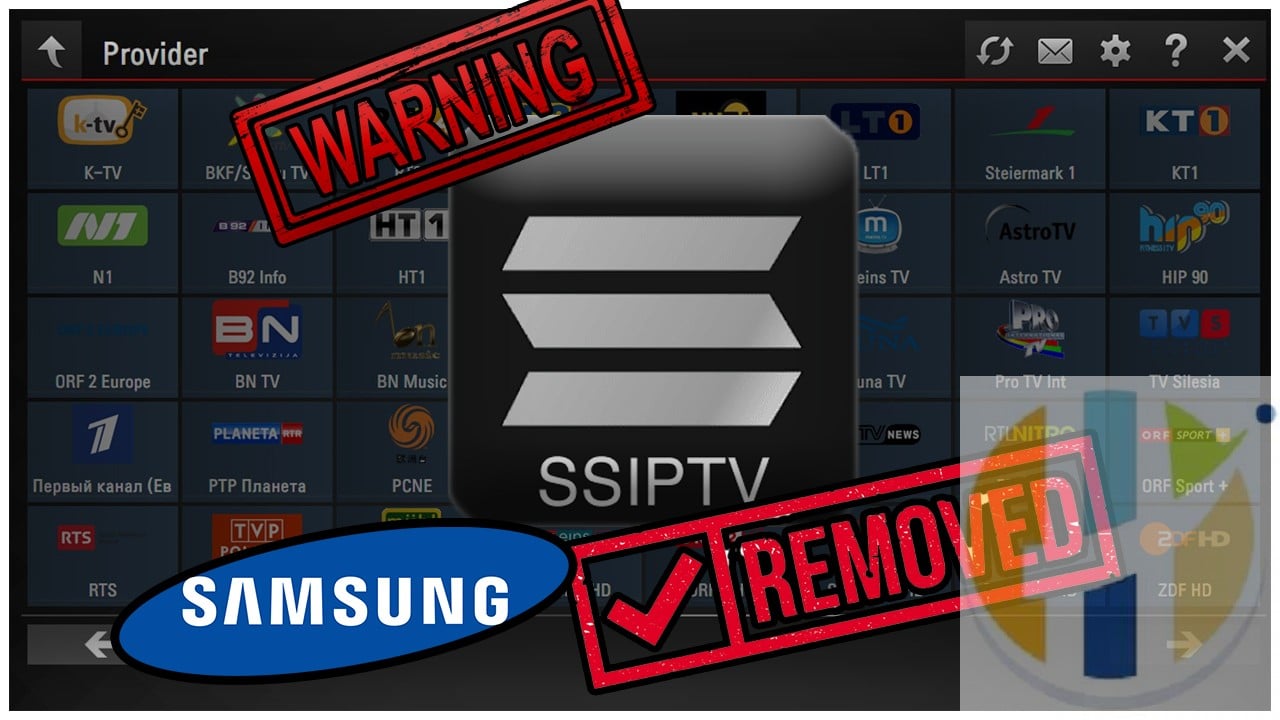
Samsung Removes SS-IPTV – DO NOT REST The TV
Samsung smart TVs are basically amazing TVs if they would remain SMART. Most of the time Smart functionality refer to the IPTV function. Samsung started removing every single app that refer to IPTV from the old TV, this made it very hard for users to enjoy Live streaming over the web using SS-IPTV or any similar IPT V app.
Recently Samsung removed the smart IPTV app in early June 2019, I created an article to go through the process warning everyone to not to rest your TV and how you can install it manually. However, this left the Crowd favourite APP SS-IPTV out of the loop. And it was sad that I didn’t an article sooner, but today I will go through the steps with everyone to install SS-IPTV manually to your TV
Users cant install SSIPTV IPTV
If you are one of these users that cannt install SS-IPTV on your TV, then follow this article is just for you so you can install SS-IPTV using a manual download and USB Stick.
Video Guide
Samsung removed SS-IPTV from all Samsung TV’s
it is sad to say that Samsung had recently removed the SS-IPTV and several apps from the Samsung Stores. Once again there was no official announcement as to why this is done. Speculation that Samsung is planning to install more Apple TV Casting and Apple TV services and although it is unclear as this is the reason why they removed SS-IPTV from their store, Samsung TV now simple no smarter than just a TV with YouTube, Netflix and Amazon Prime.
What Samsung Model TV do I need to install SSIPTV?
SS-IPTV can be installed on D, E, F, H, K or J-series, First, find out what Model is your TV (Click Here) and then make sure that you are ok to proceed with the manual Install.
DO NOT REST Samsung TV
Users who bought SAMSUNG TVs for their SMART functionality with SS-IPTV application, are very disappointed, just after purchasing the TV they always rush to obtaining an IPTV Service and watch live tv from the web using IPTV with the SS-IPTV Application.
Many users already have purchased IPTV Services and installed it in the SS-IPTV, now face the fact that SS-IPTV will most likely be removed by the next AUTO update or TV Rest.
Users with SS-IPTV already installed in their TV are advised not REST their SAMSUNG TV and to Switch AUTO UPDATE OFF. Resting your TV will result in SS-IPTV uninstalled and will be needing to install it manually.
Disable Auto Update
Follow the steps below to stop auto-update on your SAMSUNG TV
- Go to Settings.
- Select Support.
- Select Software Update.
- Select Auto Update.
- Select OFF
Manual Install
The information we have is that Samsung has suspended the app from the Apps store. You can however manually install the app by downloading the Software and placing it in a USB stick and placing it in your SAMSUNG USB Slot.
You can run the app via USB stick while the USB stick is inserted into TV.
For Non-Tizen TVs (2012~2015 years of production):
- Download the files from www.husham.com/hushamssiptv
- Unzip the content to the root folder of the USB stick.
- Insert your USB stick into one of the USB ports on your TV.
- Check out the video for full information
For Tizen TVs (2015~2019 years of production):
- Download the files from www.husham.com/hushamssiptv
- Unzip the content to the root folder of a USB stick.
- Insert your USB stick into one of the USB ports on your TV.
- Check out the video for full information
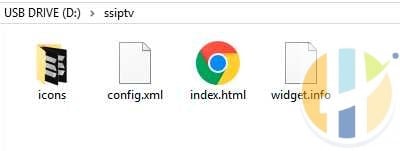
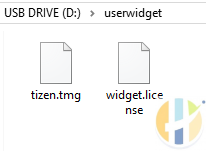
Important notice: Path does matter.
Please ensure that you have extracted the content of the archive to the root folder of the USB Flash Drive.
For example, on Windows your USB flash has letter “D”:
in D:\ssiptv\ you should have:
in D:\userwidget\ you should have:
SSIPTV installed do I take USB Out for D, E, F, H-series and J-series?
If the SS IPTV is installed, can I remove the USB? for Model of D,E,F,H and J Series, No you can’t. If you remove the USB, SS IPTV will disappear. Of course, if you insert it back, it will appear again. But you can still use it as storage for photos, videos. Sorry this is a Samsung limitation as your TV hardware was not designed to have apps stored in it.
SSIPTv Video Install Guide
SSIPTV Samsung Supported Models
Tizen TVs:
2019 lineup: UNU7100, UNU7300, URU7100, URU7300, URU7100, URU710D, URU7300, URU730D, URU7400, URU7410, URU7450, URU74A0, URU750, URU750, QNQ75C, QNQ75F, QNQ7C, QNQ7F, QRQ60, QRQ70, QRQ80, QRQ90, QRQ60, QRQ70, QRQ80, QRQ90, RQ750, UNU8000, URU8000, URU8000
2018 “N” lineup: UN5510, UN5500, UN5350, UN5300, UN4500, UN4350, UN4310, UN4300, UNU7120, UNU709D, UNU7090, UNU6950, UNU730D, UNU7300, UNU710D, UNU7100, UNU7103, QNQ9S, QNQ9F, QNQ8FB, QNQ8F, QNQ8C, QNQ7FH, QNQ7F, QNQ7C, QNQ75F, QNQ75C, QNQ6FK, QNQ6F, QNQ65FB, QNQ65F, UNU850D, UNU8500, UNU80A0, UNU800D, UNU8000, UNU76A0, UNU7500, UNU74A0, UNU7450, UNU7400, ULS03NU
2017 “M” lineup: UM6300, UM5600, UM5520, UM5510, UM5500, UM5300, UM4500, UMU9000, UMU8000, UMU7500, UMU70A0, UMU7000, UMU66A0, UMU6500, UMU64A0, UMU6470, UMU6400, UMQS9, UMLS003, QMS9Y, QMQ9F, QMQ8C, QMQ7FD, QMQ7F, QMQ7C, UMUF31E, UMU6000, UMU6100, UMU6300, UMU6310, UMU6320, UMUF30E
2016 “K” lineup: UK6300, UK6250, UK6200, UK5600, UK5520, UK5510, UK5500, UK5300, UK4300, UKU630D, UKU6300, UKU6000, UKS9800, UKS9500, UKS9000, UKS8500, UKS8000, UKS7500, UKS7000, UKU66A0, UKU6510, UKU6500, UKU64A0, UKU6400
2015 “J” lineup: UJ6400, UJS6000, UJ6330, UJ6300, UJ6240, UJ6200, UJ5520, UJ5510, UJ5500, UJ5300, TE390S, ULS001F, ULS001H, US9F, UJU5900, UJU5910, UJU5920, UJU8000, UJU7800, UJU7500, UJU7000, UJS8500, UJS8000, UJU6900, UJU6410, UJU6400, UJU6300, UJS6900, UJU6390, UJU6000, UJU6100, ULS001U, US9A, UJU6800, UJU6740, UJU6700, UJU6600, UJU6510, UJU6500, UJS8600, UJS6700, UJU7090, UJS9000, UJS9500, UJS9800, UJS9900
Non Tizen TVs:
2015 “J” lineup: UJ4300, UJ5300
2014 “H” lineup: UH4303, UH5303, UH6203, UHU6900, UHU7000, UHU5900, UHU6000, UHU7500, UHU8500, UH6500, UH6510, UH6600, UH6700, UH7000p, UH4500, UH4570, UH6400, UH6410, UH6500, UH6600, UH6700, UH7000, UH7100, UH5500, UH6300, UH5570, UH6200, US9CN, US9VCN, US9V, UF9000, UHU8500CV, UHU9000, UHU9800, US9, UHU7500, UHU8500, H8000C, PE8500, UF7000, UF7400, UF7450, UF7500, UF8000, UF8200, UES9500, H8800
2013 “F” lineup: KF9500, KS9C, PF8500, UF7000, UF7400, UF7450, UF7500, UF8000, UF8200, UF8500, UES7000, UES7500, UES8000, UES9000, UES9010, UES9500, PE7000, PE8000, UF9000, US9, US9V, US9VCN, US9CN, UF7200, UF7120, UF7100, UF7150, UF6000, UF5000, UF4500, PF5500, PF5200
2012 “E” lineup: UE7000, UE6000, UE5000, UE4000, PE7000, PE6500, PE570, PE550, PE540, PE6500, PE550p, UES8000, UES7500, UES7000, PE8000
Also useful: if your Samsung TV no longer supports the app, an external Google TV player and an HDMI cable get you running again.
- Amazon Basics 4K HDMI cable (1.8 m): a 4K at 60Hz cable to connect an external player to the TV. Amazon UK | Amazon US | Amazon DE | Amazon FR | Amazon IT
- Google TV Streamer 4K: a simple Google TV box with Ethernet and the full Play Store. Amazon UK | Amazon US | Amazon DE | Amazon FR | Amazon IT
- Xiaomi TV Stick 4K (2nd Gen): a compact Google TV stick that plugs straight into the TV. Amazon UK | Amazon US | Amazon DE | Amazon FR | Amazon IT
Best IPTV boxes to buy
These are media boxes and sticks that can run players and licensed apps. The first six are Google certified Android TV or Google TV devices with Google Play; the last one, the Formuler, runs its own Android and is not certified. They are not pirate hardware. They do not come with channels or playlists. I am not claiming I personally lab-tested every SKU this month.
Buy one of these when: Fire TV sideload is a hassle on your model, you want Play Store apps on a proper TV OS, or you want a dedicated player shell behind the sofa. No Fire TV device is on this shortlist.
- NVIDIA SHIELD TV Pro: the premium pick, a certified Android TV player with AI upscaling, Dolby Vision/Atmos and Gigabit Ethernet for the main living-room telly. Amazon UK | Amazon US | Amazon DE | Amazon FR | Amazon IT
- Google TV Streamer 4K: solid Google TV living-room default with Ethernet, 32GB storage and Dolby Vision/Atmos. Amazon UK | Amazon US | Amazon DE | Amazon FR | Amazon IT
- Xiaomi TV Box S (3rd Gen): Google TV box with 32GB storage, Wi-Fi 6 and Dolby Vision/Atmos, the cheaper box route than the Streamer. Amazon UK | Amazon US | Amazon DE | Amazon FR | Amazon IT
- Xiaomi TV Stick 4K (2nd Gen): budget Google TV stick with Wi-Fi 6 and Dolby Vision/Atmos when you want HDMI-simple, not a full box. Amazon UK | Amazon US | Amazon DE | Amazon FR | Amazon IT
- Budget Google TV 4K player: a cheaper certified Google TV player for a second telly. The model differs by store, so each link names the one you get there. MECOOL KD3 (Amazon UK) | onn. Google TV 4K Streaming Box (Amazon US) | Strong LEAP-NOVA-X (Amazon DE) | Strong LEAP-NOVA-X (Amazon FR) | Strong LEAP-NOVA-X (Amazon IT)
- MECOOL MEon1: Google TV certified 4K box with AI upscaling and 32GB storage for a dedicated player behind the sofa. Amazon UK
- Formuler Z12 Ultra SE: the newest Formuler box, built around MYTVOnline 4 for IPTV playlists. It runs Formuler’s own Android rather than certified Google TV, so there is no Netflix in HD and it is the one box here without Google certification. Formuler Z12 Ultra SE (Amazon UK) | Formuler Z12 Ultra SE (Amazon US) | Formuler Z12 Ultra SE (Amazon DE) | Formuler Z12 Ultra SE (Amazon FR) | Formuler Z12 Ultra SE (Amazon IT)
Still shopping for a Fire TV device? Fine for Prime Video and the Appstore universe. Not the shortlist above. And none of these boxes magically make unlicensed streams legal.