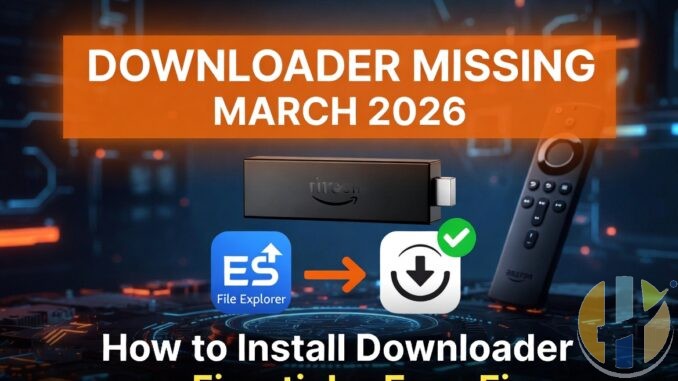
How to Install Downloader on Firestick When It’s Missing from the Appstore – Super Easy Guide (March 2026)
Updated: March 28, 2026
Is the **Downloader** app gone from your Firestick Appstore? Don’t worry — this happens sometimes. Amazon temporarily removed it in March 2026, but you can still get it back easily using a free app called **ES File Explorer** that is still in the store.
This guide is written for complete beginners. We will go super slow, step by step, like you have never used a Firestick before.
Step 1: Turn On Developer Options (Very Important!)
- From the Firestick home screen, look at the top and click the gear icon (Settings).
- Scroll down and click My Fire TV (it might say “Device” on some models).
- Click About.
- Find the line that shows your device name (example: “Fire TV Stick 4K”).
- Click on that device name 7 times quickly with the center button on your remote. You will see a message: “You are now a developer.”
- Go back one screen. You will now see Developer Options.
- Inside Developer Options, turn ON these two things:
- ADB Debugging
- Apps from Unknown Sources (or “Install unknown apps”)
- When it asks which app, allow it for ES File Explorer later.
Step 2: Install ES File Explorer (Still Available in the Store)
- Go back to the Firestick home screen.
- Click the Amazon Appstore icon (shopping bag or magnifying glass).
- In the search bar at the top, type ES File Explorer slowly using your remote.
- Find the free version by “ES Mobile” and click Install or Get.
- Wait until it says “Installed”.
Step 3: Download and Install Downloader Using ES File Explorer
- Open the **ES File Explorer** app you just installed.
- On the left side, look for the menu and click Tools (or tap the three lines if you don’t see it).
- Click Download Manager.
- At the bottom, click New or the + icon.
- In the big box labeled “Path” or “URL”, carefully type or copy this exact link:
www.husham.com/dwapk2 - (Optional) In the Name box, type “Downloader” so you remember what it is.
- Click Download.
- Wait until the download finishes (you will see a progress bar).
- After it downloads, go to the Download folder inside ES File Explorer.
- Find the file called **Downloader.apk** (or similar) and click on it.
- Click Install.
- Click Open or Done when it finishes.
Congratulations! Downloader is now installed. Open it and you can use your usual codes or URLs again.
Safety Tips (Please Read)
- Only use the link from Husham.com above — it is safe and verified.
- Do NOT install random apps from unknown websites.
- After you have Downloader working, you can delete ES File Explorer to save space if you want.
- If you already had Downloader before it disappeared, just leave it installed — it still works.
What Happens When Downloader Returns to the Store?
Amazon usually fixes this in a few days. Once it’s back, just search for “Downloader by AFTVnews” in the Appstore and install it the normal way.
Troubleshooting for Beginners
- Download fails? Make sure your Firestick is connected to Wi-Fi and has enough free space.
- Can’t find Developer Options? Repeat the 7-click step slowly.
- Install button is grayed out? Go back to Developer Options and allow unknown apps for ES File Explorer.
- Still stuck? Tell us your exact Firestick model in the comments (check in Settings → My Fire TV → About).
Related Articles
→ Best Working Downloader Codes 2026
→ How to Install Kodi on Firestick
→ Firestick 4K Max Setup Guide
Disclaimer: This is for educational purposes only. Always use legal apps and content. Husham.com does not provide or promote illegal streaming.
Did this simple guide help you? Leave a comment below and tell us which Firestick model you have! 👍


