Install KODI 18 Beta 1 with DRM APPS working
KODI 18 Beta 1 Finally surfaces with full updates. KODI is very late on the offical release in 2018, as the previous releases had always been for KODI to officially release on Feburary or March that same year. However in 2018 KODI team broke that rule, at the time of writing this article it is still August 2018 and we still have not heard of the KODI 19 projects yet, so this even makes it a mystory that not even the KODI official site has mentioned the KODI BETA 1 release.
Updates so far
- DRM Support and Apps
- Gaming (Games interface and Game Clients)
- Live TV and PVR (Personal Video Recorder)
- BSD Specific
- Linux Specific
- iOS Specific
- OS X Specific
- Windows Specific
Digital rights management (DRM)
Digital rights management (DRM) is a systematic approach to copyright protection for digital media. The purpose of DRM is to prevent unauthorized redistribution of digital media and restrict the ways consumers can copy content they've purchased. DRM products were developed in response to the rapid increase in online piracy of commercially marketed material, which proliferated through the widespread use of peer-to-peer file exchange programs. Typically DRM is implemented by embedding code that prevents copying, specifies a time period in which the content can be accessed or limits the number of devices the media can be installed on.
The use of digital rights management is not universally accepted. Proponents of DRM argue that it is necessary to prevent intellectual property from being copied freely, just as physical locks are needed to prevent personal property from being stolen,[3] that it can help the copyright holder maintain artistic control,[4] and that it can ensure continued revenue streams.[5] Those opposed to DRM contend there is no evidence that DRM helps prevent copyright infringement, arguing instead that it serves only to inconvenience legitimate customers, and that DRM helps big business stifle innovation and competition.[6] Furthermore, works can become permanently inaccessible if the DRM scheme changes or if the service is discontinued.[7] DRM can also restrict users from exercising their legal rights under the copyright law, such as backing up copies of CDs or DVDs (instead having to buy another copy, if it can still be purchased), lending materials out through a library, accessing works in the public domain, or using copyrighted materials for research and education under the fair use doctrine.[3] The Electronic Frontier Foundation (EFF) and the Free Software Foundation (FSF) consider the use of DRM systems to be an anti-competitive practice.[8][9]
DRM APPS Working so far are Netflix and Amazon Video
KODI 18 BETA 1 Download links
You can download KODI beta 1 from links below.
HOW TO INSTALL NETFLIX KODI 18 ADDON
Steps below is for users using the latest KODI 18 to install the Netflix ad-don.
Requirements
- A paid Netflix subscription
- Latest Kodi v18 Nightly
- Enable Inputstream addon
- Download widevine.dll and add it to the respective device folder
Download links
- Repo Download
github.com/kodinerds/repo/raw/ma…-1.0.1.zip - Github Source
github.com/asciidisco/plugin.video.netflix - Download widevine.dll for your respective device
- WINNT_32 redirector.gvt1.com/edgedl/widevine-cdm/970-win-ia32.zip
- WINNT_64 redirector.gvt1.com/edgedl/widevine-cdm/970-win-x64.zip
- Linux_x86 redirector.gvt1.com/edgedl/widevine-cdm/970-linux-x64.zip
- Darwin_x86 64 redirector.gvt1.com/edgedl/widevine-cdm/970-mac-x64.zip
- Linux_x86 redirector.gvt1.com/edgedl/widevine-cdm/970-linux-ia32.zip
Instructions

– Install the repository on your machine using Install from zip
– Enable Input Stream Add-on Add-ons >> Package icon >> My Add-ons >> Video Player Inputstream >> Inputstream Adaptive >> menu >> enable
– Install the addon from Addons >> Package icon >> Install from repository >> netflix repository >> video Ads-ons >> Netflix Add-on
– Configure the netflix Add-on with your Login details for netflix
– Copy your Netflix ESN id (android settings >> about) to the Add-on settings (expert >> ESN). Yes its really, really long!!
– Restart Kodi IMPORTANT!!

Windows (64bit)
– Download the appropriate widevine dll from here
– Copy the widevinecdm.dll >> [user]/AppData/Roaming/Kodi/cdm/
– Install the repository on your machine using Install from zip
– Install the addon from Addons >> Package icon >> Install from repository >> netflix repository >> video Ads-ons >> Netflix Add-on
– Configure the netflix Add-on with your Login details for netflix
Adding Netflix items to your library
1) When you find a movie or Tv show you want to add to your Kodi library, press ‘C' to enable the context menu, then select the ‘export to library' option.
2) By default, the Netflix addon exports items to the following path on Windows and will create separate folders at this location for movies and Tv shows:-
C:\Users\My Pc's Name\AppData\Roaming\Kodi\userdata\addon_data\plugin.video.netflix (You can obviously choose a different path if you prefer).
3) Create a new Video path for your Netflix Movie and Tv shows folders by clicking on ‘Videos' on your main home menu, then ‘Files', then ‘Add Videos'
5) Navigate and select the path of your Netflix Movie and TV show folders, as detailed in step 2
6) Once your path has been added, highlight it, then press ‘C' to enable the context menu and select the ‘Scan For New Content' option. Once done, your Netflix items will now appear in your Kodi library….
Amazon Instant Video Addon for Kodi 18
This Addon supports DE/JP/UK/US Amazon accounts, and since version 0.5.0 all the countries where Amazon's PrimeVideo is available in.
Features
- access and edit Amazons Watch list and Video Library (currently not available for primevideo)
- export Movies, TV Shows to Kodi Library
- loads Covers and Fanart from TMDB/TVDB
Setup instructions
- Download Repo and add it to Kodi
- via Addon
- Browser
- Install from ZIP
- via Addon
- Install Amazon VOD Addon from Sandmann79's Repository
- at Settings > General you have to choose one of the following Playback Method:
Change settings to play from KODI
In order to have the stream play in KODI 18 change the playback to Input Stream
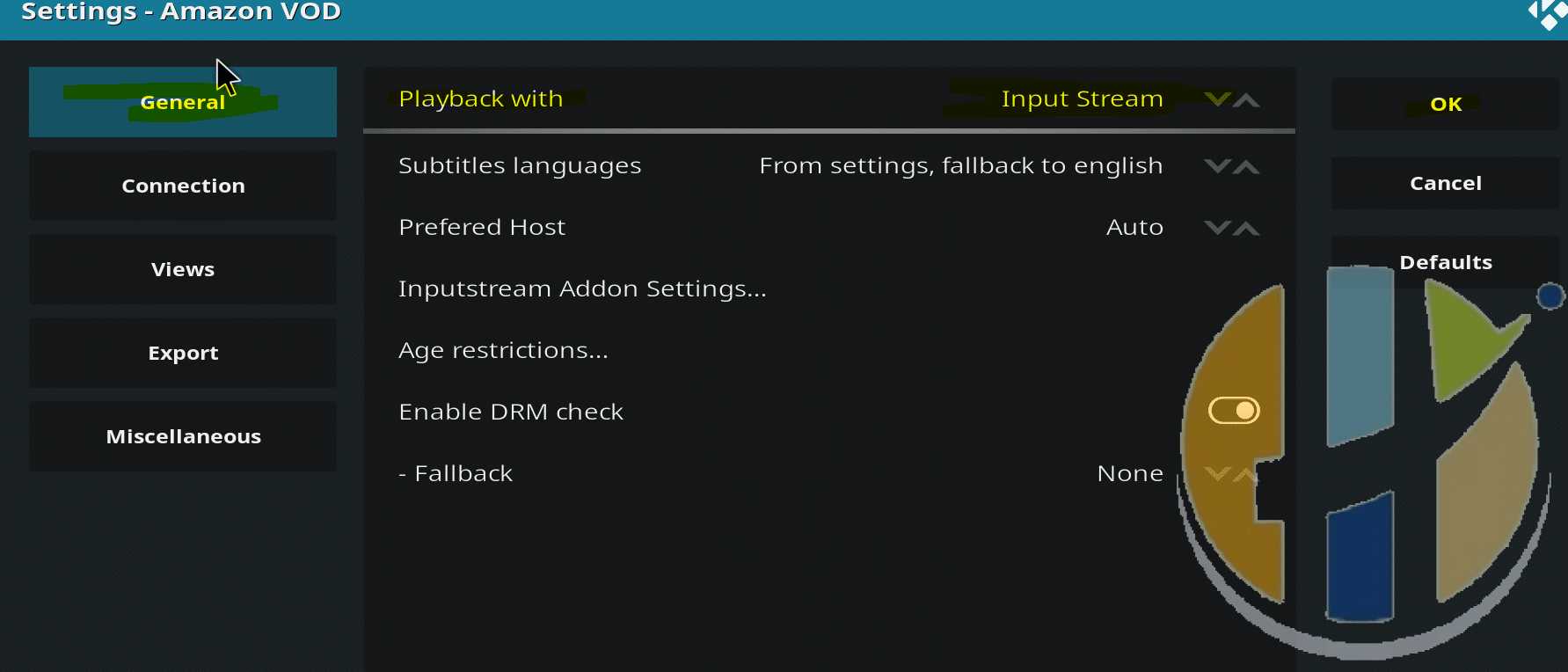
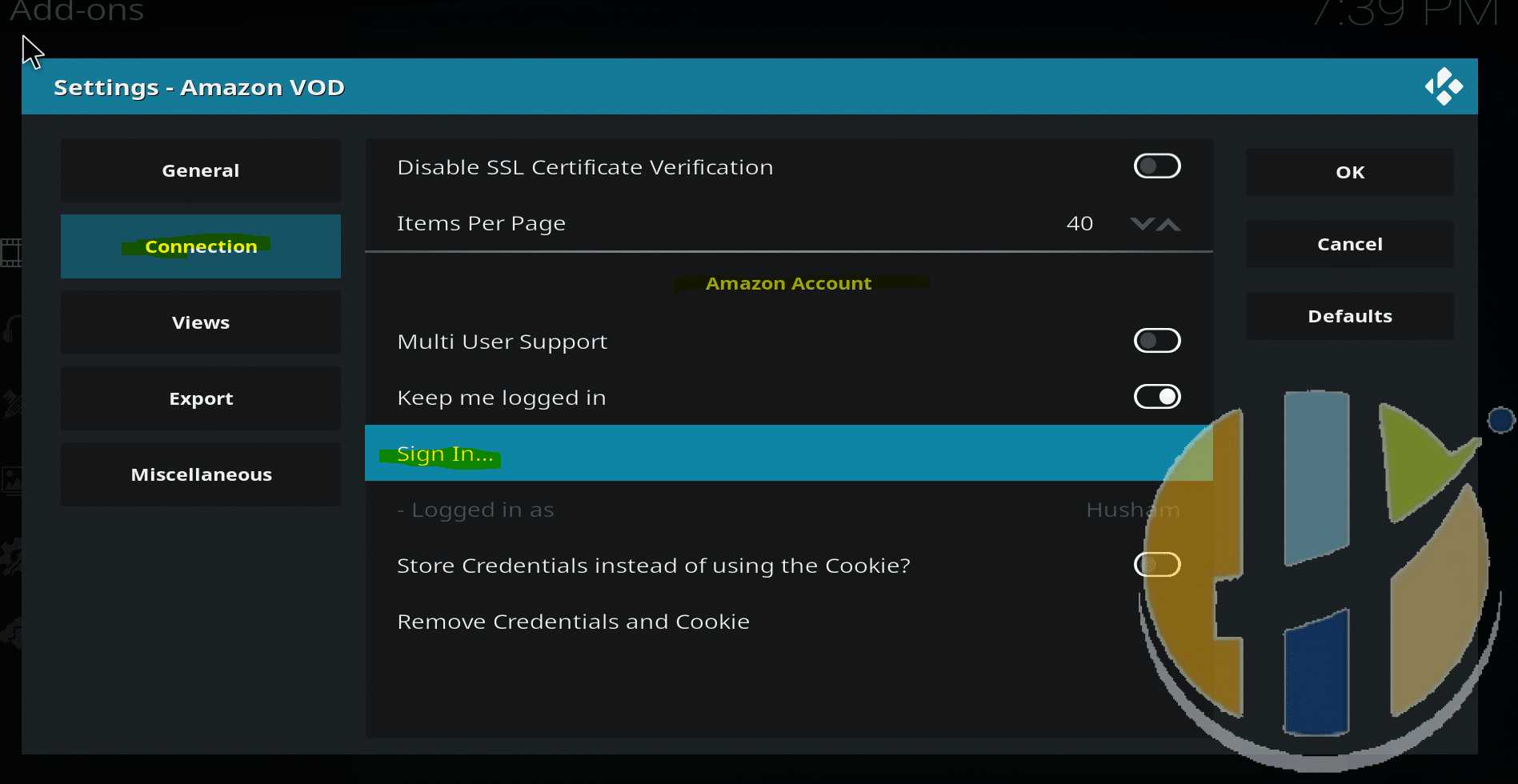
Then Make sure you login to the Amazon video with your user name and password
For More information visit Sandmann GithubÂ